What 'admin account' actually means and why you should not use one daily
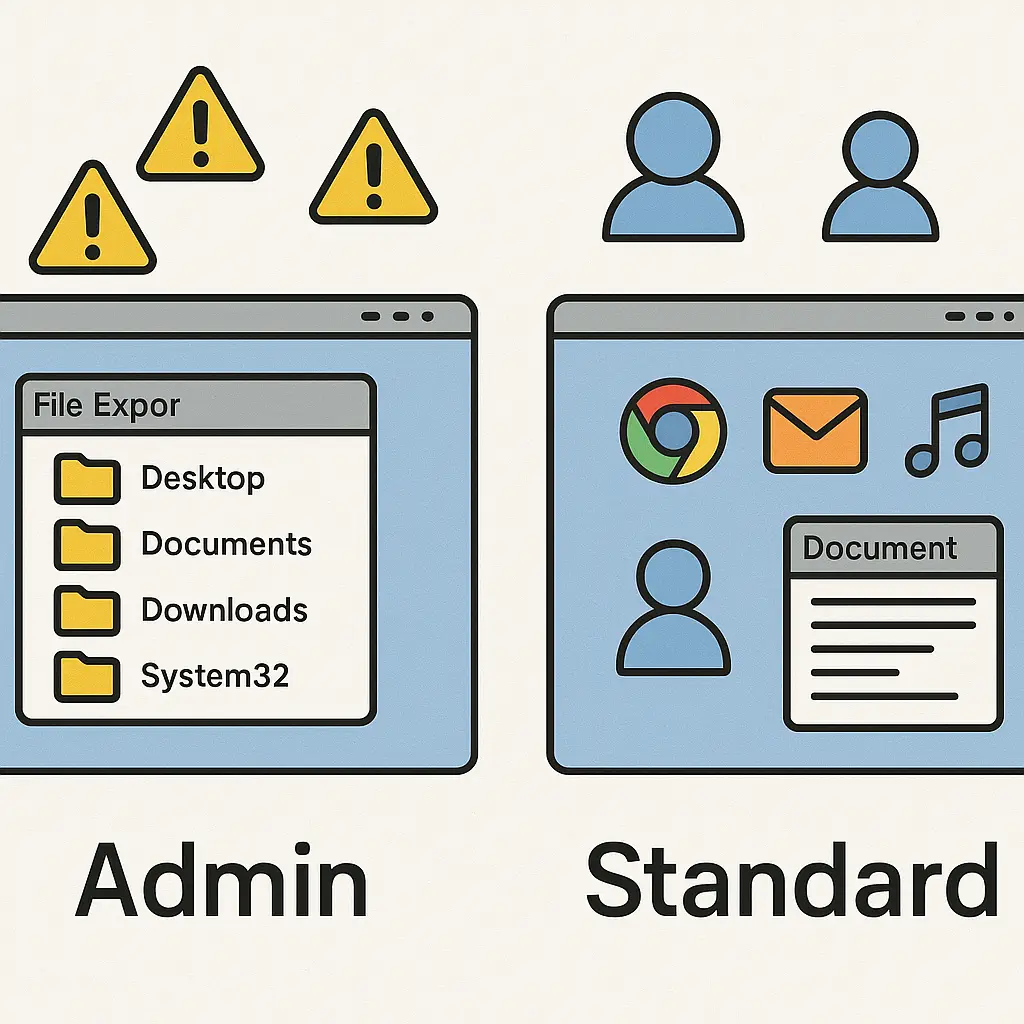
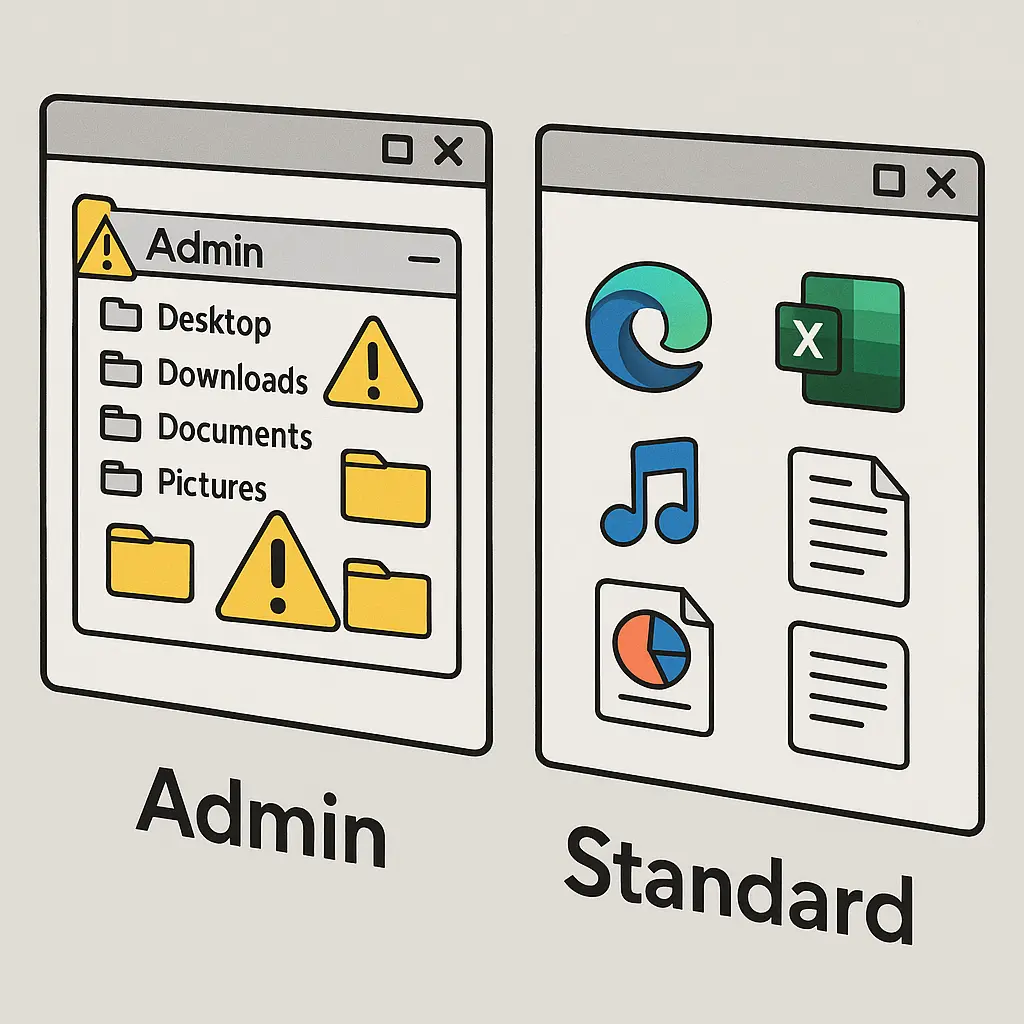
An admin account is a user account with unrestricted access to your computer's system files, settings, and core functions. It can install software, modify security configurations, delete protected files, and change settings that affect every other account on the machine. When you work from an admin account, every program you run inherits those same permissions. That includes malware.
Most people use admin accounts daily because that's how computers ship from the factory. You unbox a new laptop, create your first account during setup, and that account becomes the administrator by default. The operating system never suggests creating a second, less powerful account for routine work. The path of least resistance is to keep using the admin account for everything, email, web browsing, document editing, streaming video. This is a mistake.
The danger isn't theoretical. Malware that infects a standard user account can steal your files, log your keystrokes, and exfiltrate your data. Malware that infects an admin account can do all of that plus modify system files, disable security software, install rootkits that survive reboots, and create persistent backdoors that remain hidden for months. The difference is containment. Standard accounts limit damage. Admin accounts give attackers the keys to the entire system.
Here's how the underlying mechanism works, what makes admin accounts different from standard accounts, and the practical steps to set up a safer workflow without sacrificing usability.
The permission model behind admin and standard accounts
Every file, folder, and system setting on your computer has an access control list that determines who can read, modify, or execute it. When you launch an application, it runs with the permissions of the account that started it. If you're logged into an admin account, every program you open runs with admin privileges. If you're logged into a standard account, programs run with restricted privileges unless you explicitly elevate them.
Windows and macOS implement this through user account types. An admin account belongs to the administrators group, which grants full control over system directories, registry keys (on Windows), and protected configuration files. A standard account belongs to the users group, which can access personal files and run installed applications but cannot modify system-level resources without permission.
The operating system enforces these restrictions through the kernel. When a program attempts an action that requires admin rights, installing software, modifying firewall rules, changing security settings, the kernel checks the user's group membership. If the account lacks admin privileges, the system blocks the action and displays a prompt asking for admin credentials. Enter the correct password, and the system temporarily elevates permissions for that specific task. Once the task completes, permissions drop back to standard.
This elevation model is called User Account Control (UAC) on Windows and privilege separation on macOS. Both systems work the same way: standard accounts run with limited permissions by default, and admin credentials unlock system-level changes only when explicitly requested. The key difference is frequency. If you're logged into an admin account, many actions bypass the prompt entirely because the account already has permission. If you're logged into a standard account, the prompt appears every time you attempt something that touches system files.
That prompt is the defense mechanism. It forces you to make a conscious decision before granting elevated access. It interrupts automatic workflows. It creates friction between routine tasks and system-level changes. That friction is the point.
What malware can do with admin access versus standard access
Malware that runs under a standard account can access everything the user can access: documents, photos, browser history, saved passwords, email, and application data. It can log keystrokes, capture screenshots, record audio, and exfiltrate files to a remote server. It can encrypt your personal data and demand ransom. These are serious threats, and they don't require admin privileges.
But malware running under an admin account can do more. It can modify the operating system itself. It can disable antivirus software by terminating processes, deleting files, or altering registry keys that control security settings. It can install kernel-level rootkits that hide from detection tools. It can modify boot files to ensure the malware loads before the operating system fully starts. It can create new admin accounts, change system passwords, and lock you out of your own computer. It can install persistent backdoors that survive system restores and antivirus scans.
The difference is persistence and control. Standard-account malware can steal your data, but removing it is straightforward: run a malware scanner, delete infected files, and change your passwords. Admin-level malware can embed itself so deeply that removal requires reinstalling the operating system from scratch. Some rootkits survive even that, requiring firmware updates or hardware replacement.
This isn't speculation. Researchers have documented malware families that check for admin privileges immediately after infection. If the malware detects it's running under a standard account, it attempts privilege escalation through known vulnerabilities or social engineering. If escalation fails, the malware operates within standard-account constraints. If escalation succeeds, or if the user was already running as admin, the malware installs itself at the system level and becomes exponentially harder to remove.
The CISA malware analysis reports document this pattern repeatedly. Attackers prioritize admin access because it unlocks capabilities that standard accounts block. The longer you run as admin, the wider the window for that escalation.
Why computers ship with admin accounts by default
If admin accounts are dangerous, why do manufacturers configure them as the default? Because usability and security pull in opposite directions, and manufacturers optimize for the former.
When you unbox a new computer, the setup process asks for a username and password. That first account becomes the administrator because someone needs admin rights to install software, configure hardware, and set up the system for daily use. If the first account were a standard account, you'd immediately hit roadblocks: you couldn't install your preferred browser, connect a printer, or adjust system settings. The out-of-box experience would feel broken.
Manufacturers assume that most users will never create a second account. They assume you'll use the admin account for everything because switching accounts mid-workflow feels cumbersome. They assume that the convenience of unrestricted access outweighs the security risk of running as admin daily. For many users, that assumption holds. They install software infrequently, rarely modify system settings, and never think about permission levels. The admin account works fine until it doesn't.
The problem is that "until it doesn't" moment is catastrophic. A single malicious email attachment, a compromised website, or a fake software update can turn an admin account into a foothold for attackers. The damage compounds because the malware runs with the same unrestricted access you use every day.
Operating systems have tried to mitigate this through UAC and privilege separation, which add prompts before system-level changes. But prompts don't stop you from clicking "Yes" reflexively. They don't prevent malware from exploiting zero-day vulnerabilities that bypass UAC entirely. They don't address the fundamental issue: if you're logged into an admin account, every program you run starts with admin privileges by default.
The solution isn't better prompts. The solution is not running as admin in the first place.
The practical workflow: admin account for setup, standard account for daily use
Here's the model that works: create two accounts. Use the admin account only for tasks that require system-level access, installing software, updating drivers, changing security settings. Use a standard account for everything else, web browsing, email, document editing, streaming, gaming. Log into the standard account by default. Elevate to admin only when necessary.
This separation creates a barrier between routine work and system changes. Malware that infects your standard account cannot modify system files, disable antivirus, or install persistent backdoors without your explicit permission. If a malicious program attempts a system-level change, the operating system prompts you for admin credentials. That prompt is your warning. If you didn't initiate the action, don't enter the password.
The workflow looks like this: You log into your standard account in the morning. You check email, browse the web, edit documents, and run applications. Everything works normally because standard accounts have full access to user-installed software and personal files. Later, you need to install a new application. The installer prompts for admin credentials. You enter the admin username and password, the installation completes, and the system drops back to standard permissions. You never logged out of your standard account. You never switched users. You elevated privileges for one specific task, then returned to restricted access automatically.
This is how corporate IT departments configure workstations. Employees receive standard accounts. IT staff hold admin credentials. When employees need software installed or settings changed, they contact IT, who enters the admin password and completes the task. The employee never gains admin access. This model works because it assumes users cannot be trusted with unrestricted system control, not because users are malicious, but because users are human. They click links, download attachments, and install software without scrutinizing every detail. Standard accounts contain the damage when those actions go wrong.
You can implement the same model on your personal computer. The setup takes around ten minutes. The ongoing friction is minimal. The security benefit is substantial.
How to set up admin and standard accounts on Windows
If you're currently using an admin account on Windows, here's the step-by-step process to create a standard account and transition your daily workflow.
First, create a new admin account to replace your current one. Open Settings > Accounts > Family & other users. Click "Add someone else to this PC." Follow the prompts to create a new local account. Once created, click the new account name, select "Change account type," and set it to Administrator. This becomes your dedicated admin account. Choose a strong, unique password and store it in your password manager.
Next, convert your current account to a standard account. Log out of your current account and log into the new admin account you just created. Open Settings > Accounts > Family & other users. Find your original account in the list, click it, select "Change account type," and change it from Administrator to Standard User. Log out of the admin account and log back into your now-standard original account.
Your files, settings, and installed applications remain unchanged. The only difference is permission level. When you attempt a system-level task, installing software, changing firewall settings, modifying startup programs, Windows displays a UAC prompt asking for admin credentials. Enter the username and password for the admin account you created earlier. The task completes, and you return to standard permissions immediately.
If you prefer, you can create an entirely new standard account instead of converting your existing one. This approach keeps your current admin account intact as a backup but requires migrating files and settings to the new standard account. The choice depends on whether you want a clean break or a seamless transition. Both methods achieve the same security outcome.
How to set up admin and standard accounts on macOS
macOS handles account types similarly to Windows but with slightly different terminology. Admin accounts belong to the "admin" group. Standard accounts belong to the "standard" group. The setup process is nearly identical.
If you're currently using an admin account, create a new admin account first. Open System Settings > Users & Groups. Click the lock icon to make changes, then click "Add Account." Choose "Administrator" as the account type, enter a username and password, and create the account. This becomes your dedicated admin account.
Next, convert your current account to a standard account. Log out and log into the new admin account. Open System Settings > Users & Groups. Find your original account, click it, and change the account type from Administrator to Standard. Log out of the admin account and log back into your now-standard original account.
When you attempt a task that requires admin privileges, installing an application from outside the App Store, modifying system preferences, changing security settings, macOS prompts you for an admin username and password. Enter the credentials for the admin account, complete the task, and the system drops back to standard permissions.
macOS also supports the "sudo" command in Terminal, which temporarily elevates privileges for command-line tasks. This is the same elevation model, just accessed differently. If you use Terminal regularly, you'll need to enter admin credentials when running commands that modify system files.
What tasks actually require admin access
Most daily computer use does not require admin privileges. Web browsing, email, document editing, photo management, video streaming, and running installed applications all work under a standard account. You only need admin access for tasks that modify the system itself.
Here's what requires admin privileges on both Windows and macOS: installing software that places files in system directories, uninstalling software, updating the operating system, changing security settings (firewall, antivirus, encryption), modifying user accounts, installing hardware drivers, changing startup programs, and accessing protected system folders.
Here's what doesn't require admin privileges: running installed applications, creating and editing documents, browsing the web, checking email, managing personal files in your user directory, installing software that runs entirely within your user folder (some portable apps and web-based tools), and most application updates that don't touch system files.
The boundary isn't always obvious. Some applications install themselves in your user directory and run without admin access. Others require system-level installation and prompt for credentials. The operating system enforces the distinction automatically. If an action requires admin access, the system prompts you. If it doesn't prompt, the action runs under standard permissions.
Over time, you'll develop an intuition for what requires elevation. Installing a new browser? Admin. Opening that browser? Standard. Updating the browser? Admin. Installing a browser extension? Standard. The pattern is consistent: changes to the system require admin access; changes within applications do not.
The argument against this workflow and why it's wrong
The most common objection to using a standard account daily is convenience. Entering admin credentials every time you install software or change a setting feels like friction. It interrupts the flow of work. It requires remembering a second password. It adds steps to tasks that used to be automatic.
This objection is real, but it misses the point. The friction is the feature, not the bug. Every time the system prompts you for admin credentials, it's forcing you to pause and consider whether the action is legitimate. Did you initiate this installation? Do you trust the source? Is this software something you actually need? The prompt is a checkpoint. It creates space between impulse and execution.
In practice, the friction is minimal. Most people install software infrequently, maybe once a week, maybe once a month. Most system changes happen during setup and then rarely again. The daily workflow, browsing, email, documents, media, runs entirely under standard permissions without interruption. The credential prompt appears only when you're doing something that actually requires system-level access.
Compare this to the alternative: running as admin daily means every program you launch inherits unrestricted system access. Malware doesn't need to prompt you for credentials because it already has them. It doesn't need to exploit vulnerabilities to gain admin access because you gave it admin access by default. The convenience of never seeing a UAC prompt is the same convenience that lets attackers install rootkits without resistance.
Security and convenience trade off, but the tradeoff here is asymmetric. The inconvenience of entering a password a few times a month is trivial. The consequence of running as admin when malware executes is catastrophic.
The one exception: single-user systems where you are the only admin
If you're the only person who uses your computer and you're the only admin account on the system, you might wonder whether this advice applies. After all, you're not protecting against other users, you're protecting against malware. Does the standard-account model still matter?
Yes. The threat model is malware running under your credentials, not another person logging into your account. When malware infects a standard account, it operates within the constraints of that account. It cannot modify system files, disable antivirus, or install persistent backdoors without exploiting a separate vulnerability or tricking you into elevating privileges. When malware infects an admin account, it operates without constraints. The account type determines what the malware can do, regardless of whether other users exist on the system.
The single-user exception is a misunderstanding of what standard accounts protect. They don't protect your files from other people. They protect your system from malicious code running under your own credentials. That protection applies whether you share the computer or use it alone.
The cultural reference that fits: Gandalf at the gates of Moria
In The Fellowship of the Ring, Gandalf stands before the Doors of Durin and speaks the password aloud: "Mellon." The doors swing open, revealing the path into Moria. The password isn't a secret, it's written on the door in Elvish, visible to anyone who can read the language. The security mechanism isn't the obscurity of the password. It's the requirement that someone must speak it deliberately, creating a moment of decision before entry.
Admin accounts work the same way. The password isn't the protection. The prompt is the protection. It forces you to stop, consider the action, and make a conscious choice. Running as admin daily is like propping the doors of Moria open permanently. You eliminate the checkpoint. You remove the moment of decision. You let anything walk through without pause.
The standard-account model restores the checkpoint. It doesn't make your system impenetrable, no security measure does. But it ensures that every system-level change requires a deliberate act, not an automatic one. Malware doesn't get to walk through the door just because it's open. It has to ask. And when it asks, you get to say no.
What this workflow doesn't protect against
Standard accounts limit what malware can do, but they don't prevent infection. They don't stop phishing emails from stealing your credentials. They don't block ransomware from encrypting your personal files. They don't prevent keyloggers from recording your passwords. They don't detect zero-day exploits that bypass UAC entirely.
Standard accounts are one layer in a defense-in-depth strategy. They contain damage. They reduce the blast radius. They make cleanup easier. But they don't eliminate risk. You still need antivirus software, regular backups, software updates, and skepticism about unexpected emails. You still need to verify the legitimacy of software before installing it. You still need to use strong, unique passwords and enable two-factor authentication on critical accounts.
The standard-account model is effective because it's automatic. Once configured, it enforces restrictions without requiring ongoing effort. But it's not a substitute for judgment. If you habitually enter admin credentials whenever prompted without reading the prompt, you've defeated the purpose. The system can only protect you if you use the checkpoints it creates.
The long-term habit: treating admin access as temporary elevation
The goal is to internalize this model: admin access is something you elevate into temporarily, not something you live in daily. You start from a position of restricted permissions. When you need to perform a system-level task, you elevate, complete the task, and drop back to standard permissions immediately. The elevation is the exception, not the default.
This is how professional system administrators work. It's how corporate IT departments configure workstations. It's how security-conscious individuals protect personal computers. It's the difference between running with unrestricted access all the time and running with unrestricted access only when necessary.
The habit takes around two weeks to form. At first, the UAC prompts feel intrusive. You'll wonder whether you configured something wrong. You'll be tempted to convert your account back to admin just to avoid the friction. Don't. After two weeks, the prompts become routine. You'll recognize which tasks require elevation and which don't. You'll enter admin credentials without thinking about it. The workflow will feel normal.
And when malware tries to install itself, modify your firewall, or disable your antivirus, the system will prompt you for admin credentials. You'll see the prompt. You'll recognize that you didn't initiate the action. And you'll click "No." That's the defense working as designed.