Secure Your Home Office: The Remote Worker's Step-by-Step Security Setup
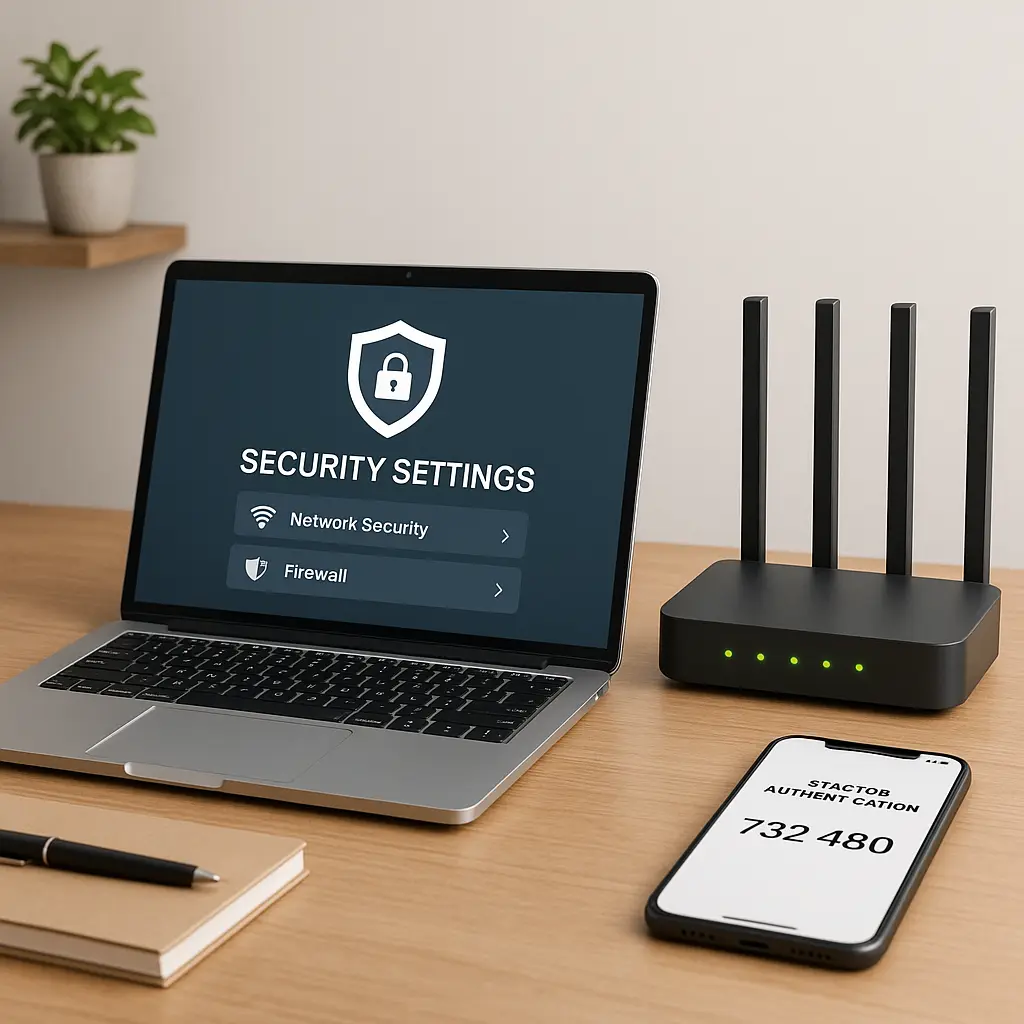
You work from home now. Maybe you started during the pandemic and never went back. Maybe your company closed the office. Maybe you're freelancing, consulting, or running a one-person business from your kitchen table.
The shift happened fast. The security conversation didn't keep up.
Your employer might have handed you a laptop and a VPN login. They might have sent you a PDF about password hygiene. They might have said nothing at all. Either way, you're responsible for protecting company data, client information, and your own accounts from a home network that was never designed for this.
Here's the step-by-step setup that actually works for remote workers. No enterprise IT staff required. No expensive tools. Just the practical security configuration that closes the gaps attackers exploit when you work from home.
Start With Your Network
Your home WiFi is the foundation. Everything you do for work flows through it. If your router is misconfigured, every other security measure sits on shaky ground.
Log into your router's admin panel. The address is usually printed on the router itself or in the manual, commonly 192.168.1.1 or 192.168.0.1. You'll need the admin username and password. If you've never changed these from the defaults, do that first. Attackers know the default credentials for every router model. Leaving them unchanged is like leaving your front door unlocked.
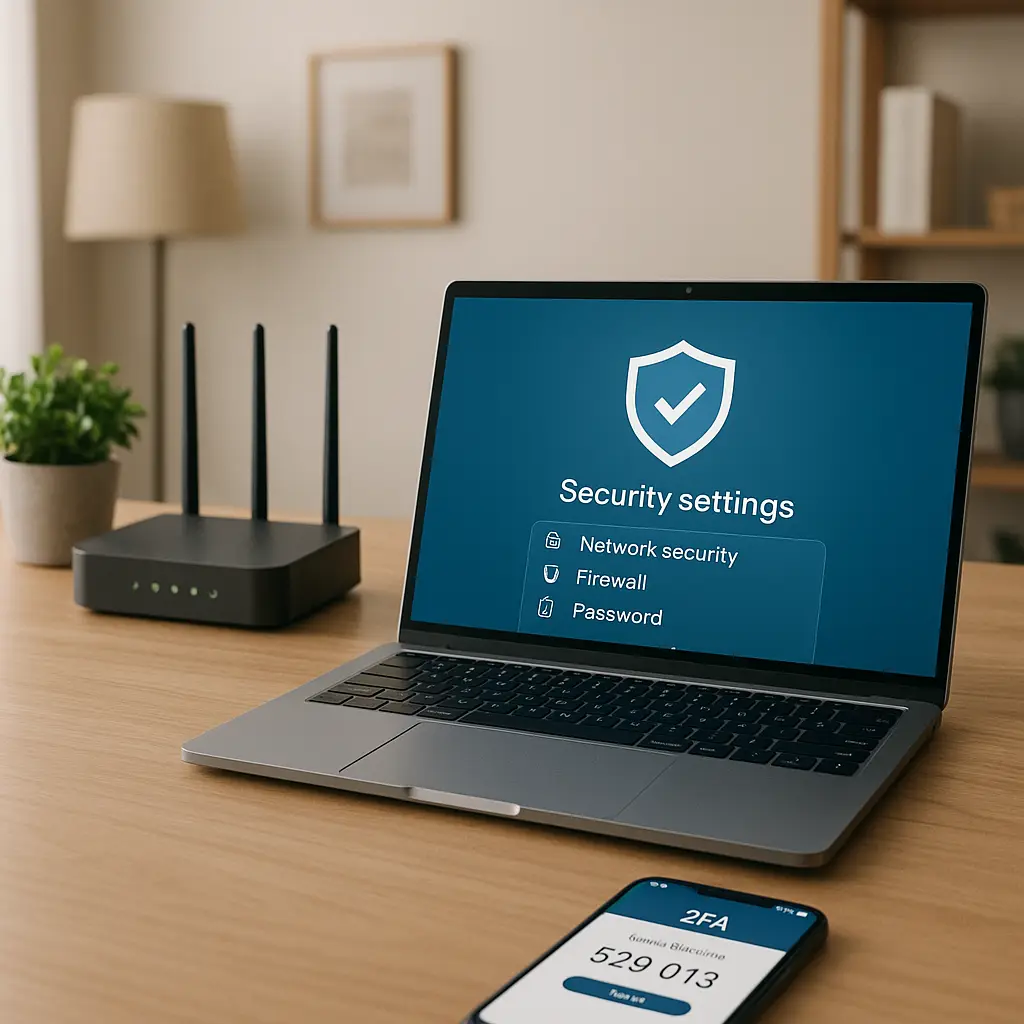
Check your WiFi encryption. Open your router's wireless settings and look for the security mode. You want WPA3 if your router supports it. WPA2 is acceptable. Anything older, WPA, WEP, or "open", is not secure enough for work. If your router only supports outdated encryption, replace it. A modern router costs around $100 and protects everything on your network.
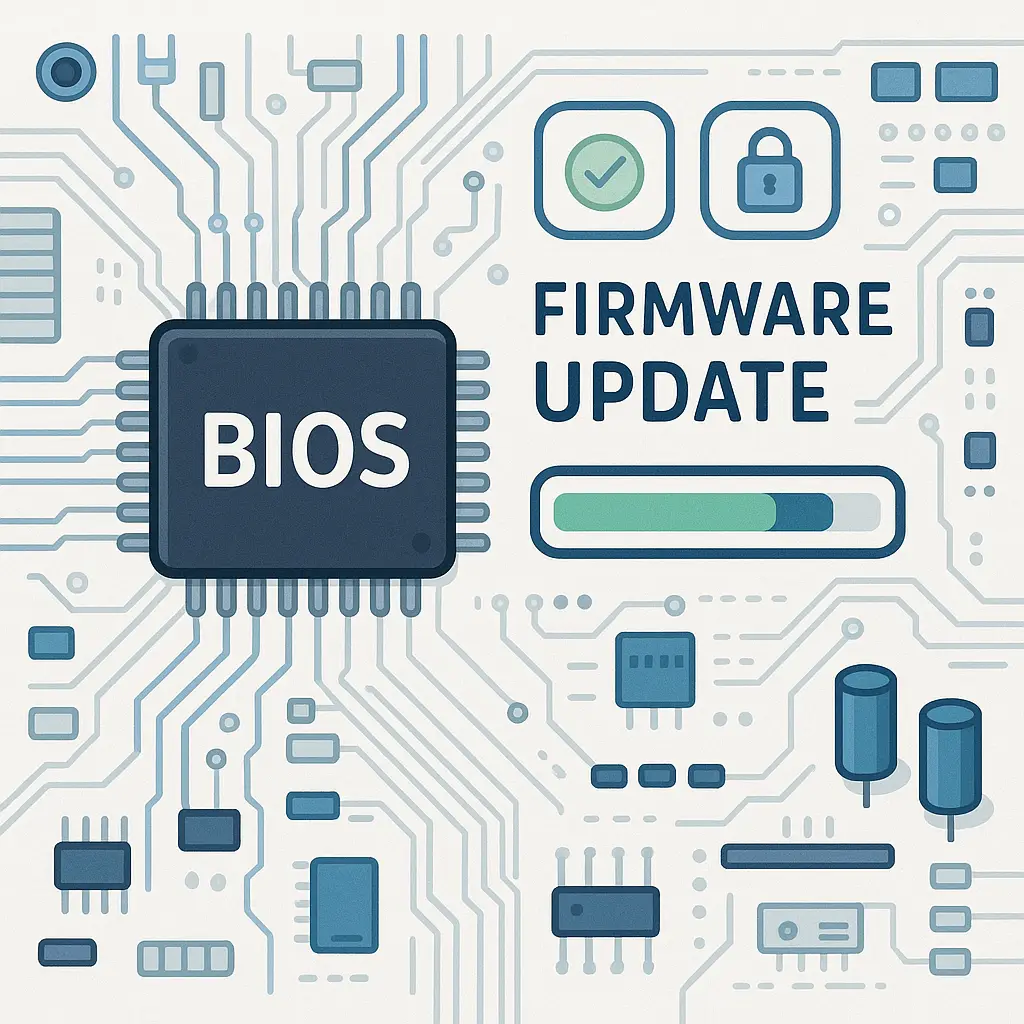
Update your router's firmware. Manufacturers release updates to patch vulnerabilities, but routers don't update automatically by default. Look for a firmware section in your admin panel and check for updates. Some newer models offer automatic updates, enable that if it's available. CISA recommends keeping network devices updated as a core defense against remote exploitation.
Change your WiFi network name and password. The default network name often reveals your router's make and model, which tells attackers exactly which vulnerabilities to target. Pick a name that doesn't identify you or your address. Use a strong, unique password, at least 16 characters, mixing letters, numbers, and symbols. This is separate from your router's admin password. Both matter.
Disable WPS (WiFi Protected Setup) if your router has it. WPS was designed for convenience but creates a security weakness that attackers can exploit to bypass your WiFi password. The feature is usually in your router's wireless settings. Turn it off.
Consider creating a guest network for personal devices. Many routers let you run two separate WiFi networks. Use the main network for work devices only. Put your smart TV, gaming console, and personal phone on the guest network. This limits what an attacker can reach if one device gets compromised. It's not perfect isolation, but it's better than mixing everything together.
Lock Down Your Work Devices
Your laptop or desktop is the next layer. If someone gains access to your device, they gain access to everything you touch for work.
Enable full-disk encryption. Windows calls this BitLocker. macOS calls it FileVault. Both encrypt everything on your hard drive so that if your laptop is stolen, the data stays unreadable without your password. On Windows, search for "BitLocker" in settings. On Mac, open System Preferences, go to Security & Privacy, and click the FileVault tab. Turn it on. Write down your recovery key and store it somewhere separate from your laptop.
Set a strong password for your device login. Not a PIN. Not a four-digit code. A real password. If someone steals your laptop, this is the first barrier. Make it count. Use a passphrase, four or five random words strung together, or a long string of characters. EFF's guidance on creating strong passwords walks through methods that balance security and memorability.
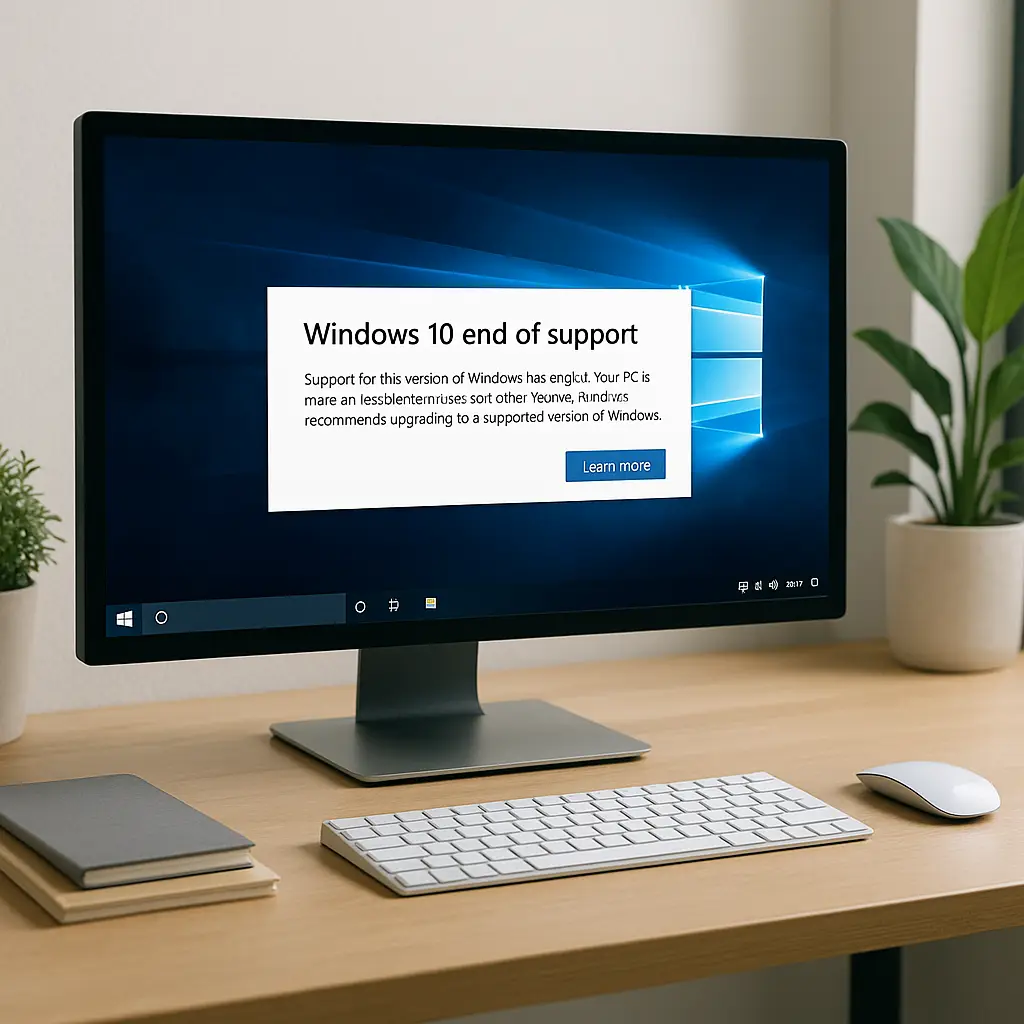
Enable automatic updates. Windows, macOS, and Linux all release security patches regularly. Attackers exploit unpatched systems. Set your OS to install updates automatically. Yes, updates occasionally cause problems. The risk of running outdated software is worse.
Turn on your firewall. Both Windows and macOS include built-in firewalls. They should be on by default, but check anyway. On Windows, search for "Windows Security" and click "Firewall & network protection." On Mac, open System Preferences, go to Security & Privacy, and click the Firewall tab. If it's off, turn it on.
Install antivirus software if you're on Windows. macOS has built-in protections that are generally sufficient, but Windows benefits from additional scanning. Windows Defender is free and effective. Third-party options like Bitdefender or Malwarebytes add features like web protection and ransomware blocking. Pick one. Keep it updated.
Review your browser extensions. Extensions can access everything you do in your browser, every password you type, every document you open, every email you send. Open your browser's extension settings and remove anything you don't actively use. For the extensions you keep, check their permissions. If an extension asks for more access than it needs to function, remove it.
Use a password manager. You need unique passwords for every work account. You can't remember them all. A password manager generates strong passwords, stores them encrypted, and fills them automatically. NordPass and similar tools sync across devices and integrate with browsers. Set it up once. Use it everywhere.
Enable two-factor authentication on every work account that supports it. Email, Slack, project management tools, file storage, customer databases, all of it. Two-factor authentication blocks attackers even if they steal your password. CISA's multifactor authentication guidance explains why this matters and how to set it up. Use an authenticator app like Authy or the one built into your password manager. Avoid SMS codes when possible, they're better than nothing but weaker than app-based codes.
Separate Work and Personal
Mixing work and personal creates security gaps, privacy risks, and liability confusion. The boundaries matter.
If your employer provided a work laptop, use only that laptop for work. Don't check personal email on it. Don't browse personal social media. Don't save personal photos. The device belongs to your employer. They can monitor it, wipe it, or reclaim it. Treat it like you're sitting in an office, because legally and technically, you are.
If you're using your own device for work, create separate user accounts. One for work, one for personal. Log into the work account only when you're working. This keeps work data separate from personal files and limits what your employer can access if they require remote management software.
Never save work passwords in your personal browser or personal passwords in your work browser. Use your password manager to keep them isolated. If your employer requires specific tools or policies, follow them. If they don't, assume they might someday ask to audit your work device. Keep it clean.
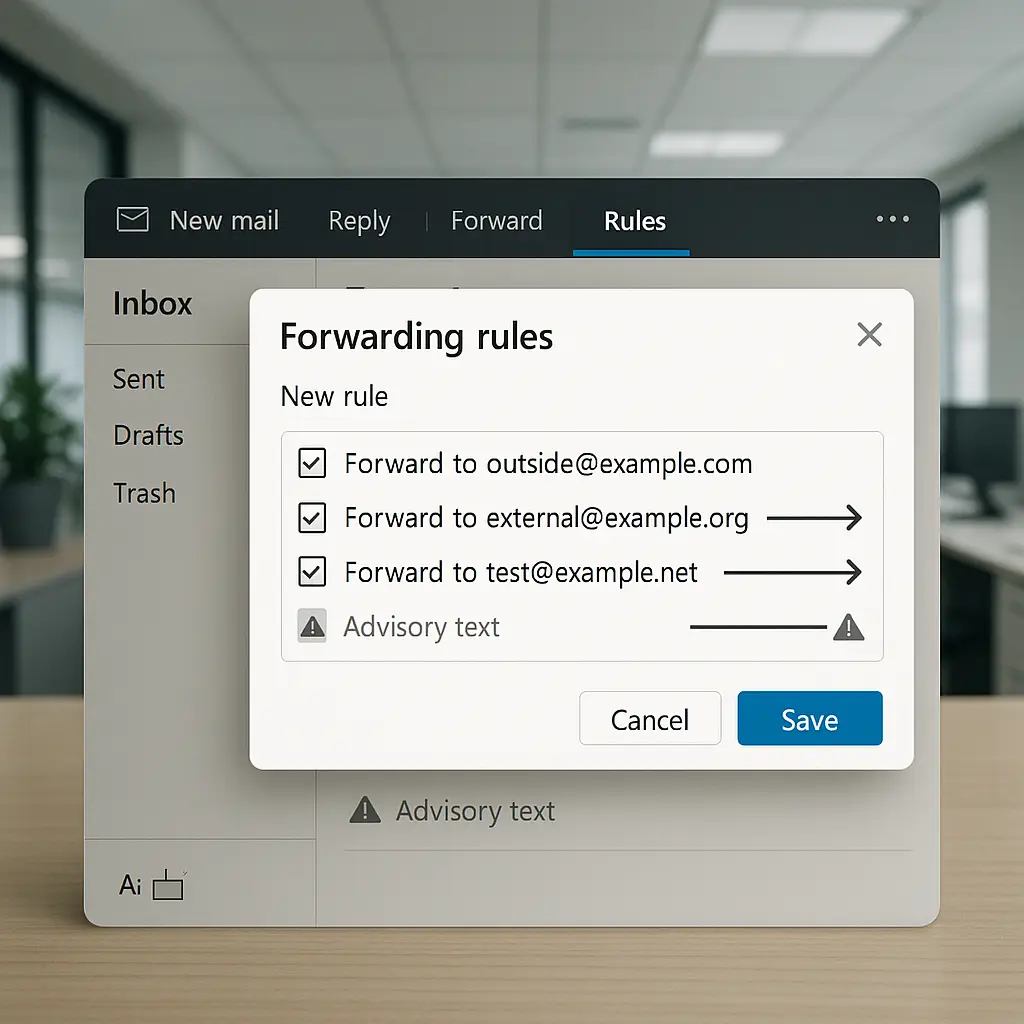
Don't forward work email to your personal account. It feels convenient. It's a security and legal risk. Work email often contains confidential information, client data, or proprietary details. Forwarding it to a personal account you control after you leave the company creates liability. Use your work email for work. Use your personal email for everything else.
Be careful with cloud storage. If you're saving work files to Dropbox, Google Drive, or OneDrive, make sure you're using a work account, not your personal account. If your employer provides cloud storage, use that. If they don't, ask before you start saving company data to a third-party service. Some industries have regulations about where data can live.
Protect Your Accounts
Account security isn't just about passwords. It's about recovery, monitoring, and knowing what's connected.
Set up account recovery options for your work email. Add a recovery phone number and a backup email address. If you get locked out, these are your way back in. Make sure they're current. A recovery email that forwards to an address you haven't checked in three years won't help.
Review connected devices and active sessions. Most services let you see where you're logged in. Google calls this "Your devices." Microsoft calls it "Account activity." Check it monthly. If you see a login from a location you don't recognize or a device you don't own, revoke access immediately and change your password.
Enable login alerts. Google, Microsoft, and many other services can notify you when someone logs into your account from a new device or location. Turn this on. It's an early warning system.
Audit third-party app access. Apps you connected years ago might still have access to your email, calendar, or files. Open your account settings and look for "Connected apps" or "Third-party access." Revoke anything you don't recognize or no longer use. Every connected app is a potential entry point.
Use a separate email address for work-related signups. If you're signing up for tools, newsletters, or services related to your job, don't use your primary work email. Create a secondary work address or use an alias. This limits exposure if one service gets breached and keeps your primary inbox cleaner.
Secure Your Communications
Email, chat, and video calls are where most work happens. They're also where most attacks start.
Verify requests before you act. If you get an email asking you to wire money, change a bank account, reset a password, or share sensitive data, verify it through a separate channel. Call the person. Send them a text. Don't reply to the email. Attackers impersonate executives, coworkers, and vendors. The requests look real. The consequences are real. Verify first.
Don't click links in unexpected emails. If you get an email from your bank, your payroll provider, or a client with a link you weren't expecting, don't click it. Open a browser, type the URL yourself, and log in directly. Phishing emails use urgency and fear to bypass your judgment. Slow down.
Be cautious with attachments. If you get an attachment you weren't expecting, verify it before you open it. Malware spreads through Word docs, PDFs, and ZIP files that look legitimate. If you're not sure, ask the sender through a different method.
Use encrypted messaging for sensitive conversations. If you're discussing confidential business details, client information, or anything you wouldn't want leaked, use a tool with end-to-end encryption. Signal is the most secure option. WhatsApp works if your team is already using it. Standard SMS is not encrypted. EFF's Surveillance Self-Defense guide covers encrypted messaging in detail.
Turn on waiting rooms for video calls. Zoom, Teams, and most video platforms let you control who joins your meetings. Use waiting rooms to screen participants before they enter. This stops random people from crashing your calls and prevents accidental leaks when someone shares a meeting link publicly.
Handle Video Calls Carefully
Video calls are now a routine part of work. They also create new risks.
Be aware of what's visible behind you. Your background reveals where you live, what you own, and sometimes sensitive information you didn't mean to share. Use a virtual background or position your camera to show a blank wall. Don't let your work calls become a tour of your home.
Mute your microphone when you're not speaking. This isn't just etiquette. It prevents accidental leaks of private conversations, phone calls, or background noise that reveals information you didn't intend to share.
Turn off your camera when you're not actively participating. This conserves bandwidth, reduces fatigue, and limits what others can see. If your company culture expects cameras on, follow that norm. But if it's optional, turning it off is fine.
Don't record calls without consent. Some states require all-party consent for recording. Even in states that don't, recording without telling people creates legal and ethical problems. If you need to record, announce it at the start and get agreement.
Review your video platform's security settings. Zoom, Teams, and Google Meet all have settings for screen sharing, chat, file transfer, and recording. Configure them to match your security needs. Disable features you don't use.
Know What to Do When Something Goes Wrong
Attacks happen. Mistakes happen. Knowing the next step matters more than avoiding every risk.
If you click a phishing link, act fast. Change your password immediately. Enable two-factor authentication if you haven't already. Check your account activity for unfamiliar logins. Report it to your IT contact or manager. The faster you respond, the less damage an attacker can do.
If you lose a device, wipe it remotely. Both Windows and macOS have remote wipe features. Google's Find My Device works for Android. Apple's Find My works for iPhones and Macs. Set these up before you need them. If your work laptop is stolen, wiping it protects company data even if you never get the device back.
If you suspect your account is compromised, lock it down. Change your password. Revoke access to connected apps and devices. Enable two-factor authentication. Check your email forwarding rules, attackers sometimes set up rules to copy your messages to their own accounts. Report the incident to your employer.
If you're not sure whether something is a threat, ask. Most companies have an IT contact or security team. If you're freelancing or working solo, post in a security forum or consult someone with more experience. Don't ignore warning signs because you're not certain. Better to ask and be wrong than to stay silent and be breached.
In Mad Men, Don Draper Keeps Two Lives Separate
The show's premise hinges on Don maintaining strict boundaries between his invented professional identity and his concealed past. He succeeds for years because he never lets the two worlds touch. The moment they overlap, the structure collapses.
Remote work creates the same tension. Your professional life and your personal life share the same physical space, the same network, the same devices. The boundaries blur. Attackers exploit that blur.
The setup in this article is your version of Don's discipline: separate accounts, separate devices, separate passwords. The moment you start forwarding work email to your personal account or saving client files to your personal Dropbox, you've created the overlap that turns a small breach into a catastrophic one.
Keep the boundaries. They're not paranoia. They're structure.
This Setup Isn't Perfect
No security setup is. Attackers evolve. New vulnerabilities appear. Tools change. But this configuration closes the gaps that matter most for remote workers: weak network security, unencrypted devices, reused passwords, and mixed work-personal boundaries.
You don't need enterprise-grade tools. You don't need a dedicated IT team. You need the discipline to configure what you control and the judgment to separate what should stay separate.
Start with your router. Move to your devices. Secure your accounts. Maintain the boundaries. The work happens from home now. The security has to follow.