How to Work from a Coffee Shop Securely: Step-by-Step Setup
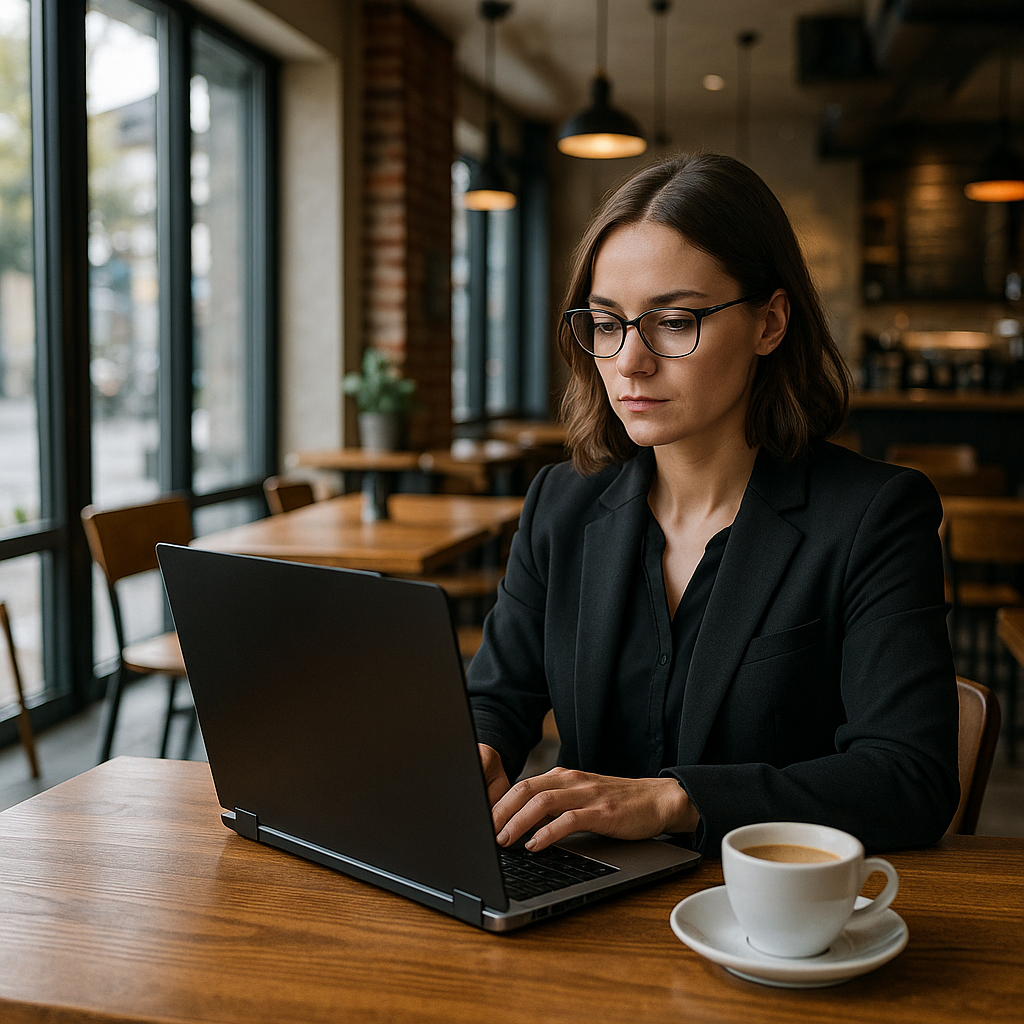
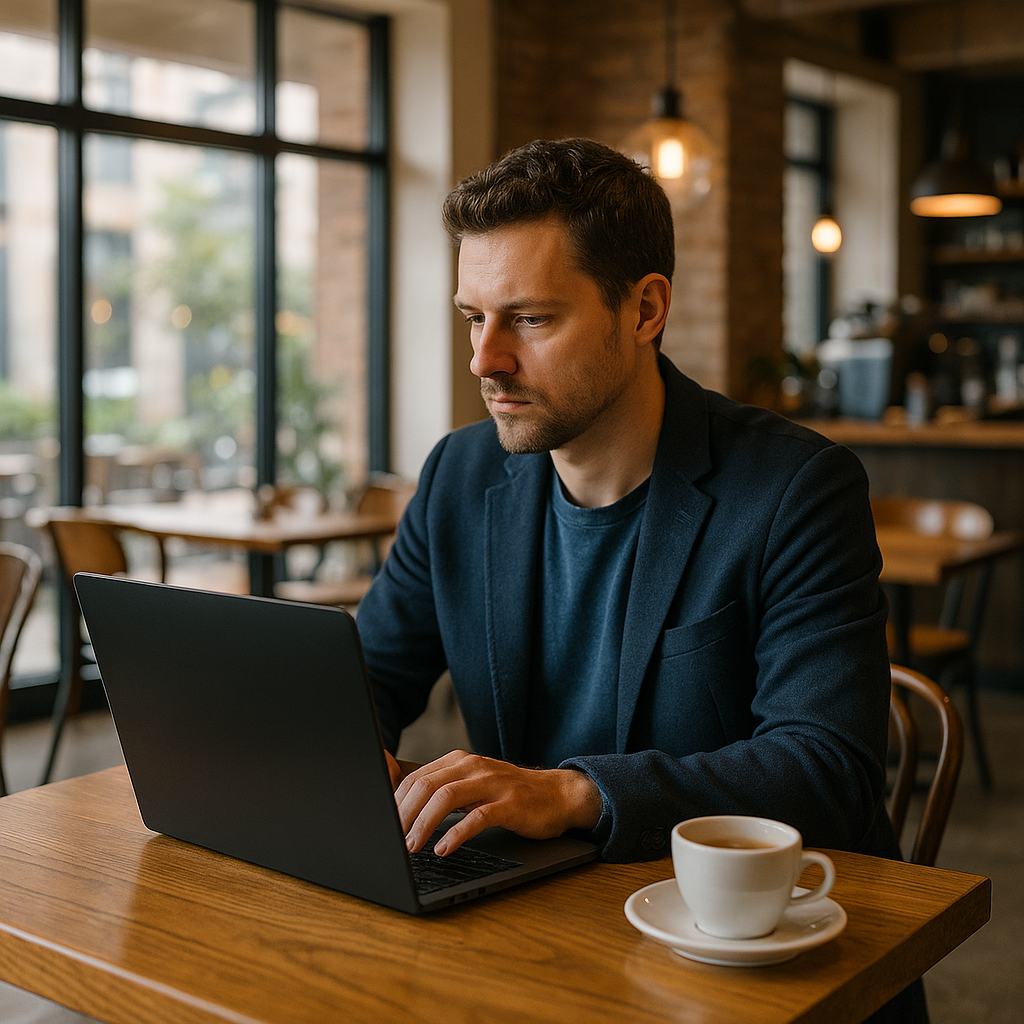
Coffee shops promise flexibility. You grab a table, open your laptop, connect to WiFi, and work. The setup feels casual, but the security environment is not.
Public WiFi creates specific risks that home networks do not. Other people share the same network. The connection might not encrypt your traffic. Someone could be watching your screen. Your device could get stolen if you step away for 30 seconds to grab your order.
This guide walks through the step-by-step setup to work securely from coffee shops. You will configure your devices before you leave home, protect your data while you work, and minimize risk from both network threats and physical exposure.
The goal is not paranoia. The goal is a repeatable routine that lets you work from public spaces without creating unnecessary vulnerabilities.
Before You Leave: Configure Your Devices at Home
Security starts before you walk into the coffee shop. These configurations take 20 minutes at home and protect you for every session.
Enable Full-Disk Encryption
Your laptop holds work files, credentials, and personal data. If someone steals it, encryption is the only thing standing between them and everything on your drive.
Windows: Open Settings, search "BitLocker," and enable it for your system drive. Save the recovery key somewhere other than your laptop.
macOS: Open System Settings, go to Privacy & Security, scroll to FileVault, and turn it on. Store the recovery key in your password manager or write it down and keep it somewhere secure.
Linux: Most distributions offer encryption during installation. If you didn't enable it then, use LUKS to encrypt your drive now.
Full-disk encryption protects your data if your laptop gets stolen. Without the decryption key, the drive is unreadable. This is non-negotiable for anyone working from public spaces.
Install and Configure a VPN
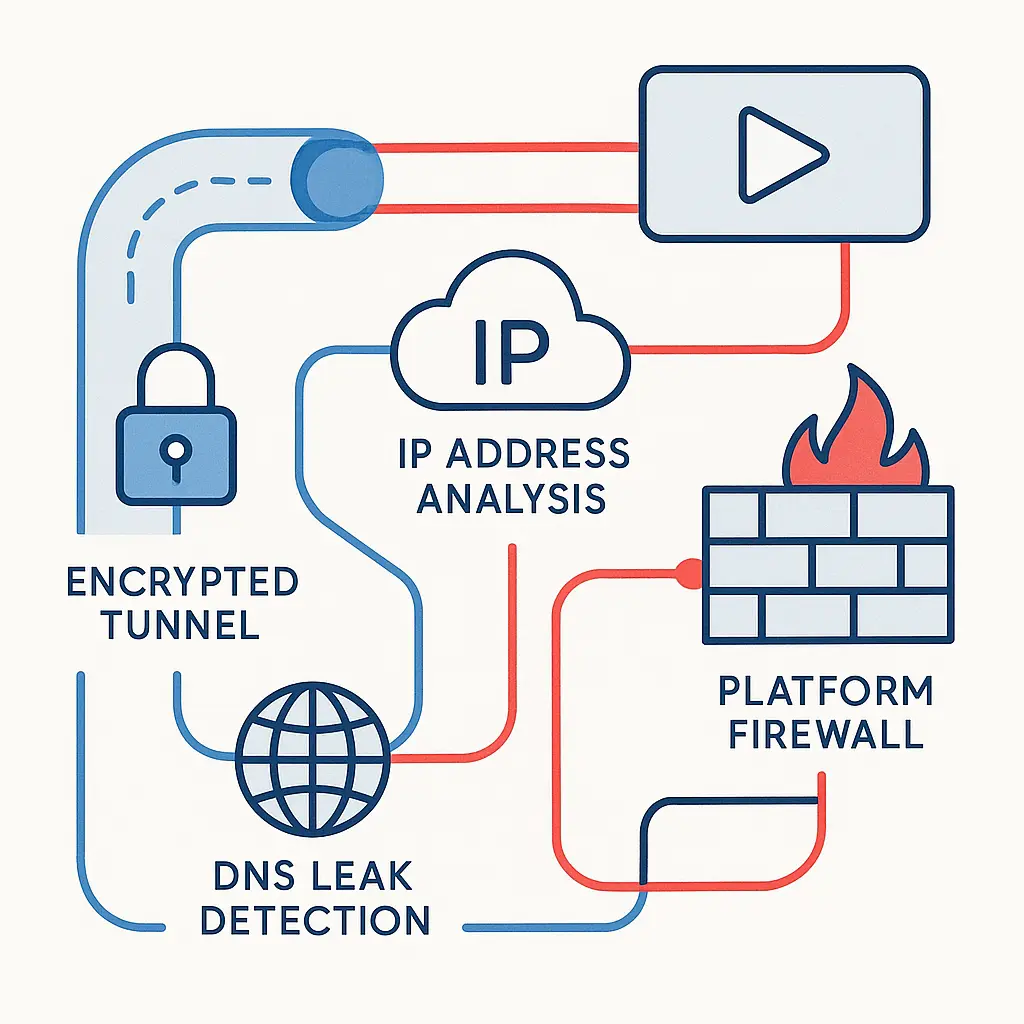
A VPN encrypts your internet traffic between your device and the VPN server. On public WiFi, that encryption prevents anyone else on the network from seeing which sites you visit or intercepting your data.
NordVPN offers auto-connect on untrusted networks, which means the VPN turns on automatically when you join coffee shop WiFi. That removes the step where you forget to enable it manually.
Install the VPN client on your laptop and phone. Configure auto-connect for untrusted networks. Test it at home by connecting to a guest network or hotspot and verifying the VPN activates.
Some people prefer their phone's hotspot over coffee shop WiFi entirely. A hotspot is a private connection you control, which eliminates network snooping risk. If your phone plan supports it, hotspot is the more secure default.
Set Up a Privacy Screen
A privacy screen is a physical filter that narrows the viewing angle of your display. Someone sitting next to you or walking past cannot see what is on your screen.
Privacy screens attach magnetically or clip onto your laptop. They cost around $30 and work immediately. If you handle confidential work data, client information, or financial records, a privacy screen is baseline protection against shoulder surfing.
Buy one that fits your laptop model. Attach it before you leave. It stays on while you work.
Review Your Lock Screen Settings
Your laptop should lock automatically after a few minutes of inactivity. This protects your session if you step away to use the restroom or take a call outside.
Windows: Settings > Personalization > Lock screen. Set "Screen timeout" to 5 minutes or less.
macOS: System Settings > Lock Screen. Set "Require password after screen saver begins or display is off" to "immediately."
Linux: The setting varies by desktop environment, but the principle is the same. Lock after a short idle period.
Test it. Walk away from your laptop for five minutes and confirm it locks. If it does not, adjust the timeout.
Disable Automatic WiFi Connection
Your laptop might auto-connect to any network named "Free WiFi" or "Coffee Shop Guest." Attackers set up fake networks with common names to intercept traffic.
Disable automatic connection to open networks. You will manually select and join WiFi each time. That extra step prevents your device from connecting to a malicious network without your knowledge.
Windows: Settings > Network & Internet > Wi-Fi > Manage known networks. Remove old networks and disable "Connect automatically" for public ones.
macOS: System Settings > Network > Wi-Fi > Advanced. Remove networks you do not recognize. Uncheck "Auto-join" for public networks.
Your VPN should still auto-connect once you manually join a network, but your device will not join networks on its own.
At the Coffee Shop: Physical and Network Setup
You have configured your devices. Now you are at the coffee shop. These steps protect you while you work.
Choose Your Seat Strategically
Sit with your back to a wall. This prevents people from walking behind you and seeing your screen. Even with a privacy screen, positioning matters.
Avoid sitting near windows if you are working on sensitive material. Someone outside can see your screen through the glass, especially after dark when your display is backlit.
Choose a seat near an outlet if you will be there for more than an hour. A dead battery forces you to pack up or work without power, which disrupts your security routine.
Verify the WiFi Network Name
Before you connect, confirm the network name with a staff member. Attackers set up fake networks with names like "CoffeeShop_Guest" or "Free_WiFi_Here" to trick people into connecting.
Ask at the counter: "What's the WiFi network name?" Match it exactly. If the name has a space, underscore, or capitalization, make sure you are connecting to the right one.
Once you connect, your VPN should activate automatically if you configured auto-connect. Check the VPN client to confirm it is running. If it is not, enable it manually before you open a browser or check email.
Keep Your Device Within Arm's Reach
Do not leave your laptop unattended. Not for 30 seconds to grab your coffee. Not for two minutes to use the restroom. Not for five minutes to take a call outside.
Theft happens fast. Someone walks past, picks up your laptop, and leaves. You lose the device, your data, and access to every account you were logged into.
If you need to step away, pack up your laptop and take it with you. Close the lid, put it in your bag, and bring it along. This is the single most important physical security step.
Use HTTPS Everywhere
Most sites use HTTPS by default in 2026, but not all. HTTPS encrypts the connection between your browser and the website, which protects your data even on public WiFi.
Check the address bar. If you see a padlock icon and the URL starts with https://, the connection is encrypted. If it says http:// without the s, your data is not protected.
The EFF's guidance on HTTPS explains why encrypted connections matter. Modern browsers warn you when a site uses HTTP, but you should still verify manually, especially on public WiFi.
If a site does not support HTTPS, do not log in. Do not enter payment information. Do not submit forms. Either find an alternative site or wait until you are on a trusted network.
Avoid Sensitive Transactions on Public WiFi
Even with a VPN and HTTPS, public WiFi is not the place for high-risk transactions. Do not file your taxes. Do not transfer money between bank accounts. Do not submit confidential client documents.
If you need to do something sensitive, use your phone's hotspot instead of coffee shop WiFi. A hotspot is a private connection that only you control, which eliminates the risk of network snooping entirely.
For routine work (email, Slack, research, writing), coffee shop WiFi with a VPN is fine. For anything that would create serious consequences if intercepted, use your hotspot or wait until you are home.
While You Work: Ongoing Vigilance
You are set up. Your VPN is running. Your laptop is within reach. These habits keep you secure while you work.
Lock Your Screen When You Look Away
Every time you turn your head to talk to someone, take a call, or check your phone, lock your screen. It takes one second. On Windows, press Win + L. On macOS, press Control + Command + Q.
This prevents someone from seeing your screen or accessing your session while you are momentarily distracted. It becomes automatic after a few sessions.
Monitor Your VPN Connection
Your VPN can disconnect without warning. Your laptop might switch networks. The coffee shop WiFi might drop and reconnect.
Glance at your VPN client every 15 minutes. Confirm it is still running. If it disconnected, reconnect before you continue working.
Some VPN clients include a kill switch, which blocks all internet traffic if the VPN drops. Enable this feature if your client supports it. A kill switch prevents your traffic from leaking onto the public network if the VPN fails.
Do Not Plug Into Public USB Ports
Some coffee shops offer USB charging ports built into tables or walls. Do not use them for data devices.
A compromised USB port can install malware, copy files, or log keystrokes. This attack is called "juice jacking," and while it is not common, the risk is real enough that security professionals avoid public USB ports entirely.
Bring your own wall charger and plug into a standard outlet. If you need to charge your phone, use your own cable and adapter. Never connect your phone or laptop to a USB port you do not control.
Turn Off File Sharing and AirDrop
File sharing and AirDrop let other devices on the network see your device and request files. On public WiFi, you do not want that visibility.
Windows: Open Settings > Network & Internet > Advanced network settings > Advanced sharing settings. Turn off "Network discovery" and "File and printer sharing" for public networks.
macOS: Open Finder > AirDrop. Set it to "No One" or "Contacts Only." Do not leave it on "Everyone" while you are on public WiFi.
These features are useful at home or in a trusted office, but they create unnecessary exposure on public networks.
When You Finish: Secure Shutdown
You are done working. Pack up correctly.
Log Out of Accounts
Log out of your work accounts, email, and any service you accessed during the session. This clears your session tokens and reduces the risk if someone gains access to your device later.
You do not need to log out of your password manager or VPN, but log out of everything else. It takes 30 seconds and removes active sessions from the public network.
Forget the WiFi Network
After you disconnect, forget the coffee shop network. This prevents your device from auto-connecting next time, even if you disabled automatic connection earlier.
Windows: Settings > Network & Internet > Wi-Fi > Manage known networks. Select the coffee shop network and click "Forget."
macOS: System Settings > Network > Wi-Fi > Advanced. Select the network and click the minus button to remove it.
You will manually reconnect next time, which gives you a chance to verify the network name again.
Power Down or Lock Your Device
If you are heading home, shut down your laptop. If you are moving to another location, lock it and put it in your bag.
Do not leave your laptop in sleep mode in your bag for long periods on public transit. Sleep mode keeps the session active, which means someone who steals your bag could wake the device and access your session. Shut down if you are traveling.
The Cultural Reference
In The Lord of the Rings, Frodo carries the One Ring across Middle-earth. The Ring is powerful, valuable, and dangerous. Frodo knows he cannot let it out of his sight, cannot leave it unattended, cannot assume any place is safe enough to relax his vigilance.
Your laptop is the same. It holds your work, your credentials, your access to everything. In a coffee shop, you are in an environment you do not control, surrounded by people you do not know. The device never leaves your reach. You do not assume the network is safe. You do not assume the person next to you is not watching.
Frodo never put the Ring down and walked away. You do not put your laptop down and walk away. The analogy is direct.
What This Setup Actually Protects
This routine protects against network snooping, man-in-the-middle attacks, device theft, shoulder surfing, and credential exposure.
It does not protect against every threat. If the coffee shop's router is compromised, a sophisticated attacker could still intercept traffic. If someone installs a keylogger on your device before you leave home, none of these steps matter.
But those threats are rare. The threats this setup prevents are common. Network snooping happens. Devices get stolen. People look over your shoulder. These steps address the risks you will actually encounter.
When to Use Your Phone's Hotspot Instead
Your phone's hotspot is more secure than coffee shop WiFi because it is a private connection. Use your hotspot when you are handling sensitive work data, logging into accounts for the first time, or accessing anything that would create serious consequences if intercepted.
Hotspot uses your phone's data plan, so it is not unlimited. But for high-risk tasks, the tradeoff is worth it. You can switch back to coffee shop WiFi for general browsing and research.
If your phone plan includes unlimited data or a large hotspot allowance, consider using your hotspot exclusively. It eliminates the need to verify network names, worry about snooping, or trust the coffee shop's security.
What About Public Libraries, Coworking Spaces, and Hotels
The same principles apply. Public WiFi is public WiFi. The network might be faster, the environment might feel more professional, but the risks are the same.
Libraries and coworking spaces sometimes use better network security than coffee shops, but you should not assume that. Follow the same routine: VPN, privacy screen, device within reach, verify the network name, lock your screen when you look away.
Hotels add one wrinkle: captive portals. You connect to the WiFi, then a browser window pops up asking you to accept terms or enter a room number. Captive portals are a weak point because they force you to interact with the network before your VPN connects. Enable your VPN immediately after you clear the captive portal, before you do anything else.
The Practical Reality
This setup is not paranoia. It is a routine that reduces real risks.
You will forget to lock your screen sometimes. You will connect to the wrong network once. You will leave your laptop on the table while you grab your coffee. These mistakes happen. The goal is not perfection. The goal is a default routine that protects you most of the time.
After a few sessions, the routine becomes automatic. You sit down, verify the network, connect your VPN, position your privacy screen, and work. You lock your screen when you look away. You take your laptop with you when you leave the table. You forget the network when you are done.
It takes 30 seconds at the start and 30 seconds at the end. The rest is just working.
Final Step: Test Your Setup at Home
Before your first coffee shop session, test the routine at home. Connect to a guest network or your phone's hotspot. Verify your VPN auto-connects. Check that your privacy screen is attached correctly. Practice locking your screen and packing up your laptop quickly.
Run through the steps once in a controlled environment. That way, when you are at the coffee shop, the routine is already familiar.
You are not learning the process under pressure. You are executing a routine you have already tested.