Signs Your Computer Is Infected: Step-by-Step Detection Guide
Your computer slows to a crawl. Pop-ups appear from nowhere. Your browser's homepage changed overnight. You didn't do anything unusual, but something feels wrong.
These aren't random glitches. They're symptoms of infection, and they mean malware is already running on your system. The question isn't whether something's wrong , it's what's wrong, how bad it is, and what you need to do about it.
Here's the step-by-step process to detect infection, what each symptom actually means, and how to confirm malware before you start the cleanup.
Performance Symptoms That Signal Infection
Your computer's speed tells you more than Task Manager ever will. Malware consumes resources to do its work, and that work shows up as performance degradation you can feel before you can measure.
Slowdowns happen for legitimate reasons , background updates, indexing, aging hardware. But malware slowdowns follow different patterns. They appear suddenly, persist across reboots, and worsen over time as the infection spreads or additional payloads download.
Your computer takes five minutes to boot when it used to take thirty seconds. Programs freeze mid-operation. The hard drive churns constantly even when you're not doing anything. The fan runs at full speed with no obvious cause.
These symptoms mean something is consuming CPU cycles, disk I/O, or network bandwidth in the background. That something might be Windows Update or a legitimate system process, but it might also be malware mining cryptocurrency, participating in a botnet, or exfiltrating your files to a remote server.
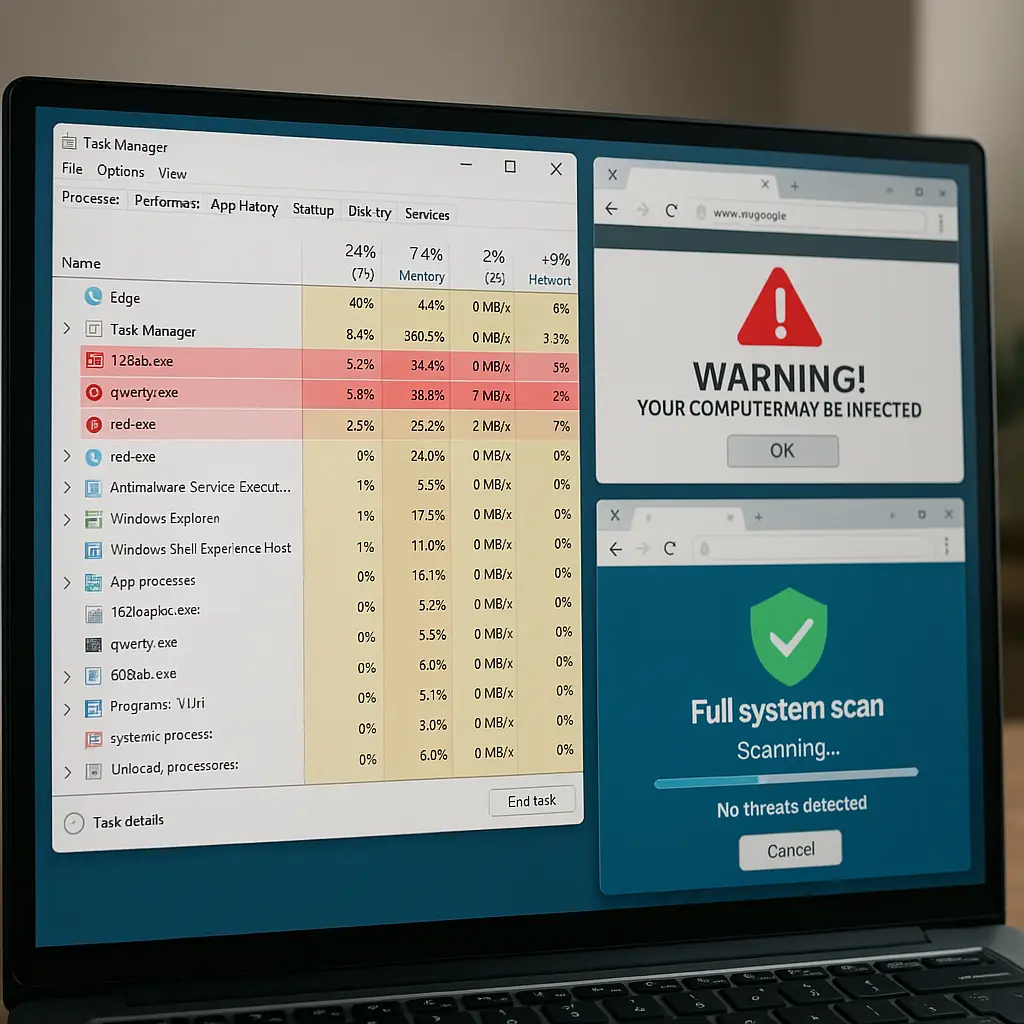
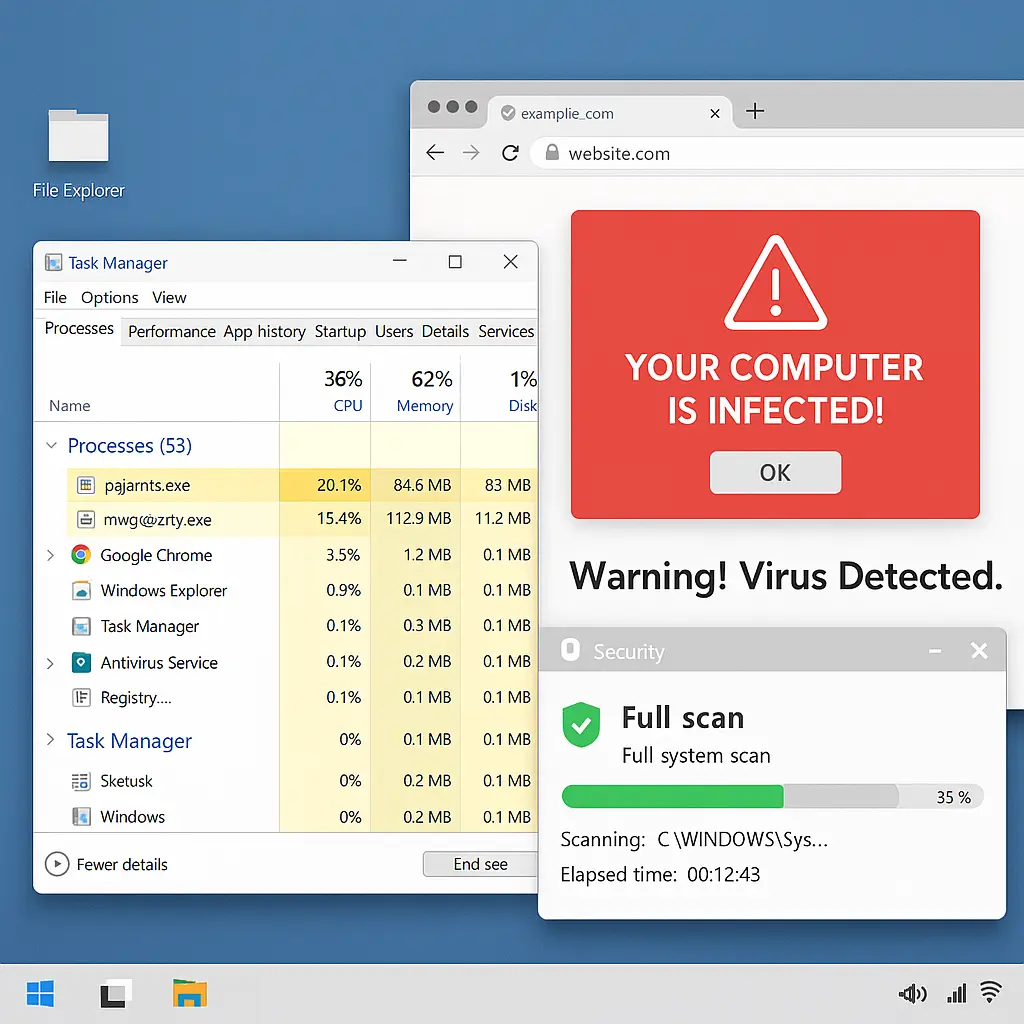
Check Task Manager on Windows or Activity Monitor on Mac. Sort by CPU usage, then by memory, then by disk activity. Look for processes you don't recognize. Look for processes that consume disproportionate resources relative to what they're supposed to do.
Legitimate processes have names that make sense: chrome.exe, explorer.exe, System Idle Process. Malware often uses names that sound legitimate but aren't quite right: svchost32.exe instead of svchost.exe, chromeupdate.exe instead of a process that actually runs from the Chrome directory.
If you see a process consuming 40 percent CPU and you've never heard of it, that's a red flag. If it's running from a folder in your user directory instead of Program Files or System32, that's another red flag. If it restarts immediately after you kill it, that's a third.
Performance symptoms alone don't confirm infection, but they tell you where to look next. Something is using your computer's resources, and you need to figure out what and why.
Browser Behavior Changes
Your browser is the front door to the internet, and attackers know it. Browser-based malware shows up as changes you didn't authorize: homepage hijacking, new toolbars, search engine redirects, and pop-ups that appear even when you're not browsing.
You open Chrome and your homepage is no longer Google. It's some search engine you've never heard of. You type a search query and it redirects through three different domains before showing results. You visit a legitimate site and pop-ups appear offering antivirus scans or prize giveaways.
These symptoms mean your browser settings have been modified by software you didn't install. The FTC describes malware as software that gets installed without your knowledge and changes how your computer works. Browser hijacking is one of the most visible forms of that change.
Check your browser's homepage and search engine settings. If they've changed and you didn't change them, that's a symptom. Check your installed extensions. If you see extensions you don't remember installing , especially ones with generic names like "Web Helper" or "Search Manager" , that's another symptom.
Look at your browser's startup behavior. If new tabs open automatically when you launch the browser, or if you see ads injected into legitimate websites, that means something is intercepting your traffic and modifying it before it reaches you.
In Star Wars, when Luke and Han are stuck in the Death Star's trash compactor, they don't see the dianoga until it grabs Luke and pulls him under. Browser hijacking works the same way: the threat operates invisibly until it surfaces to grab your attention, and by then it's already deep in your system.
Browser symptoms are easier to spot than system-level infections, but they're also easier to dismiss as annoyances. Don't. If your browser behaves differently than it did yesterday, something changed it, and that something is probably malware.
Programs You Didn't Install
You open your Start menu and see programs you don't recognize. You check your Applications folder and find software you never downloaded. You get notifications from apps you've never heard of.
Malware doesn't just run in the background. It installs visible programs that look legitimate, generate revenue through ads, or serve as fronts for more serious threats. These programs appear in your program list, create desktop shortcuts, and sometimes even ask for permissions as if they were legitimate software.
Check your installed programs list. On Windows, go to Settings > Apps > Installed apps. On Mac, open Finder and check the Applications folder. Look for anything you don't remember installing. Look for programs with generic names, programs from publishers you don't recognize, or programs that claim to optimize performance or clean your system.
Security researchers have found that some malware bundles itself with legitimate software downloads. You download a free PDF converter, and it installs the converter plus three other programs you didn't agree to. Those programs might be adware, browser hijackers, or worse.
If you find a program you don't recognize, search for its name plus the word "malware" or "removal." If the first page of results is removal guides, that tells you what you need to know.
Some malware creates programs that resist standard uninstallation. You try to remove them through the normal process and they either refuse to uninstall or reinstall themselves immediately. That's a clear indicator of malicious intent. Legitimate software doesn't fight to stay on your system.
Programs you didn't install are one of the clearest signs of infection. They're visible, they're persistent, and they're often the entry point for deeper system compromise.
Security Software Disabled or Blocked
Your antivirus stops updating. Windows Defender won't turn on. You try to visit a security website and the connection times out. You attempt to download antivirus software and the download fails.
Malware knows its enemy. One of the first things sophisticated infections do is disable security software, block security websites, and prevent you from downloading cleanup tools. This behavior turns your computer into an undefended target where the infection can operate freely.
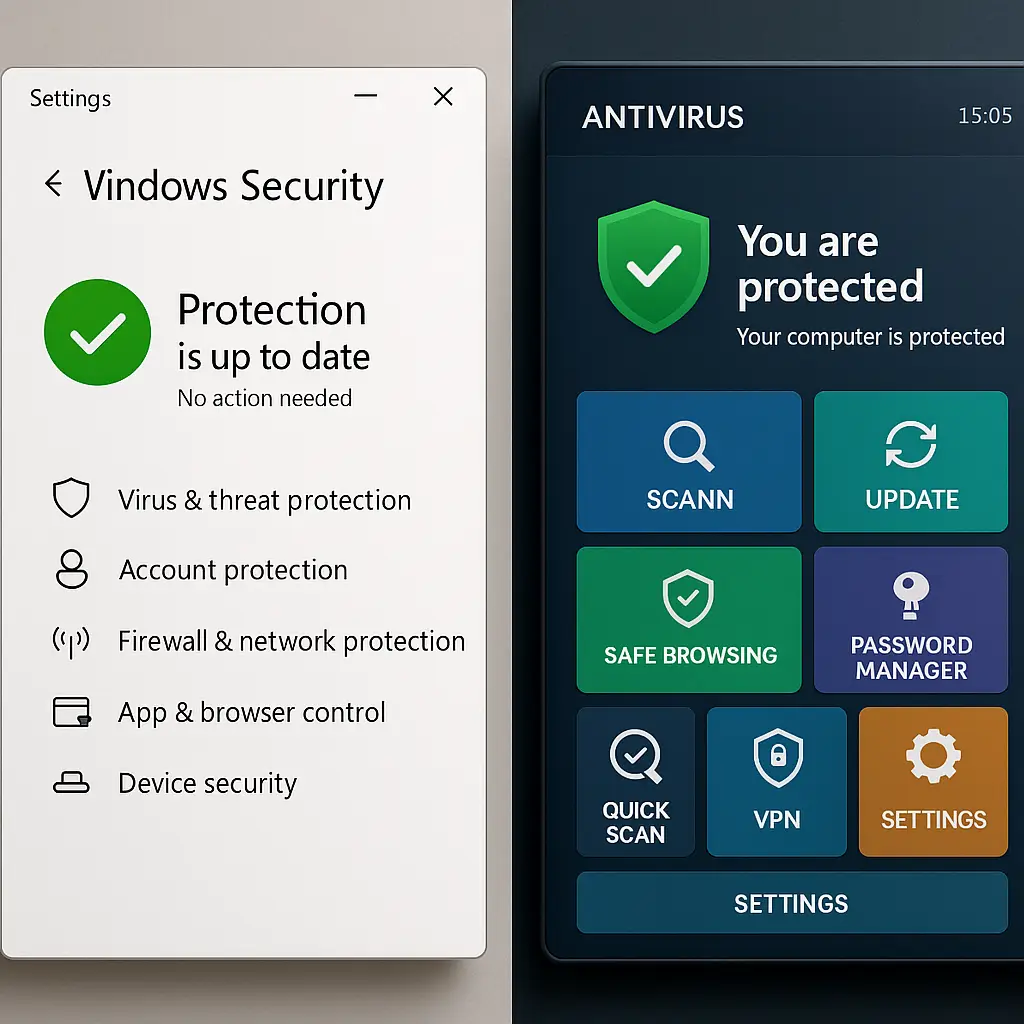
Check your security software. Is it running? Is it up to date? Can you open its interface? If Windows Defender is disabled and won't turn back on, that's a symptom. If your third-party antivirus shows an error and won't update, that's another.
Try to visit security websites. Go to CISA, Bleeping Computer's malware removal section, or any major antivirus vendor's site. If those sites won't load but other websites work fine, something is blocking them at the network or system level.
Try to download security software. If the download starts and then fails, or if the installer won't run, that's active interference. Malware doesn't want you to clean it, and it will fight your attempts to do so.
Some infections modify your hosts file to redirect security domains to localhost or nonexistent addresses. Others inject themselves into your browser to block specific URLs. Advanced malware operates at the kernel level and prevents security software from loading at all.
Disabled security software is both a symptom and a vulnerability. It tells you something is wrong, and it also tells you that whatever is wrong has enough system access to defend itself. That combination means you're dealing with a serious infection that won't clean easily.
Network Activity When You're Not Browsing
Your network activity light blinks constantly even though you're not using the internet. Your router shows traffic when all your devices are idle. Your data usage spikes for no apparent reason.
Malware communicates. It sends stolen data to command-and-control servers, downloads additional payloads, participates in distributed denial-of-service attacks, or coordinates with other infected machines. That communication generates network traffic you can detect if you know what to look for.
Check your network usage. On Windows, open Task Manager and click the Performance tab, then Ethernet or WiFi. On Mac, open Activity Monitor and click the Network tab. Watch for a few minutes. If you see sustained traffic when you're not doing anything, something is using your connection.
Look at which processes are generating that traffic. Task Manager and Activity Monitor both show network usage per process. If you see a process you don't recognize consuming bandwidth, that's worth investigating.
Some malware is subtle. It communicates in small bursts to avoid detection, or it waits until you're actively browsing to blend in with legitimate traffic. Other malware is obvious: cryptocurrency miners, botnet participants, and data exfiltration tools generate constant high-volume traffic that's hard to miss.
Check your router's traffic logs if it keeps them. Look for connections to unusual IP addresses or domains. Look for outbound traffic on non-standard ports. Look for patterns that don't match your normal usage.
Network activity alone doesn't confirm infection , background updates, cloud sync, and streaming services all generate traffic. But unexplained network activity combined with other symptoms moves you from "maybe" to "probably."
System Changes You Didn't Make
Your desktop wallpaper changed. Your taskbar rearranged itself. Files appeared in folders you rarely use. System settings you configured are now back to defaults.
These changes seem minor compared to performance problems or security software failures, but they signal the same thing: something has system-level access and is using it without your permission.
Check your startup programs. On Windows, open Task Manager and click the Startup tab. On Mac, go to System Preferences > Users & Groups > Login Items. Look for entries you don't recognize. Look for programs that shouldn't start automatically.
Check your scheduled tasks. On Windows, open Task Scheduler and browse through the task library. On Mac, check LaunchAgents and LaunchDaemons in your Library folder. Malware often creates scheduled tasks to maintain persistence, re-download payloads, or perform periodic actions.
Check your system files. Some malware modifies the hosts file to redirect domains, changes DNS settings to route traffic through attacker-controlled servers, or alters registry keys to disable security features. These changes are harder to spot than visual changes, but they're often more damaging.
Look for new user accounts. Some malware creates hidden administrator accounts to maintain access even if you remove the visible infection. Check your user list for accounts you didn't create.
System changes you didn't make are evidence of unauthorized access. Something has the permissions to modify your system, and it's using those permissions to entrench itself or prepare for further exploitation.
Pop-Ups and Ads Outside Your Browser
You see pop-ups on your desktop. Ads appear in programs that don't normally show ads. Notifications slide in from the corner of your screen advertising products or services you never subscribed to.
Adware is malware that generates revenue by forcing you to view advertisements. It's less immediately destructive than ransomware or data theft, but it's still malware, and it still represents unauthorized system access.
Desktop pop-ups mean something is running with enough permissions to create windows outside your browser. That's not normal behavior for legitimate software. Legitimate programs don't show you ads unless you explicitly agreed to an ad-supported version, and even then the ads appear within the program, not on your desktop.
Check your notification settings. On Windows, go to Settings > System > Notifications. On Mac, go to System Preferences > Notifications. Look for apps you don't recognize that have notification permissions. Revoke those permissions.
Look for programs running in your system tray or menu bar. Adware often places an icon there to make itself look like a legitimate background utility. Right-click the icon and see what it claims to be. Search for that name plus "adware" or "removal."
Some adware injects ads into legitimate programs. You open Notepad and see a banner ad at the bottom. You use Calculator and a pop-up appears. This behavior means the adware has hooked into Windows at a system level and is intercepting program launches.
Pop-ups and ads are symptoms of infection, but they're also distractions. While you're closing pop-ups and dismissing notifications, the underlying malware is doing whatever it's actually designed to do: stealing data, installing additional threats, or preparing your system for worse.
Files or Folders You Can't Access
You try to open a document and get an error. A folder you use regularly is suddenly empty. Files have extensions you don't recognize. Your desktop shows a ransom note demanding payment.
File access problems are the hallmark of ransomware, but they also appear in other types of infection. Some malware encrypts files to extort payment. Other malware deletes files to cover its tracks. Still other malware moves files to hidden locations or modifies file permissions to lock you out.
Check your important folders. Open your Documents, Desktop, and Downloads folders. Try to open files you know should be there. If you get errors, or if files have strange extensions like .locked or .encrypted, that's a clear symptom of ransomware.
Look for ransom notes. Ransomware typically leaves a text file on your desktop or in affected folders explaining that your files are encrypted and providing payment instructions. If you see that, you're dealing with ransomware, and you need to act fast.
Check your file permissions. Right-click a folder you can't access and check its security settings. If the permissions have changed and you're no longer listed as the owner, something modified them. Malware sometimes locks you out of folders to prevent you from removing it or accessing its files.
Some malware hides files rather than encrypting them. It changes file attributes to make them invisible or moves them to system folders where you're unlikely to look. This behavior is less obvious than ransomware but still represents unauthorized file manipulation.
File access problems are urgent. If you suspect ransomware, disconnect from the internet immediately to prevent the infection from spreading to network drives or cloud storage. Don't pay the ransom , CISA explicitly advises against it because payment doesn't guarantee file recovery and funds additional attacks.
Confirming Infection: The Scan
Symptoms point to infection, but symptoms aren't proof. You need confirmation before you start the cleanup process, and that confirmation comes from scanning your system with updated security software.
If your existing antivirus is working, update it and run a full system scan. Not a quick scan , a full scan that checks every file, every folder, and every system location where malware hides. This takes time, often several hours, but it's the only way to find deeply embedded threats.
If your antivirus is disabled or compromised, you need a different approach. Download a second-opinion scanner from a reputable vendor using a different device or a bootable USB drive. Malwarebytes is a solid choice for this. Install it, update it, and run a full scan.
Some malware prevents you from downloading or running security software. If that's your situation, you need to boot into Safe Mode. Safe Mode loads Windows with minimal drivers and services, which prevents most malware from running and allows security software to operate.
To boot into Safe Mode on Windows 10 or 11, hold Shift while clicking Restart, then navigate to Troubleshoot > Advanced options > Startup Settings > Restart. When the system reboots, press F4 to select Safe Mode with Networking. On Mac, restart and hold Shift immediately after hearing the startup chime.
Once you're in Safe Mode, download and install security software if you couldn't before. Update it, then run a full scan. The scan will find threats that were hiding while Windows ran normally.
Scanning confirms infection and identifies what you're dealing with. The scan results tell you whether you have adware, a trojan, ransomware, or multiple infections. That information determines your next steps.
What the Scan Results Mean
Your scan finishes and shows results. Now you need to interpret them.
If the scan finds adware or potentially unwanted programs (PUPs), those are low-severity threats. They're annoying, they compromise privacy, and they slow your system, but they don't typically steal data or cause permanent damage. Remove them and move on.
If the scan finds trojans, keyloggers, or remote access tools, those are high-severity threats. They give attackers control over your system, steal credentials, and can download additional malware. Removal is more complex because these threats often install multiple components and modify system files to maintain persistence.
If the scan finds ransomware, you're in a different category. Ransomware encrypts files and demands payment. Removing the ransomware stops it from encrypting additional files, but removal doesn't decrypt what's already locked. You need backups or specialized decryption tools, and even then recovery isn't guaranteed.
If the scan finds rootkits or bootkits, you're dealing with the most sophisticated category of malware. These threats operate at the kernel or firmware level, below the operating system, where they're extremely difficult to detect and remove. Rootkit removal often requires specialized tools or, in severe cases, a complete system reinstallation.
Some scans show dozens of detections. That doesn't necessarily mean you have dozens of separate infections. Malware often consists of multiple files, registry entries, and system modifications that each count as a detection. One infection might generate twenty detections in the scan results.
Pay attention to severity ratings. Most security software categorizes threats as low, medium, high, or critical. Focus on high and critical threats first. Those are the ones actively stealing data, modifying system files, or opening backdoors.
Next Steps After Confirmation
You've confirmed infection. Now what?
First, disconnect from the internet. Unplug your Ethernet cable or turn off WiFi. This stops the malware from communicating with its command-and-control server, prevents it from downloading additional payloads, and protects other devices on your network from infection.
Second, change your passwords , but not from the infected computer. Use a different device to change passwords for email, banking, social media, and any other accounts you accessed from the compromised system. Assume that everything you typed on the infected computer was captured by a keylogger.
Third, follow the removal process. If your security software offers automatic removal, use it. If removal fails or the infection persists, you need manual removal or professional help. Bleeping Computer's removal guides provide step-by-step instructions for specific threats.
Fourth, verify removal. After cleaning, run another full scan to confirm the infection is gone. Check your startup programs, scheduled tasks, and browser settings. Reboot and scan again. Some malware reinstalls itself after removal if you miss a component.
If the infection was severe , rootkits, ransomware, or persistent threats that survive multiple removal attempts , consider a full system reinstallation. Back up your personal files (but not programs or executables, which might be infected), wipe the drive, and reinstall your operating system from scratch. It's the only way to guarantee complete removal of sophisticated threats.
Fifth, implement prevention. Update your operating system and all software. Enable automatic updates. Install reputable antivirus software and keep it updated. Review what you downloaded or clicked before the infection occurred, and change those behaviors.
Malware infection isn't a one-time event. It's a symptom of a larger security posture problem. If you got infected once, you can get infected again unless you change how you interact with downloads, email attachments, and unfamiliar websites.
When to Get Help
Some infections are beyond DIY removal. If you're dealing with ransomware that encrypted critical files, if removal attempts fail repeatedly, if the infection comes back after cleaning, or if you're not comfortable working with system-level tools, it's time to get professional help.
Look for a local computer repair shop with security expertise, or contact a remote support service that specializes in malware removal. Avoid services that cold-call you or pop up in search results with aggressive marketing , those are often scams themselves.
If the infected computer contains work data, contact your IT department immediately. Don't try to clean it yourself. Work computers often have specific security policies, and unauthorized removal attempts can violate those policies or destroy evidence needed for incident response.
If the infection resulted in financial loss , stolen credit card numbers, unauthorized bank transfers, identity theft , report it to law enforcement and your financial institutions. The FTC provides guidance on reporting identity theft and recovering from fraud.
Malware detection is a skill that improves with practice. The first time you encounter symptoms, you might not recognize them. The second time, you'll spot them faster. The third time, you'll know exactly what to look for and how to confirm infection before it causes serious damage.
Your computer tells you when something's wrong. You just need to listen, recognize the patterns, and act before the infection entrenches itself beyond easy removal.