Setting Up an Elderly Parent's Phone Safely: A Step-by-Step Guide
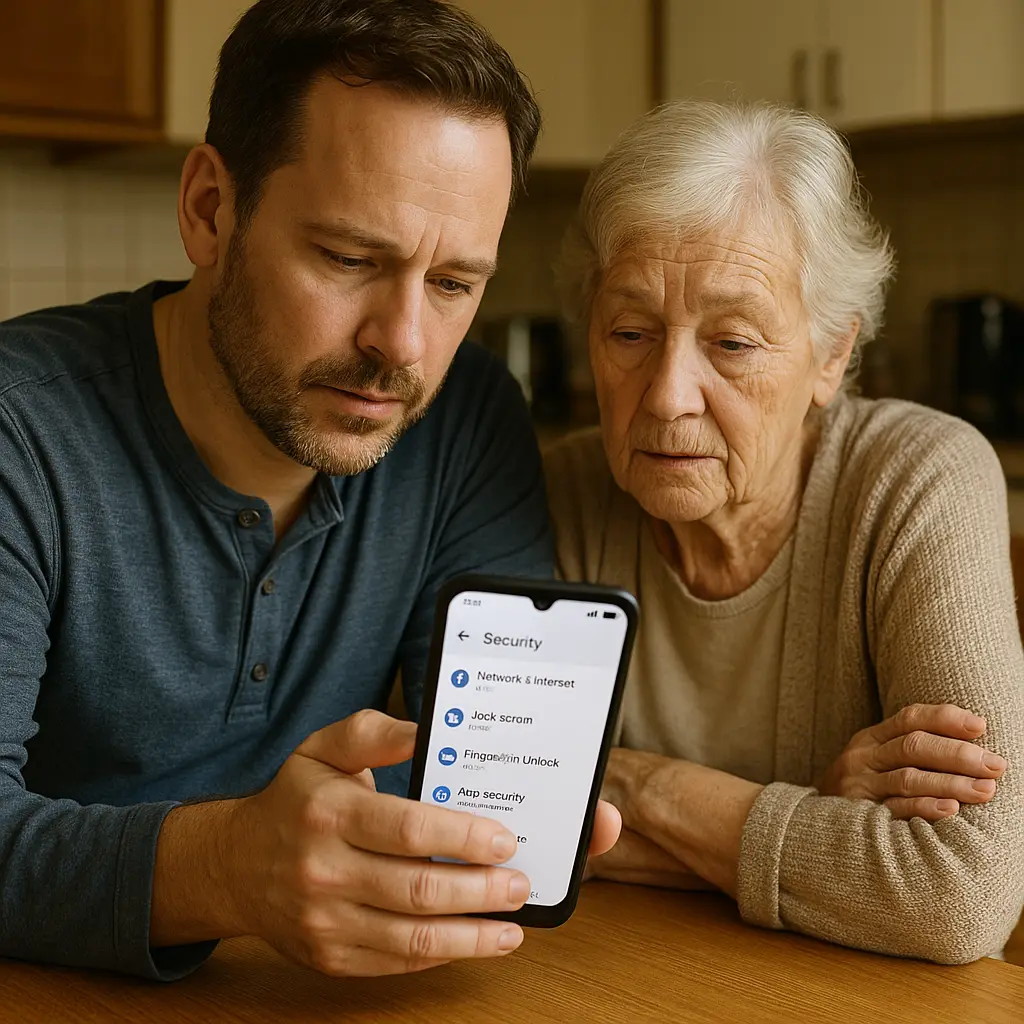
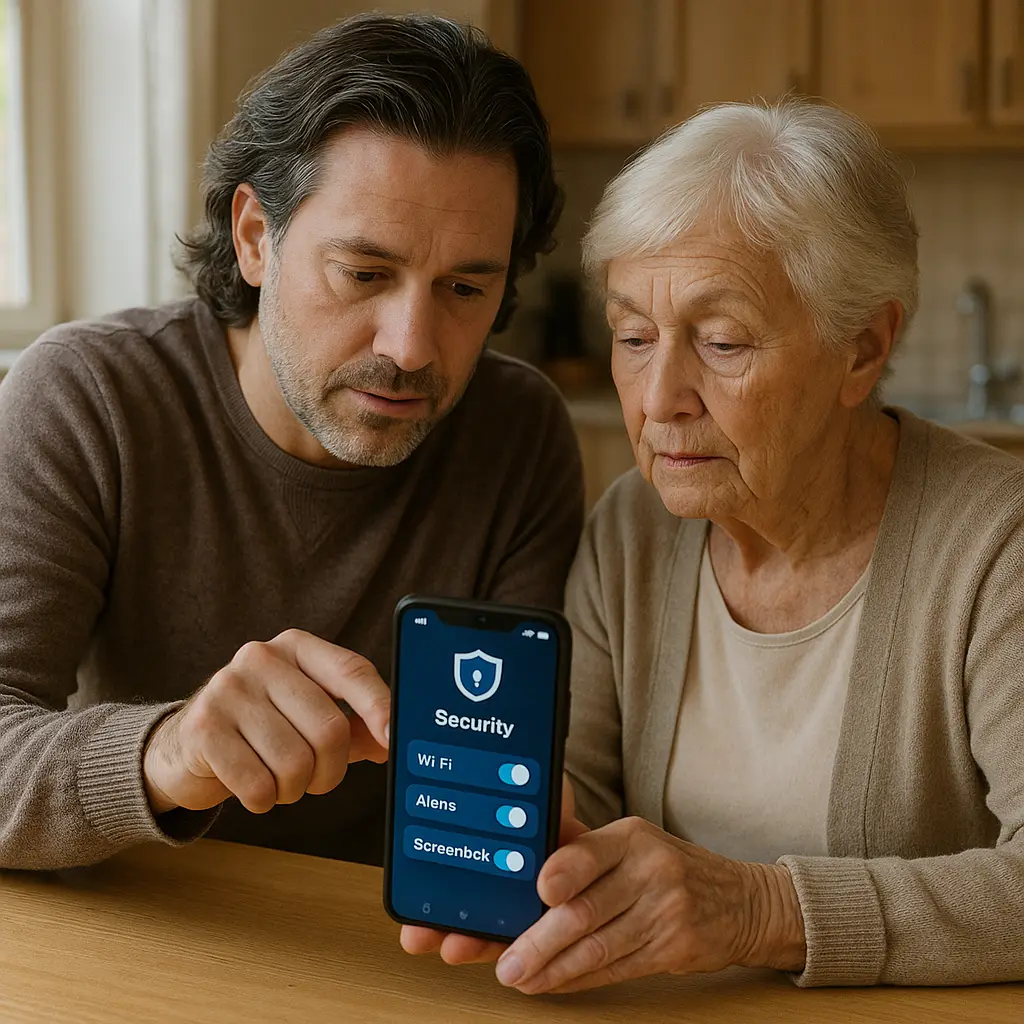
Your parent needs a smartphone. Maybe the flip phone finally died, maybe the grandkids only video chat, or maybe you're tired of being the only contact method when they travel. Whatever the reason, you're now responsible for setting up a device that will handle banking, healthcare, family communication, and a steady stream of scammers trying to steal everything.
This isn't like setting up your own phone. Your parent's threat model is different. They face higher rates of targeted fraud, lower familiarity with digital interfaces, and real consequences from mistakes you might recover from easily. The FTC reports that adults over 60 lose more money to scams than any other age group, with median losses nearly double those of younger victims.
This guide walks through the complete setup process: choosing the right device, configuring security and accessibility settings, establishing communication boundaries, and building a sustainable support system that doesn't require you to become 24/7 tech support.
Before You Buy: Choosing the Right Device
The phone matters. Not because one brand is inherently better, but because the choice determines which ecosystem you're committing to support for years.
iPhone advantages for elderly users:
- Consistent interface across models and iOS versions
- Longer software support (typically 5-6 years of security updates)
- Simpler app ecosystem with stricter vetting
- Better integration with hearing aids and medical devices
- More intuitive accessibility features
Android advantages for elderly users:
- Lower cost for equivalent functionality
- More hardware options at different price points
- Easier customization for vision and motor challenges
- Google Assistant voice commands often work better for complex queries
I typically recommend iPhone for parents who have never owned a smartphone and Android for parents upgrading from an older Android device. The learning curve for switching ecosystems is real, and familiarity reduces frustration.
Specific model recommendations:
- iPhone SE (current generation): Full iOS features, familiar home button, lower cost
- iPhone 14 or newer: Better camera for grandkid photos, longer support window
- Samsung Galaxy A series: Good Android option with cleaner interface than budget alternatives
- Google Pixel 7a or newer: Pure Android experience, excellent voice features, reasonable price
Avoid: Budget phones from unfamiliar manufacturers, phones with custom Android skins that complicate updates, anything refurbished without manufacturer warranty, carrier-locked devices that limit future flexibility.
Screen size matters more than you think. Bigger is almost always better for aging eyes, but hand size and pocket space create real constraints. Bring your parent to the store if possible. Let them hold the device.
Physical Setup: SIM, Accounts, and Initial Configuration
Start with the SIM card. If you're transferring a number from an old phone, handle the carrier port before powering on the new device. This prevents the confusion of two active numbers and makes the transition cleaner.
Initial power-on sequence:
-
Skip everything optional during setup. Apple and Google both push iCloud/Google account creation, Face ID/fingerprint setup, and various services during first boot. Skip them all. You'll configure these properly later with your parent watching and understanding each step.
-
Connect to WiFi at your parent's home, not yours. The phone will remember this network as the primary trusted connection. If you set up at your house, they'll get warnings about "untrusted network" when they get home.
-
Create or link the primary account. If your parent has an existing Apple ID or Google account, use it. If not, create one using their email address, not yours. This is critical. The account owner controls password resets, recovery options, and ultimately owns the device's data. Using your email as the primary account creates ownership confusion and complicates estate planning.
-
Set a PIN that your parent can remember. Not your birthday. Not 1234. Not the last four digits of their Social Security number. Use a memorable date or number combination that they already know. Write it down on paper and put it somewhere secure at their home. Yes, written down. The alternative is lockout and a factory reset.
-
Enable automatic updates immediately. iOS: Settings > General > Software Update > Automatic Updates (enable all options). Android: Settings > System > System update > Auto-download over Wi-Fi (enable). This is the single most important security setting. CISA guidance emphasizes that keeping devices updated protects against the majority of common threats.
Security Settings: The Non-Negotiable Layer
You're building a defense against grandparent scams, tech support fraud, phishing texts, and account takeover attempts. Every setting here has a specific purpose.
Lock screen configuration:
- Set auto-lock to 30 seconds. Longer timeouts create risk when the phone is left unattended. Shorter timeouts annoy users into disabling the feature entirely.
- Require PIN for all actions. No Face ID or fingerprint unlock until your parent is comfortable with the baseline security model. Biometrics are convenient but add complexity to troubleshooting.
- Disable lock screen notifications for sensitive apps. Banking, email, and healthcare apps should not display message previews when the phone is locked. iOS: Settings > Notifications > [App] > Show Previews > Never. Android: Settings > Apps > [App] > Notifications > Lock screen > Don't show notifications at all.
Two-factor authentication setup:
This is where most guides fail. They tell you to enable 2FA without explaining how elderly users will actually interact with it.
Do not use SMS for 2FA if you can avoid it. SMS codes are vulnerable to SIM swap attacks and create confusion when codes arrive slowly or not at all. But SMS is often the only option, so you'll enable it anyway. Just know the limitations.
Use authenticator apps only if your parent can reliably open the right app when prompted. I've watched too many people get locked out because they couldn't remember which app held their codes. If you go this route, use one authenticator app for everything, label it clearly on the home screen, and write down backup codes on paper.
Better option for most elderly users: security keys. Physical keys like YubiKey eliminate the "which app" problem and can't be phished. The tradeoff is physical possession, lose the key, lose access. Buy two keys, register both on every account, store one at your parent's home and one at yours.
Set up 2FA on these accounts in this order:
- Primary email (this unlocks password resets for everything else)
- Banking and financial accounts
- Healthcare portals
- Phone carrier account (prevents SIM swaps)
- Social media (if used)
App installation restrictions:
Elderly users face a different app threat than younger users. The risk isn't malware from sketchy piracy sites. The risk is installing fake apps that impersonate legitimate services.
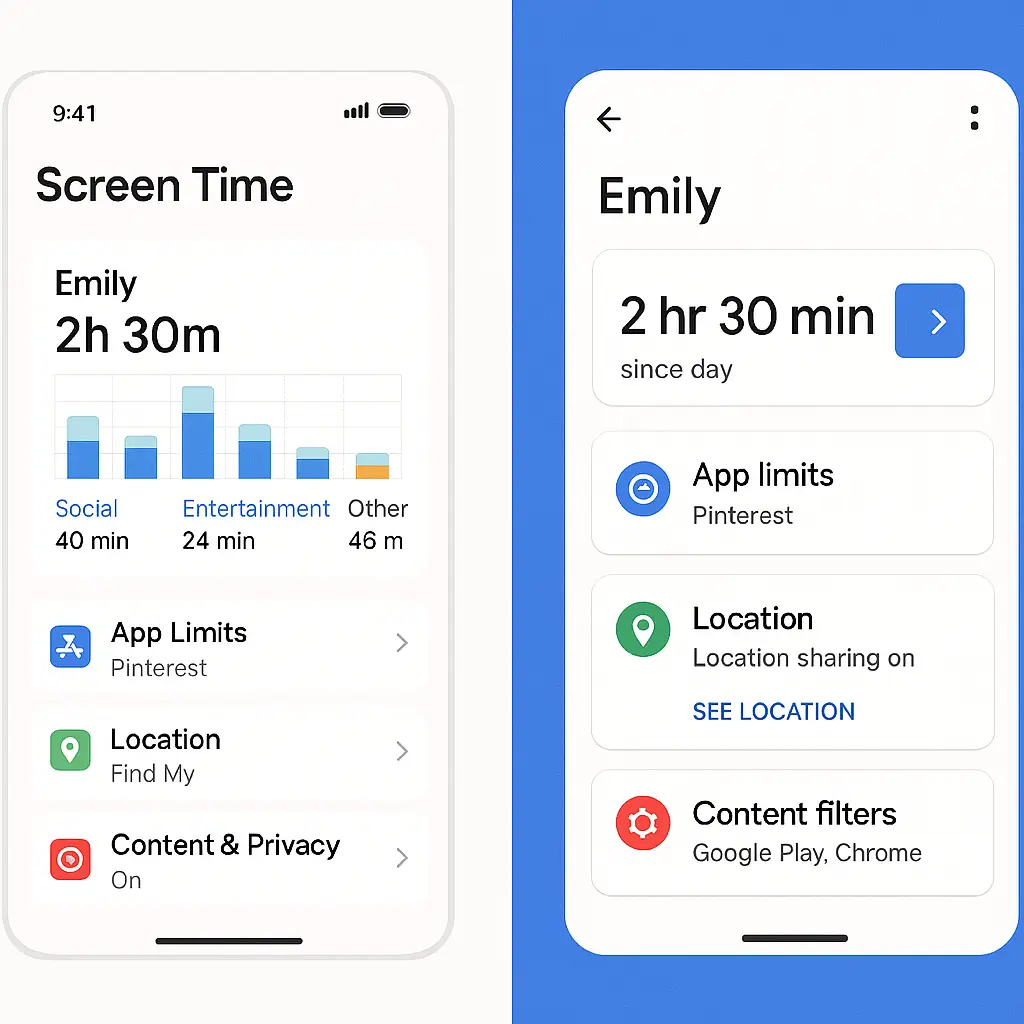
iOS: Settings > Screen Time > Content & Privacy Restrictions > iTunes & App Store Purchases > Installing Apps > Don't Allow. This prevents app installation without your involvement. Yes, it requires you to approve every app. That's the point. The alternative is your parent installing "Google Customer Support" and giving remote access to scammers.
Android: Google Play Store > Settings > Parental controls > Enable and set content restrictions. This doesn't block installation entirely but adds friction to downloading apps outside age-appropriate categories.
Call and message filtering:
iOS: Settings > Phone > Silence Unknown Callers (enable). This sends calls from numbers not in contacts straight to voicemail. It's aggressive, but it works. Your parent will miss some legitimate calls (doctor's offices, delivery drivers, appointment reminders). The tradeoff is worth it. Unknown callers can leave voicemail.
Android: Phone app > Settings > Blocked numbers > Unknown (enable). Same effect, same tradeoffs.
For texts: Both platforms offer spam filtering through carrier services. Enable it. iOS: Settings > Messages > Filter Unknown Senders. Android: Messages app > Settings > Spam protection.
Accessibility Settings: Making the Phone Usable
Security means nothing if your parent can't actually use the device. Accessibility features aren't accommodations for disability, they're usability improvements that benefit everyone.
Text size and display:
iOS: Settings > Accessibility > Display & Text Size > Larger Text. Drag the slider until text is comfortably readable. Enable Bold Text for better contrast.
Android: Settings > Display > Font size and style. Increase size and enable bold if available.
Test this with your parent. Open Messages, Safari/Chrome, and Mail. If they squint or hold the phone at arm's length, increase size more.
Hearing accommodations:
If your parent uses hearing aids, pair them with the phone. Modern hearing aids connect via Bluetooth and route calls directly to the devices. This eliminates background noise and improves clarity dramatically.
iOS: Settings > Accessibility > Hearing Devices. Follow pairing instructions from the hearing aid manufacturer.
Android: Settings > Connected devices > Connection preferences > Hearing aids.
Enable Live Captions for video calls and voice messages. iOS: Settings > Accessibility > Live Captions. Android: Settings > Sound > Live Caption. This transcribes audio in real-time, creating a text backup when your parent misses words.
Voice Control and Assistants:
Siri and Google Assistant reduce the need to navigate menus. Your parent can say "Call [name]" or "What's the weather?" without touching the screen.
iOS: Settings > Siri & Search > Listen for "Hey Siri" (enable). Walk through the voice training process together.
Android: Google app > Settings > Voice > Voice Match > Hey Google (enable).
Teach specific commands:
- "Call [contact name]"
- "Text [contact name]"
- "What's my next appointment?" (requires calendar access)
- "Remind me to [task] at [time]"
- "Read my messages"
Voice commands reduce the surface area for mistakes. Saying "Call John" is harder to mess up than navigating Contacts > Search > Select > Call.
Magnifier and Visual Aids:
iOS: Settings > Accessibility > Magnifier (enable). This turns the camera into a magnifying glass for reading labels, instructions, and small print.
Android: Settings > Accessibility > Magnification > Magnification shortcut (enable).
Add the Magnifier icon to the home screen. Your parent will use this more than you expect.
Contact Management: The Social Layer
Your parent's contact list is a trust database. Every name in that list can call, text, and potentially request money or personal information. Curate it carefully.
Initial contact setup:
Add immediate family first. Include:
- Full name (no nicknames that create confusion)
- Multiple phone numbers (mobile, work if relevant)
- Email address
- Home address (for emergency services)
- Relationship tag (son, daughter, grandson, etc.)
Add a photo to every family contact. Visual recognition helps when names are forgotten or confused.
Medical and service contacts:
Create entries for:
- Primary care physician (office number, after-hours line)
- Specialists (cardiologist, oncologist, etc.)
- Pharmacy (with prescription refill number)
- Home care services if applicable
- Emergency contacts (neighbors, close friends)
Tag these with clear labels. "Dr. Smith" is ambiguous. "Dr. Smith - Heart Doctor" is clear.
Verification system for money requests:
Establish a family code word now, before the first scam call. This is your defense against AI voice cloning attacks and emergency impersonation scams.
Rules:
- Any request for money, gift cards, or personal information requires the code word
- No exceptions, even if the caller sounds exactly like you
- If the caller refuses to provide the code word, hang up and call the family member directly using a saved contact
Write the code word on paper and store it with other important documents. Don't save it in the phone's notes app.
In The Fellowship of the Ring, Gandalf tells Frodo that the password to enter Moria is written on the door itself, hidden in plain sight, but only visible to those who know what they're looking for. Your family code word works the same way. It's not a secret from your parent; it's a shared authentication mechanism that scammers can't fake because they don't know it exists.
App Setup: Essential Services Only
Start with the minimum viable app set. You can always add more later. Every app is a potential attack surface, a source of confusion, and a drain on battery and storage.
Core apps to configure:
Phone and Messages: Already installed. Configure favorites for one-tap calling. iOS: Phone > Favorites > Add. Android: Phone > Favorites > Add contact.
Email: Use the built-in Mail app (iOS) or Gmail app (Android). Avoid third-party email clients that add complexity without meaningful benefit. Configure the account, enable notifications, set up the signature with your parent's name.
Web browser: Safari (iOS) or Chrome (Android). Set the homepage to something useful, a news site they read, a weather page, or a simple search engine. Enable pop-up blocking and fraudulent website warnings.
Banking: Install the official bank app only if your parent will actually use it. Mobile banking is convenient but adds risk if your parent doesn't understand the security model. If you install it, enable biometric login after your parent is comfortable with the phone. Set up alerts for transactions over a specific threshold.
Healthcare: Patient portal apps (MyChart, Epic, etc.) are useful for appointment reminders and test results. Install if your parent's providers support them. Configure notifications carefully, too many alerts create alarm fatigue.
Video calling: FaceTime (iOS) or Google Duo/Meet (Android). This is often the primary motivation for smartphone adoption. Test it before your parent needs it. Make sure they understand how to answer calls and position the camera.
Photos: The built-in Photos app works fine. Enable iCloud Photos (iOS) or Google Photos (Android) backup if your parent has storage space in their account. This protects photos from device loss or failure.
Avoid installing:
- Social media apps unless your parent specifically requests them and understands the privacy implications
- Games or entertainment apps during initial setup (they distract from learning core functions)
- Utility apps that duplicate built-in features (flashlight, calculator, weather)
- Any app that requests excessive permissions
Teaching the Basics: The First Week Protocol
You've configured the device. Now your parent needs to learn how to use it without calling you every time something unfamiliar appears on screen.
Session 1: Unlocking and basic navigation
- Wake the phone (press power button or raise to wake)
- Enter PIN
- Swipe to unlock
- Return to home screen (home button or swipe up)
- Open an app
- Close an app
- Lock the phone manually
Practice this sequence five times. Muscle memory matters more than conceptual understanding.
Session 2: Making and receiving calls
- Open Phone app
- Select a contact from Favorites
- Answer an incoming call
- End a call
- Check voicemail
- Return a missed call
Test this by calling your parent from another phone. Let them answer, talk briefly, and hang up. Repeat until comfortable.
Session 3: Text messaging
- Open Messages
- Select a conversation
- Read a message
- Reply to a message (typing and voice dictation)
- Send a new message to a contact
- Recognize and ignore spam texts
Send your parent a few test messages. Include questions that require responses. This builds confidence in the basic communication loop.
Session 4: Email basics
- Open Mail app
- Read an email
- Reply to an email
- Compose a new email
- Recognize phishing emails (covered in detail below)
- Delete unwanted email
Session 5: Emergency scenarios
- What to do if the phone freezes (force restart)
- What to do if they forget the PIN (call you before attempting multiple wrong guesses)
- How to call 911 (works even when phone is locked)
- How to find the phone if misplaced (call it from another device)
Scam Recognition Training: The Critical Conversation
This is the most important section. Your parent will face scam attempts. The question is whether they'll recognize them.
The baseline rule: Never act on urgency.
Scammers create time pressure. "Your account will be closed in 24 hours." "Your grandson is in jail and needs bail money now." "Your computer has a virus that will destroy your files unless you call this number immediately."
The defense is simple: Any request that demands immediate action is probably fake. Legitimate organizations give you time to verify and respond. The FTC's guidance emphasizes that government agencies, banks, and tech companies don't threaten immediate consequences for delayed responses.
Phone call red flags:
- Caller claims to be from the IRS, Social Security Administration, or Medicare and demands immediate payment
- Caller asks for gift cards, wire transfers, or cryptocurrency
- Caller asks you to confirm your Social Security number, bank account, or passwords
- Caller claims to be a family member in an emergency but won't answer personal questions
- Caller threatens arrest, account closure, or legal action if you don't act now
Response protocol: Hang up. Don't engage, don't argue, don't try to waste the scammer's time. Just hang up. Then call the organization directly using a number from their official website or the back of your credit card.
Text message red flags:
- Message claims your package couldn't be delivered and includes a link
- Message claims suspicious activity on your bank account and includes a link
- Message claims you've won a prize or qualify for a government benefit
- Message includes a link to "verify your account" or "confirm your information"
- Message from an unknown number claiming to be a family member with a new phone number
Response protocol: Delete without clicking. If the message claims to be from a legitimate organization, open your web browser and navigate to their website directly. Don't use links in texts.
Email red flags:
- Sender address doesn't match the organization's official domain
- Email contains urgent threats or promises of rewards
- Email asks you to "verify" or "confirm" personal information
- Email contains attachments you didn't expect
- Email has spelling or grammar errors (though AI-generated phishing is improving this)
Response protocol: Delete without clicking links or downloading attachments. If you're unsure, forward the email to me (or another trusted family member) before taking any action.
Ongoing Support: Building a Sustainable System
You can't be on-call forever. Build a support structure that scales.
Weekly check-in calls: Schedule a specific day and time each week to review the phone together. This creates a routine for discussing confusing messages, updating apps, and addressing small problems before they become emergencies.
During these calls:
- Ask if they received any suspicious calls or texts
- Review recent emails together
- Check for pending software updates
- Answer questions about features they're trying to use
- Celebrate small victories (they sent a photo, they used voice commands, they recognized a scam)
Monthly in-person sessions: If you live nearby, schedule monthly visits to handle tasks that are easier in person:
- Physical inspection of the device (check for damage, clean the screen)
- Review installed apps and remove anything unused
- Update contacts and photos
- Back up important data
- Handle any complex configuration changes
Emergency contact card: Create a physical card with key information:
- Your phone number
- Secondary family contact
- Phone carrier customer service number
- Apple/Google account recovery information
- Family code word
Laminate it and keep it in your parent's wallet. When the phone is lost, broken, or locked, this card provides the recovery path.
Documentation: Create a simple reference guide with screenshots:
- How to answer a call
- How to send a text
- How to check voicemail
- What to do if the phone freezes
- How to recognize common scams
Print it and keep it near where your parent charges the phone. Digital documentation is useless when they can't access the device.
When to Revisit Settings
Technology changes. Your parent's needs change. Security threats change. Plan to review the entire setup every six months.
Triggers for immediate review:
- Your parent reports a suspicious call or message
- The phone is lost or stolen
- You discover an unfamiliar app installed
- Your parent's email or bank account is compromised
- A major OS update changes the interface significantly
- Your parent expresses frustration or confusion with basic tasks
Annual security audit: Once a year, go through every setting:
- Review all installed apps and remove unused ones
- Check which apps have location, camera, and microphone permissions
- Update emergency contacts
- Verify 2FA is still enabled on critical accounts
- Review text and call blocking settings
- Check storage space and back up photos
- Replace any physical security keys that are damaged or lost
The Long View
You're not just setting up a phone. You're building a communication system that will carry your parent through healthcare appointments, family emergencies, daily conversations with grandchildren, and the steady background hum of scammers trying to steal everything they own.
The setup process takes hours. The ongoing support takes consistency. But the alternative, your parent isolated from digital communication or vulnerable to fraud, is worse.
Start with security. Build in accessibility. Teach recognition of threats. Create sustainable support systems. And remember that every "stupid question" your parent asks is them learning to navigate a world that wasn't designed for their generation.
The phone works when your parent can use it confidently and safely. Everything else is just configuration.