Apple Screen Time vs Google Family Link: Which Parental Control Actually Protects Your Kid?
You hand your kid a phone. Now you need to decide how much you'll monitor, what you'll block, and how you'll enforce limits when they push back. Apple Screen Time and Google Family Link both promise to help, but they take different approaches to the same problem.
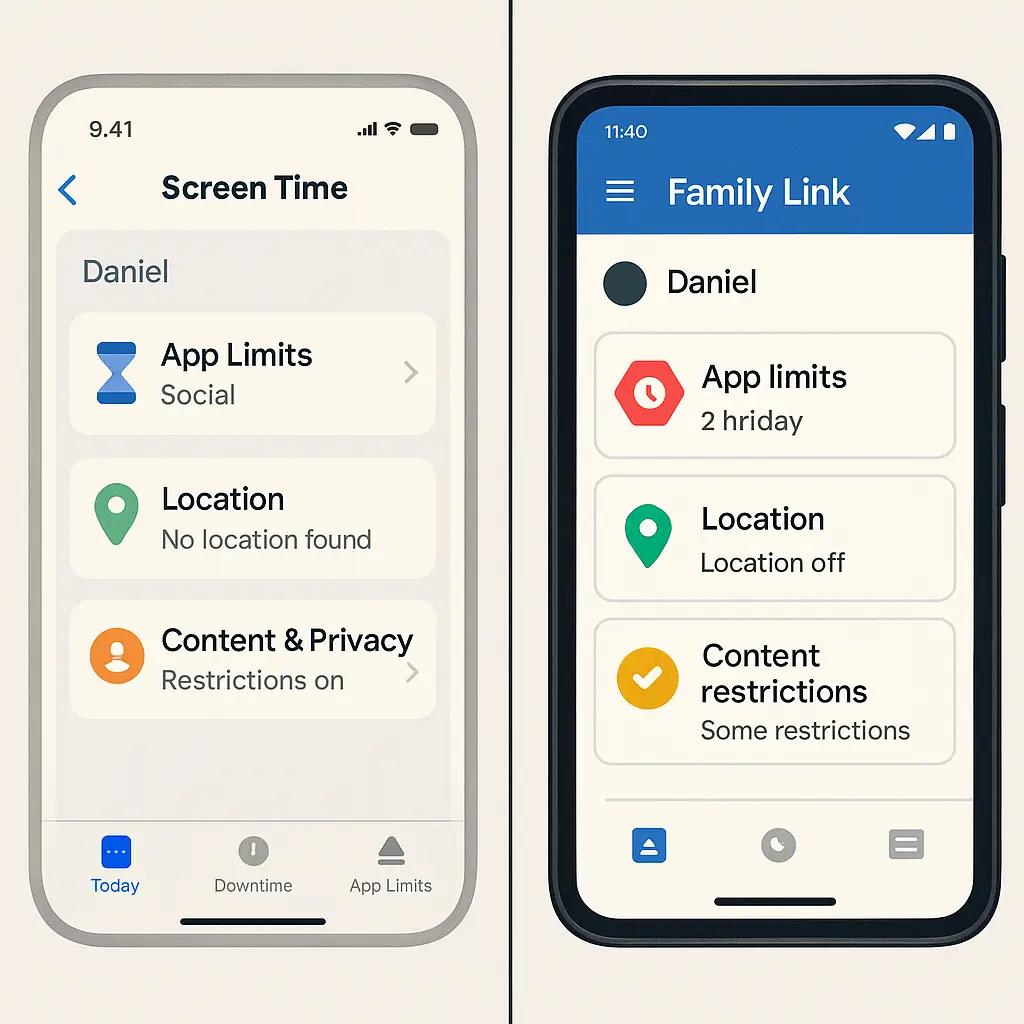
Screen Time integrates into iOS as a native feature. Family Link operates as a separate app that works across Android devices. The difference matters because it changes what you can control, how your kid experiences restrictions, and what happens when they try to work around the rules.
This comparison walks through how each system handles app limits, content filtering, location tracking, and the practical reality of enforcement. The goal is not to pick a winner, but to match the tool to your situation.
How Each System Works
Apple Screen Time lives inside iOS Settings. You enable it on your device, then set up Family Sharing to extend controls to your kid's iPhone or iPad. Once configured, you set time limits, approve app downloads, and filter content through the same interface you use to manage your own device settings.
Google Family Link requires separate apps. You install Family Link for parents on your device (iOS or Android). Your kid installs Family Link on their Android phone or tablet. The parent app sends instructions to the child device, which enforces the rules. The child device shows a persistent notification that parental controls are active.
Screen Time assumes an all-Apple household. If you use Android and your kid uses an iPhone, Screen Time won't work. Family Link works with any parent device, but the child must use Android. There's no cross-platform option that gives you full control over both ecosystems.
Both systems require you to create accounts for your kid. Apple uses a child Apple ID under your Family Sharing group. Google uses a supervised Google Account managed through Family Link. These accounts persist after you disable parental controls, which means your kid's app purchases, saved passwords, and browsing history remain tied to an identity you initially controlled.
App Limits and Time Management
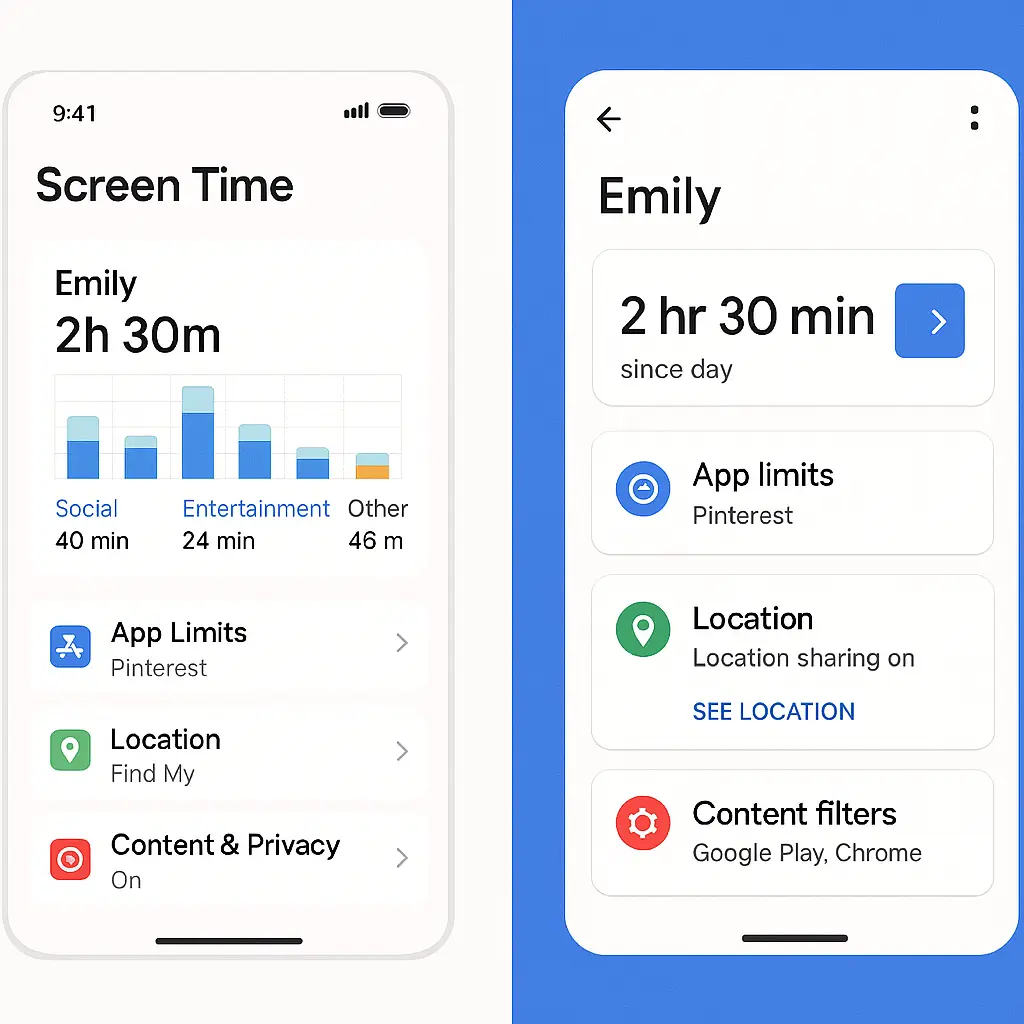
Screen Time lets you set daily time limits by app category (Social Networking, Games, Entertainment, and similar) or by individual app. When time expires, the app grays out and shows a time-limit screen. Your kid can request more time by sending a notification to your device. You approve or deny from your phone without needing to be in the same room.
Family Link offers the same category-based and individual app limits, but adds a layer of granularity. You can set different limits for weekdays and weekends. You can block apps entirely without uninstalling them. You can require approval before your kid downloads any app from the Play Store, even free ones.
Both systems let you set "Downtime" or "Bedtime" schedules that lock the device during specific hours. Screen Time allows you to designate certain apps as "Always Allowed" (Phone, Messages, and apps you choose) that remain accessible during Downtime. Family Link's Bedtime mode is more restrictive: when Bedtime is active, the device locks entirely except for emergency calls.
The enforcement mechanism differs in a way that matters. Screen Time's time limits apply across all devices signed into your kid's Apple ID. If your kid has an iPhone and an iPad, the 2-hour limit on TikTok applies to both devices combined. Family Link limits apply per device. If your kid has two Android tablets, each gets its own set of limits unless you manually sync the settings.
Screen Time's "Ask for More Time" feature creates a negotiation loop. Your kid hits the limit, requests more time, and you decide in real time. Family Link doesn't have this feature. When time expires, the app locks. Your kid can't request an extension through the interface. They have to ask you in person, and you have to manually adjust the limit in your parent app.
Content Filtering and Web Restrictions
Screen Time's content filtering works through Apple's built-in restrictions. You can block explicit content in the App Store, iTunes, and Apple Books. You can limit web access to a curated list of approved sites, or allow unrestricted access with adult content filtering. The web filtering applies to Safari and any browser that uses Safari's rendering engine (which is all browsers on iOS, per Apple's App Store rules).
Family Link's content filtering is more aggressive. You can set content ratings for apps, games, movies, TV shows, and music. You can block or allow specific websites. You can filter Google Search results to remove explicit content. You can require approval before your kid downloads any app, regardless of rating.
The difference shows up in how each system handles YouTube. Screen Time can restrict YouTube to the Kids version of the app, but it can't filter content within the main YouTube app. Family Link integrates with YouTube's supervised experience, which lets you choose from three content levels: Explore (9+), Explore More (13+), or Most of YouTube (with some restrictions). This gives you more control over what your kid sees without forcing them into the Kids app, which many older kids find too restrictive.
Both systems struggle with encrypted messaging apps. Screen Time can limit who your kid communicates with through iMessage and FaceTime during Downtime, but it can't monitor message content. Family Link can block messaging apps entirely, but it can't filter conversations within apps you allow. If your kid uses Snapchat, Instagram DMs, or Discord, neither system gives you visibility into those conversations without third-party monitoring software.
Screen Time's Communication Safety feature (introduced in iOS 15) scans photos sent and received in Messages for nudity. If the system detects a nude image, it blurs the photo and shows a warning. Your kid can choose to view it anyway, but the system sends you a notification if they're under 13. Family Link has no equivalent feature. Google's stance is that parents should monitor communication through conversation and device checks, not automated scanning.
Location Tracking
Screen Time doesn't include location tracking. Apple separates that feature into Find My, which requires separate setup. You can share your kid's location through Find My, but it's not integrated into the Screen Time interface. You open a different app to see where they are.
Family Link builds location tracking into the parent app. You open Family Link and see your kid's current location on a map. The system updates location automatically when the child device is online. You can't set geofences or receive alerts when your kid arrives or leaves a location, but you can check their location at any time without asking them to share it manually.
The difference matters if location tracking is a priority. Screen Time requires your kid to actively share their location through Find My, which they can disable at any time if they know where to look in Settings. Family Link's location tracking is mandatory while parental controls are active. Your kid can't disable it without your permission, and the system notifies you if they try.
Both systems show location history, but the implementation differs. Find My shows your kid's location when you check, but it doesn't log a timeline unless you enable location sharing specifically. Family Link logs location updates throughout the day, which means you can see where your kid was at 3 PM even if you're checking at 9 PM.
What Your Kid Sees
Screen Time's restrictions appear as system-level blocks. When your kid hits a time limit, the app icon grays out and shows a small hourglass. When they tap it, they see a screen that says "Time Limit" with options to ignore the limit for 15 minutes, ask for more time, or return to the home screen. The interface is minimal and doesn't announce that a parent is watching.
Family Link is more visible. The child device shows a persistent notification that parental controls are active. When your kid opens an app that's blocked or time-limited, they see a screen that says "Managed by [Your Name]" with your profile photo. The system makes it clear that someone else controls the device.
This visibility affects how your kid perceives the restrictions. Screen Time feels like a system feature, similar to Low Power Mode or Do Not Disturb. Family Link feels like surveillance. Some parents prefer the transparency; others find that it creates more friction than necessary.
Both systems let your kid request changes, but the process differs. Screen Time's "Ask for More Time" sends a notification to your device. Family Link requires your kid to ask you in person or through a different communication channel. There's no in-app request feature.
Workarounds Kids Actually Use
Screen Time's most common workaround is the device clock. If your kid changes the time zone or sets the clock forward, Screen Time's limits reset. Apple has patched some versions of this exploit, but variations persist. The fix requires you to enable "Set Automatically" for date and time in Settings, which you can enforce through Screen Time's restrictions.
Family Link's most aggressive workaround is a factory reset. If your kid resets the device to factory settings, Family Link uninstalls and parental controls disappear. The next time they connect to WiFi, the device prompts them to log into a Google Account. If they use their supervised account, Family Link reinstalls and notifies you. If they create a new account or use someone else's, you lose control until you physically take the device back.
Both systems fail against unmonitored devices. If your kid borrows a friend's phone, uses a school-issued Chromebook, or accesses the web through a gaming console, your parental controls don't apply. The technical restrictions work only on the devices you control.
Screen Time's "Ask for More Time" feature becomes a negotiation tool. Some kids learn that requesting more time at strategic moments (when you're busy, when you're in a good mood, when you're not paying attention) increases their approval rate. The system doesn't track how often you approve requests, which means you might not notice a pattern until it's established.
Family Link's app approval requirement creates friction that some families find useful and others find exhausting. Every app download requires your explicit approval. This means your kid can't install anything without your knowledge, but it also means you become the gatekeeper for every game, social app, and utility they want to try. The volume of requests depends on your kid's age and habits, but some parents report dozens of approval requests per week.
What Happens at 13 and Beyond
Both systems treat age 13 as a threshold, but they handle the transition differently.
At 13, Screen Time continues working as before, but your kid gains the ability to create their own Apple ID if they didn't already have one. They can't remove Screen Time restrictions without your password, but they can request to leave Family Sharing. If you approve, all parental controls end immediately.
Family Link gives your kid the option to "graduate" from supervision at 13. Google sends a notification to both parent and child that supervision can end. Your kid can choose to stop supervision, which removes all parental controls and converts their supervised account to a standard Google Account. You can delay this by keeping supervision active, but your kid can override your decision by contacting Google support and requesting account access. At 18, supervision ends automatically regardless of your preference.
The age-13 threshold exists because of COPPA, the federal law that restricts how companies collect data from children under 13. Once your kid turns 13, they gain legal control over their own data, which means tech companies can't force them to remain under parental supervision indefinitely.
Some families handle this by having the conversation before the technical controls expire. You discuss what changes at 13, what rules remain, and what happens if trust breaks. Other families wait until the notification arrives and negotiate in real time. The system doesn't care which approach you take, but the conversation matters more than the settings.
Making the Choice
If you use Apple devices exclusively and your kid uses an iPhone or iPad, Screen Time is the default. It's built into the OS, requires no additional apps, and integrates with the rest of Apple's ecosystem. The limitations are real (weaker content filtering, no integrated location tracking, easier workarounds), but the convenience of having everything in one place matters for some families.
If your kid uses Android, Family Link is your only option. It offers more granular controls, stronger content filtering, and integrated location tracking. The tradeoff is visibility: your kid knows they're being monitored, and the system's restrictions feel more like surveillance than guidance.
If you're choosing a new device for your kid and parental controls are a priority, the decision comes down to how much control you want versus how much friction you're willing to accept. Screen Time is less intrusive but less powerful. Family Link is more powerful but more visible. Neither system is foolproof, and both require you to enforce boundaries offline.
The real question isn't which system is better. It's what you're trying to accomplish. If your goal is to limit screen time and prevent accidental exposure to inappropriate content, both systems work. If your goal is to monitor your kid's location and approve every app they download, Family Link delivers more of what you need. If your goal is to teach your kid to manage their own device use with gradually decreasing oversight, Screen Time's lighter touch might fit better.
Some families use both. They start with Family Link's stricter controls when their kid is younger, then transition to Screen Time's lighter restrictions as their kid demonstrates responsibility. Others start with Screen Time and add third-party monitoring software when they need more visibility. The tools adapt to your situation, but only if you're clear about what you're trying to protect and what you're willing to enforce.
The system you choose matters less than the conversation you have about why the restrictions exist, what happens when your kid pushes back, and how the rules change as they get older. The parental controls are a tool. The relationship is the work.