End-of-Life Windows: What to Do When Support Ends
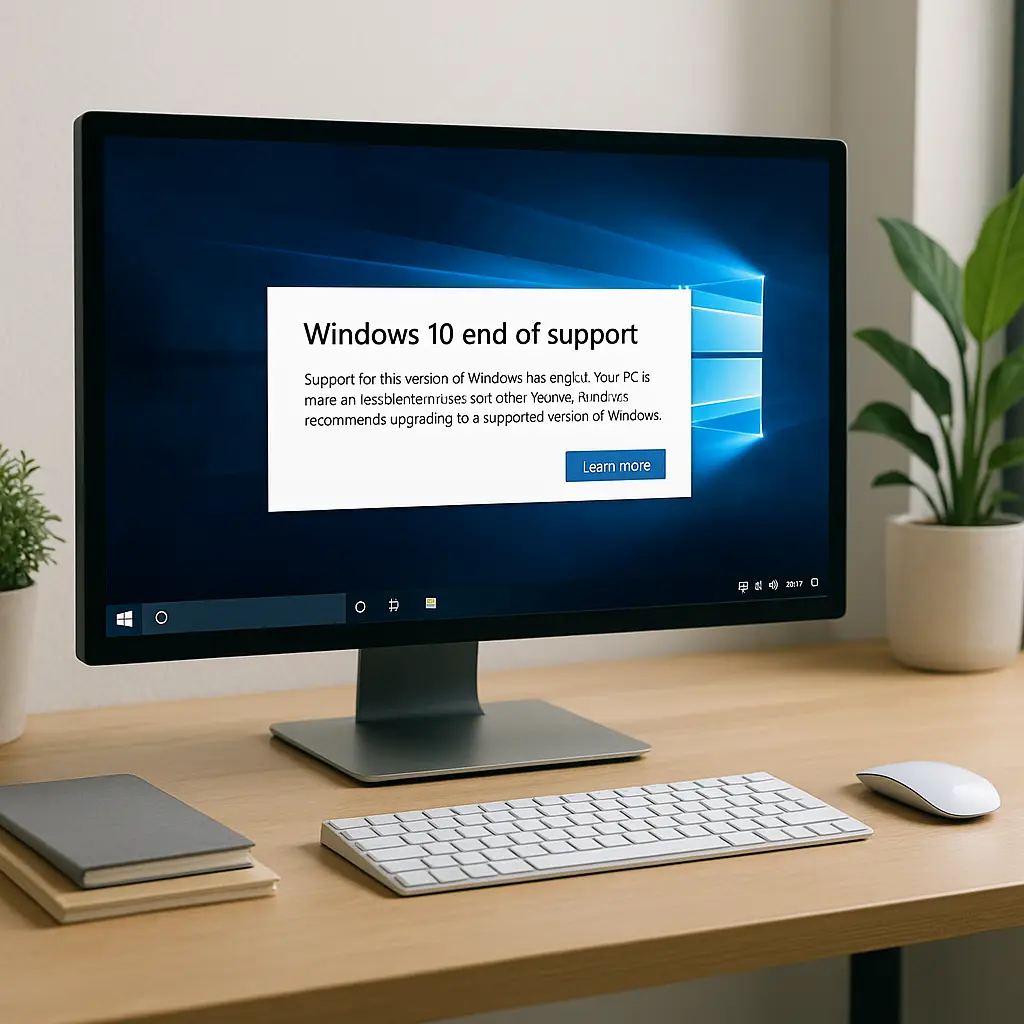
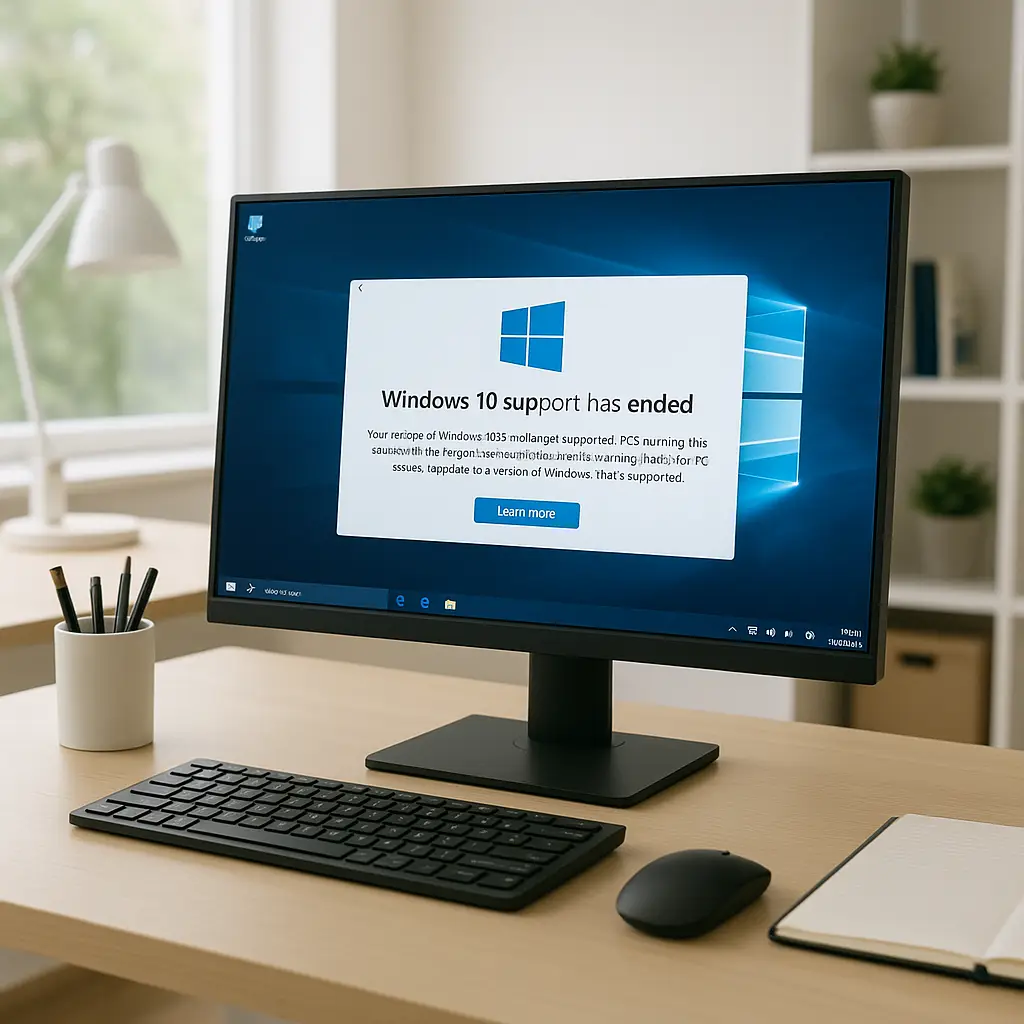
Windows 10 support ends October 14, 2025. After that date, Microsoft stops releasing security patches. Your computer doesn't stop working, but unpatched vulnerabilities accumulate, and the risk grows with time.
This is not the first time Microsoft has ended support for a widely used operating system. Windows XP hung on for years after its 2014 end-of-life date, powering ATMs, medical devices, and millions of home computers. Windows 7 followed the same pattern when support ended in 2020. Both transitions created security risks that persist today.
Windows 10 powers around 60 percent of Windows machines as of mid-2026. That's hundreds of millions of devices facing the same deadline. Some will upgrade. Some will pay for extended support. Some will keep running unsupported systems for years.
Here's what each path looks like, what it costs, and what you actually need to do.
What end-of-life actually means
When Microsoft ends support for an operating system, security updates stop. Feature updates stopped years earlier. What remains is a frozen codebase that no longer receives patches for newly discovered vulnerabilities.
Attackers know this. They reverse-engineer patches released for newer Windows versions to find vulnerabilities that exist in older ones. When a security hole appears in Windows 11, researchers can often work backward to find the same flaw in Windows 10. After October 2025, that flaw stays unpatched in Windows 10 forever.
The risk isn't immediate. On day one after end-of-life, your Windows 10 machine is as secure as it was the day before. But the clock starts. Every month without patches adds to the list of known, exploitable vulnerabilities. Within a year, that list grows long enough that malware authors build automated tools to exploit it.
CISA tracks ransomware campaigns that specifically target unpatched systems. Attackers scan the internet for machines running outdated software, then deploy exploits that wouldn't work against patched systems. The attacks are automated, indiscriminate, and effective.
Your antivirus software helps, but it can't patch the operating system. Antivirus detects known malware signatures and behavioral patterns. It doesn't fix the underlying security holes that malware exploits. When an attacker uses a zero-day exploit against an unpatched Windows 10 machine, antivirus might catch the payload, but it won't stop the initial breach.
Check if your computer can run Windows 11
Windows 11 requires specific hardware. Not all Windows 10 machines meet the requirements. Microsoft built the upgrade criteria around security features that older hardware lacks.
The requirements:
- TPM 2.0 (Trusted Platform Module)
- UEFI firmware with Secure Boot capability
- 64-bit processor from around 2018 or later
- 4GB RAM minimum (8GB recommended)
- 64GB storage minimum
TPM 2.0 is the deal-breaker for most older machines. TPM is a chip that stores encryption keys and performs cryptographic operations at the hardware level. Windows 11 uses it for BitLocker encryption, Windows Hello biometric authentication, and secure boot verification. Machines built before around 2016 often lack TPM entirely. Machines from 2016-2018 might have TPM 1.2 instead of 2.0.
Microsoft provides a PC Health Check tool that scans your hardware and tells you whether your computer meets Windows 11 requirements. Download it, run it, and you'll get a clear yes or no.
If the answer is no, you have three options: pay for extended security updates, replace the computer, or switch operating systems entirely.
Option 1: Upgrade to Windows 11
If your hardware passes the compatibility check, upgrading to Windows 11 is the most straightforward path. The upgrade is free for Windows 10 users. Microsoft delivers it through Windows Update.
Before you upgrade:
- Back up your files to an external drive or cloud storage
- Write down or export your software license keys
- Document any custom settings or configurations you'll need to recreate
- Verify that your essential software runs on Windows 11 (check vendor websites)
The upgrade process preserves your files, applications, and settings, but backups protect you if something fails. I've seen upgrade installations corrupt drivers, break software dependencies, or fail partway through. Having a backup means you can restore your system if the upgrade goes wrong.
Start the upgrade through Settings > Update & Security > Windows Update. If Windows 11 is available for your machine, it appears as an optional update. Download it, install it, and the process takes around an hour depending on your hardware.
After installation, check that everything works:
- Test your printer, scanner, and peripherals
- Launch your most-used applications
- Verify internet connectivity
- Check that files and folders are intact
- Test audio and video playback
Some older peripherals lose driver support in Windows 11. Printers from 2010, scanners from 2012, and specialty hardware from small vendors sometimes lack Windows 11 drivers. If a device doesn't work after upgrade, check the manufacturer's website for updated drivers. If no driver exists, you'll need to replace the device or keep the old computer running for that specific hardware.
Option 2: Pay for Extended Security Updates
Microsoft offers Extended Security Updates (ESU) for Windows 10 through October 2028. The program delivers critical security patches but no feature updates, bug fixes, or technical support.
The cost structure:
- Year 1 (October 2025 - October 2026): around $30
- Year 2 (October 2026 - October 2027): around $60
- Year 3 (October 2027 - October 2028): around $120
Prices double each year. Microsoft sets the exact pricing closer to the program launch date, but the doubling pattern matches previous ESU programs for Windows 7 and Windows Server.
ESU is a stopgap, not a permanent solution. You're buying time to plan a hardware upgrade or operating system migration. The program ends in October 2028 regardless of how much you've paid. After that, you're back to running an unsupported operating system with no security patches available at any price.
To enroll in ESU:
- Go to Settings > Update & Security > Windows Update
- Look for the ESU enrollment option (available starting October 2025)
- Purchase the subscription through the Microsoft Store
- Install the ESU activation key
- Verify that security updates resume
ESU makes sense if you need to keep a specific machine running for business-critical software that won't run on Windows 11 or if you're planning a hardware replacement within the next year but can't do it immediately. It doesn't make sense as a long-term strategy. Paying $210 over three years to patch an aging computer costs more than many replacement options.
Option 3: Keep running Windows 10 without support
You can keep using Windows 10 after support ends. The operating system doesn't stop working. Applications keep running. Files remain accessible. The risk is invisible until it isn't.
If you choose this path, understand what you're accepting:
Malware risk increases over time. Every unpatched vulnerability is a potential entry point. Attackers build exploit kits that target known flaws in unsupported operating systems. The longer you run without patches, the larger the attack surface becomes.
Antivirus helps but doesn't eliminate risk. Bitdefender, Malwarebytes, and other antivirus tools detect malware, but they don't patch operating system vulnerabilities. An attacker who exploits an unpatched Windows 10 flaw can potentially bypass antivirus entirely by compromising the OS before antivirus loads.
Compliance and insurance implications exist. Some industries require current security patches for regulatory compliance. Cyber insurance policies increasingly require supported operating systems. Running Windows 10 after end-of-life might violate your insurance terms or industry regulations.
If you're keeping an unsupported Windows 10 machine running, reduce exposure:
-
Disconnect it from the internet if possible. Air-gapped machines can't be remotely exploited. If the computer runs software that doesn't need internet access, disable the network adapter entirely.
-
Use it only for specific tasks. Don't browse the web, check email, or download files on an unsupported machine. Limit its role to running one or two applications that can't move to a newer system.
-
Keep antivirus running and updated. Even without OS patches, antivirus provides some protection against known malware. Configure it to update definitions daily.
-
Don't store sensitive data on it. Move financial records, personal documents, and passwords to a supported device. If the machine gets compromised, limit what an attacker can steal.
-
Monitor for unusual behavior. Watch for unexpected network activity, new programs appearing, or system slowdowns. These can signal compromise.
This approach works for machines that perform a single function in an isolated environment. It doesn't work for daily-use computers that handle email, banking, and general web browsing.
Option 4: Replace the computer
If your hardware can't run Windows 11 and you don't want to pay for extended support, replacement is the clean solution. New computers come with Windows 11 pre-installed, meet all security requirements, and receive updates through at least 2031.
Budget considerations vary. A basic desktop or laptop that meets Windows 11 requirements costs around $400-600 new. Refurbished business-class machines from 2020-2022 cost around $200-400 and often exceed the specs of new budget models. The refurbished route makes sense if you're comfortable buying from reputable resellers who test and warranty their stock.
Before you buy:
- Verify that the machine includes Windows 11 (some budget models still ship with Windows 10)
- Check that it has sufficient RAM for your workload (8GB minimum, 16GB better)
- Confirm that storage is SSD, not HDD (speed matters more than capacity for most users)
- Look for a warranty of at least one year
After you buy:
- Set up the new machine completely before decommissioning the old one
- Transfer files using an external drive, cloud sync, or direct network transfer
- Reinstall applications on the new machine (don't copy program files)
- Test everything before wiping the old computer
- Securely erase the old machine's drive before disposal or donation
The transition takes time. Budget a weekend to move everything over, reinstall software, and verify that you haven't missed critical files or settings.
Option 5: Switch to Linux
Linux is free, receives security updates indefinitely, and runs on hardware that Windows 11 rejects. The tradeoff is the learning curve and software compatibility.
Distributions like Ubuntu and Linux Mint target users transitioning from Windows. They include graphical interfaces, software centers, and familiar application equivalents. LibreOffice replaces Microsoft Office. Firefox and Chrome run natively. Email, web browsing, and media playback work the same as on Windows.
What doesn't work:
- Windows-only software (Adobe Creative Suite, specific tax software, proprietary business applications)
- Most PC games (though Steam's Proton compatibility layer runs many titles)
- Peripheral drivers for niche hardware (some printers, scanners, and specialty devices lack Linux support)
If your computing needs center on web browsing, email, document editing, and media consumption, Linux handles all of it. If you depend on specific Windows applications, check whether Linux-compatible alternatives exist or whether the Windows version runs under Wine (a compatibility layer that runs some Windows software on Linux).
To test Linux without commitment:
- Download a live USB image of Ubuntu or Linux Mint
- Use a tool like Rufus or Etcher to write the image to a USB drive
- Boot your computer from the USB drive
- Explore the desktop environment without installing anything
- Test your essential workflows (web browsing, document editing, email)
The live USB environment runs entirely from the USB drive. Nothing changes on your computer's hard drive. You can test for hours or days, then reboot back to Windows 10 without any permanent changes.
If the test goes well and you decide to install Linux:
- Back up everything on your Windows 10 machine
- Create a separate partition for Linux or wipe the drive entirely
- Run the Linux installer from the live USB
- Follow the installation prompts (choose "Install alongside Windows" if you want to dual-boot)
- Reboot and configure your applications
Dual-booting lets you keep Windows 10 available for specific tasks while running Linux for daily use. You choose which operating system to boot when you start the computer. This works well if you need Windows occasionally for software that won't run on Linux.
In Severance, the characters live split lives, toggling between two realities with no memory of the other. Running dual-boot Windows and Linux creates a similar partition, but you control the switch. One environment for legacy software that refuses to move forward. One environment for everything else. The boundary is clean, the separation is complete, and you decide which world you're in when you power on.
The analogy holds because the mental model matters. Dual-booting isn't a compromise. It's deliberate segmentation. Windows 10 handles the one application that won't migrate. Linux handles everything else. You're not trying to make one system do both jobs. You're running two systems that each do one job well.
What to do right now
If Windows 10 support ends in October 2025 and you're reading this in August 2026, you're already past the deadline. Here's the priority sequence:
If your computer meets Windows 11 requirements: Upgrade immediately. The free upgrade is still available. Back up your files, run the compatibility check, and install Windows 11 through Windows Update. This takes one afternoon and eliminates the security risk.
If your computer doesn't meet Windows 11 requirements: Decide whether to pay for ESU, replace the hardware, or switch to Linux. ESU buys you time but costs money. Replacement solves the problem permanently but requires upfront investment. Linux is free but demands learning.
If you're keeping Windows 10 unsupported: Reduce your attack surface. Disconnect from the internet if possible. Use the machine only for specific tasks. Keep antivirus updated. Move sensitive data elsewhere. Understand that the risk grows every month.
The worst option is inaction. Running an unsupported operating system while browsing the web, checking email, and handling financial transactions creates escalating risk. The exploits exist. The malware exists. The attacks are automated and indiscriminate.
Windows 10 had a good run. It launched in 2015, received feature updates through 2022, and security patches through October 2025. Ten years is a reasonable support lifecycle for consumer software. But the lifecycle ends, and when it does, you need a plan.
Make the decision. Execute the plan. Move forward.