When your only recovery email is also locked: step-by-step account recovery
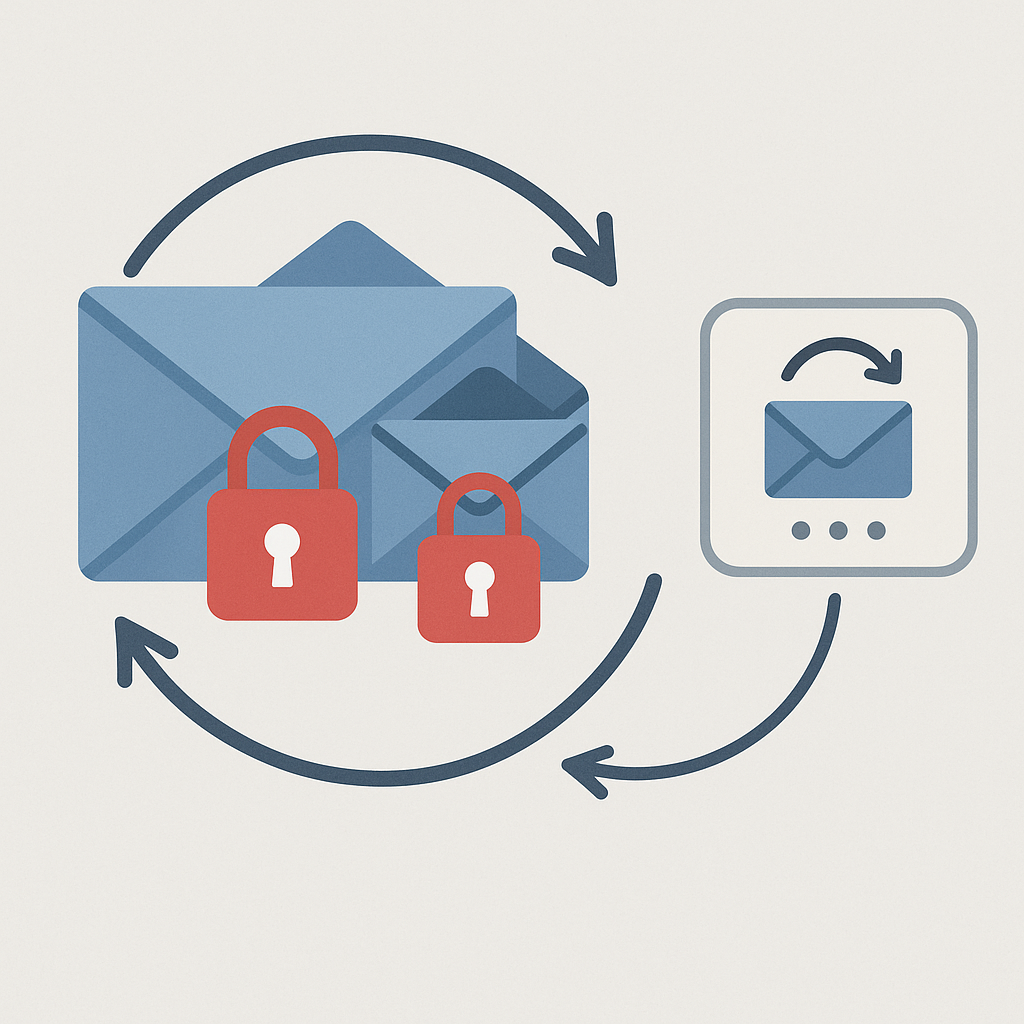
You're locked out of your email account. You click "forgot password." The service sends a reset link to your recovery email. You try to log into the recovery email. It's also locked. You need to reset that password. It sends a link to... the first email.
This is the circular lockout, and it's more common than you think. Around 15-20% of account lockouts involve inaccessible recovery emails, based on what I've read from customer support forums and security researchers. The problem compounds when people use old addresses they haven't checked in years, or when they set up recovery emails on the same service they're trying to recover.
Here's the step-by-step method to break the cycle and regain access.
Assess what you still have access to
Before you start clicking through password reset flows, inventory what still works. This determines which recovery paths are available.
Open a note file or grab paper. List every account you're locked out of. For each one, write down:
- The email address associated with the account
- The last time you successfully logged in
- Any phone numbers linked to the account
- Whether you have 2FA enabled and what method (app, SMS, hardware key)
- Whether you saved backup codes anywhere
- Any security questions you might remember answers to
- Trusted devices that might still be logged in
Check your password manager if you use one. Even if the stored password doesn't work, the entry might contain notes about security questions or backup codes you saved. Check your phone's authenticator app. If you see entries for the locked accounts, you can still generate codes, but only if the service accepts them without requiring you to log in first.
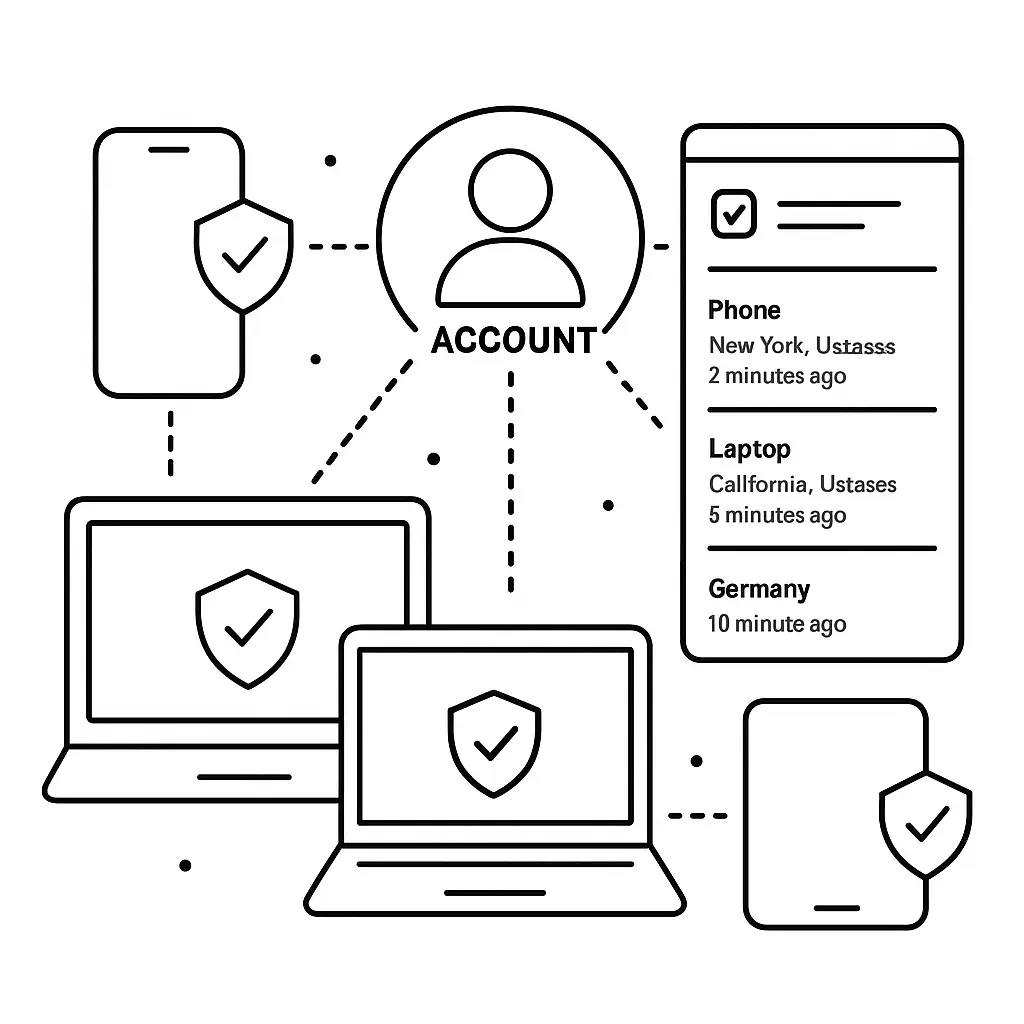
Look for devices still logged in. Your phone might have the email app still authenticated. Your browser might have an active session. A tablet you haven't touched in weeks might still have access. Don't log out of anything yet. An active session is leverage.
If you find an active session on any device, your first priority is extracting recovery information before that session expires. Go to account settings and check what recovery methods are configured. If you can add a new recovery email or phone number, do it now. If you can generate new backup codes, save them immediately to a password manager or print them.
Start with the primary account's recovery options
The account you actually want to access, your primary email, your banking login, your work account, is your main target. Most people instinctively try to recover the recovery email first, but that's backwards. The primary account might have recovery paths that don't depend on email at all.
Go to the primary account's password reset page. Look at every option the service offers. Common alternatives to email recovery include:
Phone verification. If you linked a phone number, the service can text or call you with a verification code. This works even if you can't access email. Enter your username or email address, select phone recovery, and check your messages. Some services send automated calls that read a code aloud. Answer even if the number looks unfamiliar.
Security questions. Older accounts often have security questions as a fallback. The questions are usually terrible (mother's maiden name, first pet, high school mascot), but if you remember your answers, they work. Be aware that some services lock you out after too many wrong attempts, so don't guess wildly.
Backup codes. If you enabled two-factor authentication, you should have received a set of single-use backup codes when you set it up. These codes bypass the normal 2FA flow. Check your password manager, your downloads folder, any printed sheets in your desk drawer, or photos on your phone from around the time you enabled 2FA.
Trusted devices. Apple, Google, and Microsoft accounts can send verification prompts to devices already logged in. If your phone or laptop is trusted, you'll get a notification asking you to approve the login. This works even if you can't access email.
Account recovery forms. Many services offer a manual identity verification process when automated recovery fails. You fill out a form with personal information, answer questions about your account history, and sometimes upload identification documents. The service reviews it manually and contacts you through an alternative email or phone number you provide in the form. This process takes longer, often 3-10 business days, but it works when nothing else does.
CISA's guidance on multifactor authentication notes that recovery mechanisms are often the weakest link in account security, which is why services layer multiple options. If one path fails, try another. Don't assume the first method is your only choice.
Recover the recovery email as a separate problem
If the primary account truly requires email access and no alternative recovery path works, shift focus to the recovery email. Treat it as its own account recovery problem with its own set of options.
Go to the recovery email provider's password reset page. Run through the same checklist: phone verification, security questions, backup codes, trusted devices, manual recovery forms. The recovery email account might have different recovery methods configured than your primary account.
If the recovery email is on the same service as your primary account (both Gmail, both Outlook, both Yahoo), you're dealing with a service-level lockout. You can't use one account to recover the other because they're both behind the same authentication system. Your only options are the service's built-in recovery mechanisms. This is why security professionals recommend using recovery emails on different services, Gmail for your Microsoft account, Outlook for your Apple ID, and so on.
If the recovery email is very old and you haven't used it in years, the provider might have deactivated it. Most email services delete inactive accounts after 12-24 months of no logins. If that happened, the recovery email address no longer exists, which means you can't receive reset links sent to it. You're back to alternative recovery methods on the primary account.
Some services let you change your recovery email if you can verify your identity through other means. If you can answer security questions or verify through phone, look for an option to update the recovery email before you try to reset the password. This breaks the circular dependency.
Use manual identity verification when automation fails
When automated recovery methods don't work, most major services offer a manual review process. This is slower and requires more information, but it's often the last viable path.
Find the account recovery or support page for the service. Look for phrases like "I don't have access to my recovery email," "I can't verify my identity," or "contact support for account recovery." Some services hide this option behind multiple layers of help articles. Keep clicking through "I still need help" or "these options don't work" until you reach a form or contact method.
The form will ask for information that proves you own the account. Common requests include:
- Full name associated with the account
- Date of birth
- Physical address
- Approximate account creation date
- Recent account activity (emails you sent, purchases you made, files you uploaded)
- Previous passwords you remember
- Payment methods on file
- Security question answers
The more specific you can be, the better. "I created this account in 2018" is weaker than "I created this account in March 2018 when I started my current job." Generic information raises flags. Specific details build confidence that you're the legitimate owner.
Some services require government-issued ID. You'll upload a photo of your driver's license or passport. The service compares the name on the ID to the name on the account. This feels invasive, but it's one of the few ways to verify identity when digital recovery methods fail.
After you submit the form, you wait. The service will contact you at the alternative email address or phone number you provided in the form. Response times vary wildly. Google and Microsoft often respond within 2-3 business days. Smaller services can take a week or more. Some services don't respond at all, which usually means they couldn't verify your identity from the information provided.
If your first attempt fails, try again with more detailed information. If you're locked out of a work account, contact your IT department. They have admin-level access and can reset your credentials directly. If you're locked out of a personal account tied to purchases or subscriptions, mention the financial relationship in your recovery request. Services are more responsive when money is involved.
Break the recovery email dependency permanently
Once you regain access, whether through phone verification, backup codes, or manual review, your first action is preventing this situation from happening again. The recovery email architecture that just failed you needs immediate replacement.
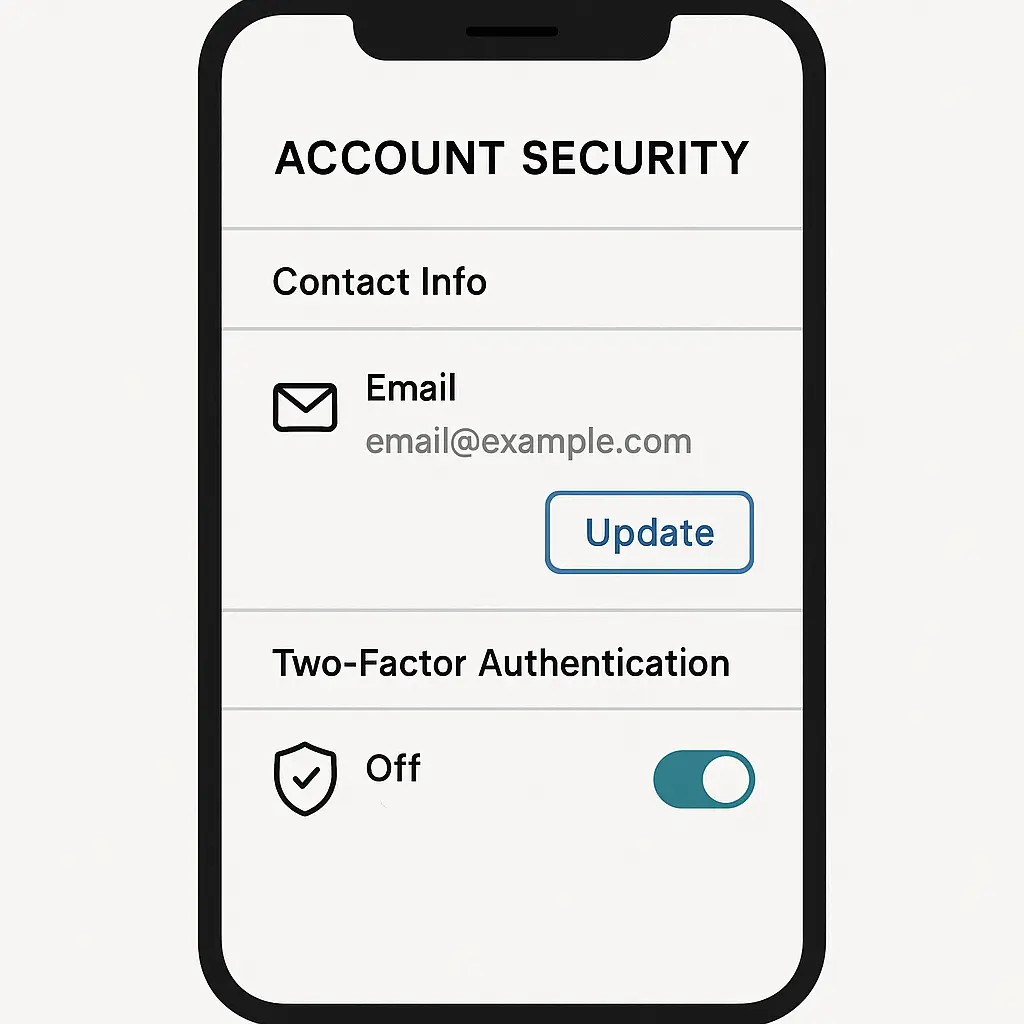
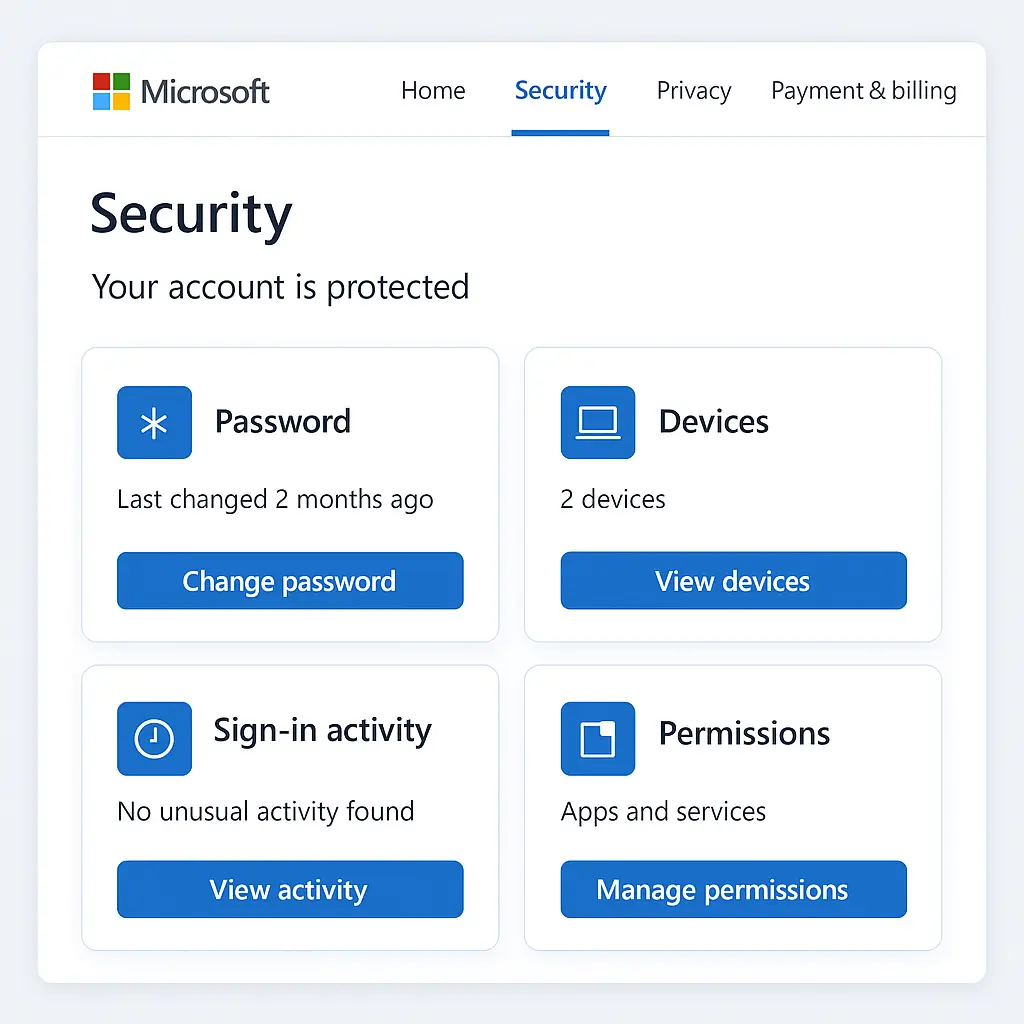
Log into the primary account. Go to security settings. Look for recovery options, backup email, or account recovery. Remove the inaccessible recovery email. Add a new one that you actively use and can reliably access. Better yet, add multiple recovery emails on different services. If one fails, the others provide backup paths.
Add a phone number if you haven't already. Phone-based recovery works independently of email. CISA recommends phone verification as a secondary recovery method specifically because it doesn't depend on other accounts. Use a number you'll have long-term. Mobile numbers change less frequently than email addresses.
Enable two-factor authentication if it's not already on. Generate backup codes and store them in your password manager. Print a copy and put it somewhere safe, a desk drawer, a safe, a folder in a filing cabinet. These codes are your escape hatch when everything else fails. EFF's guide to 2FA walks through the setup process for major services.
If you use a password manager, store your recovery information there. Create a secure note for each important account with the recovery email, phone number, and security question answers. The password manager itself becomes a reference point when you need to recover something. Just make sure you don't lock yourself out of the password manager, that's a different nightmare with its own recovery procedures.
Review your recovery settings annually. Email addresses change. Phone numbers change. Services add new recovery options. What worked two years ago might not work now. Set a calendar reminder to check your most important accounts once a year and update anything that's out of date.
When recovery fails completely
Sometimes you exhaust every option and still can't get in. The automated recovery paths don't work. The manual identity verification fails. The service doesn't respond to your requests. You're locked out permanently.
At that point, you have to decide whether to keep fighting or move on. If the account holds critical data, years of emails, important documents, photos, keep trying. Escalate through every support channel the service offers. Social media support accounts sometimes help when standard forms don't. Public complaints occasionally get attention when private requests don't. I'm not saying it's guaranteed, but I've seen it work.
If the account is less critical, consider whether the effort is worth it. Creating a new account might be faster than spending weeks battling a recovery process that isn't working. You lose the old data and any services tied to that email address, but you regain functionality. It's a tradeoff.
Before you create a new account, search your email (if you have access to any email) for messages from the service you're locked out of. Those messages might contain receipts, confirmation codes, or account details that help with identity verification. Forward anything relevant to your new email address before you lose access completely.
Update your accounts on other services to point to the new email. This is tedious but necessary. Your banking login, your social media accounts, your subscriptions, all of them need the new address. If you don't update them, you'll face the same recovery problem later when you need to reset those passwords.
Notify contacts who might still be sending messages to the old address. Set up an auto-reply if the old account is still accessible but you're moving away from it. The goal is minimizing the blast radius of the lockout.
The Office parallel that explains the problem
In The Office, Jim Halpert keeps a secret second desk in the office for months without anyone noticing. When he finally reveals it, the joke is that the backup was there all along, completely functional, but nobody knew to look for it. The recovery email lockout is the inverse of that joke: you thought you had a backup, you set it up years ago, but when you actually need it, it's not there. The desk is locked inside another locked room, and you don't have keys to either.
The lesson isn't that backups are useless. It's that backups need maintenance. Jim's second desk worked because he actively used it. Your recovery email works only if you actively maintain access to it. Set it up right, check it regularly, and make sure it's actually available when you need it.
What this reveals about account security architecture
The circular lockout exposes a fundamental tension in account security design. Services want recovery to be easy enough that legitimate users can regain access, but hard enough that attackers can't social-engineer their way in. The recovery email model assumes you'll always have access to at least one email address, which is reasonable most of the time but catastrophic when it fails.
The shift toward phone-based recovery and hardware security keys reflects this lesson. A phone number is harder to lose than an email address. A hardware key is a physical object you either have or don't. These methods don't eliminate the lockout problem, you can lose your phone, you can lose your key, but they diversify the failure modes. If one recovery path depends on email and another depends on a physical device, they're less likely to fail simultaneously.
The manual identity verification process exists because automation can't handle every edge case. Real humans review your information and make judgment calls. This is slower and more expensive for the service, which is why it's always the last resort, but it's also the only path that works when all the automated systems fail.
The uncomfortable truth is that perfect account recovery doesn't exist. Every method has failure modes. Every backup has a scenario where it doesn't work. The goal isn't eliminating failure. It's making failure less likely and less catastrophic when it happens.