Parental controls that actually work in 2026
You're comparing parental control options because your kid has a device and you need to set boundaries. The marketing promises are identical: filter content, limit screen time, monitor activity, protect your child. The reality differs dramatically across platforms, price points, and what you're actually trying to accomplish.
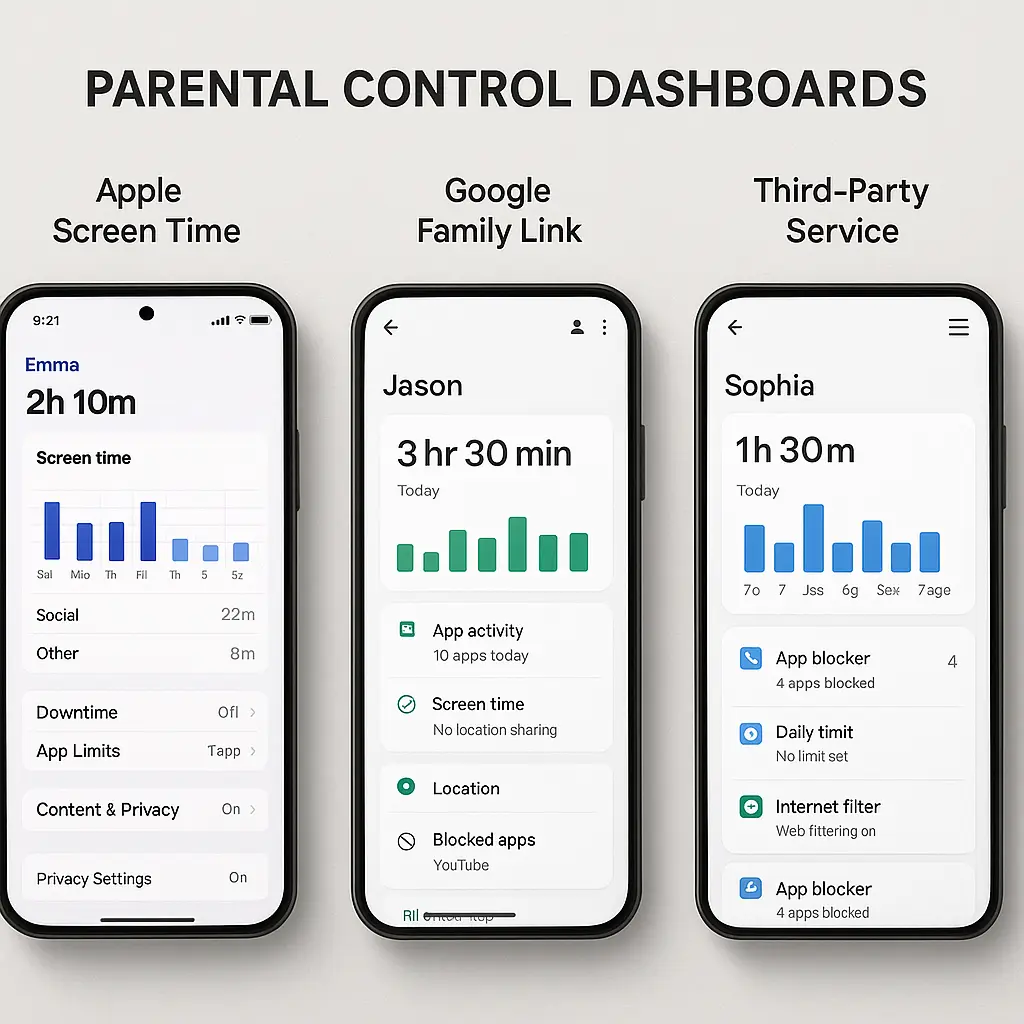
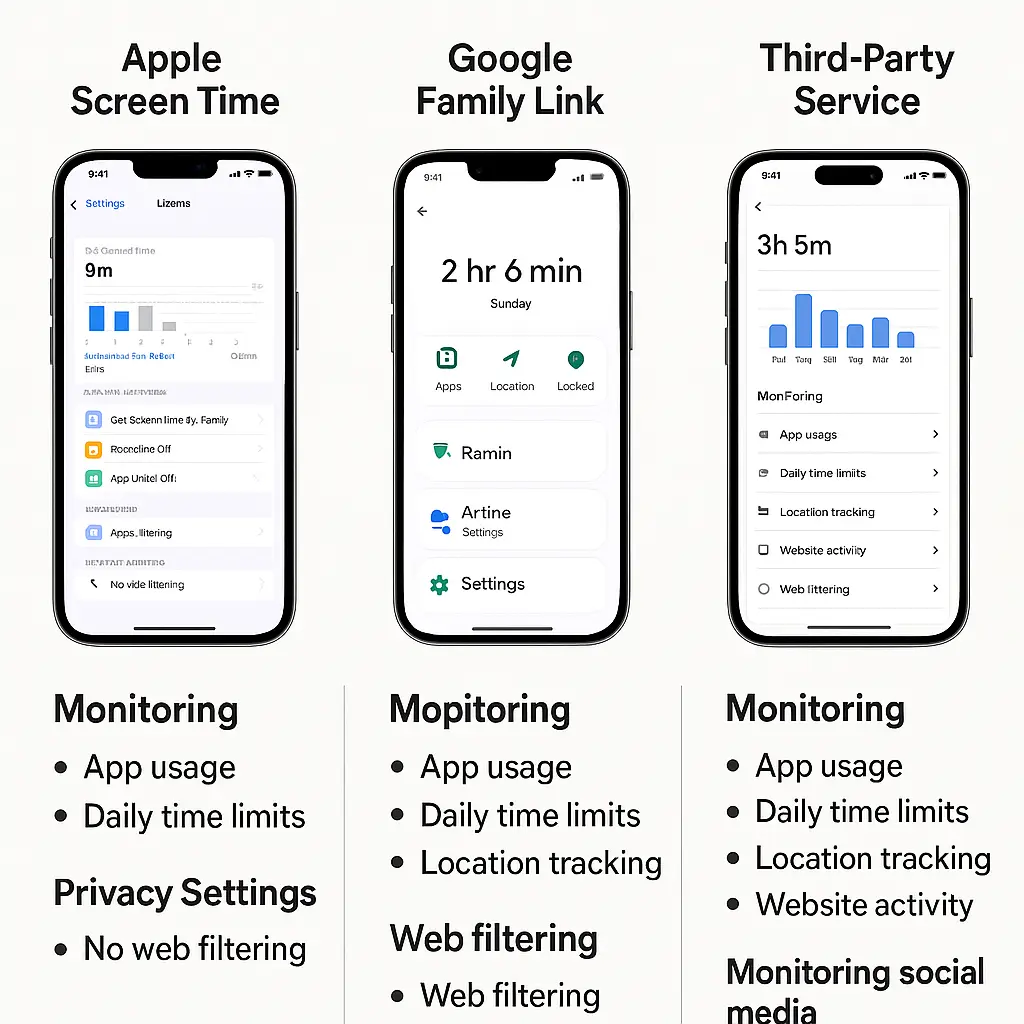
Here's how the major options compare on what matters. No single system does everything. You'll choose based on your child's age, your device ecosystem, and whether you prioritize filtering, monitoring, or time limits.
Built-in controls: Apple Screen Time
Apple's Screen Time runs on every iPhone, iPad, and Mac sold since 2018. You configure it through Settings, not a separate app. It's free. It integrates with the operating system at a level third-party tools can't match.
Screen Time limits app usage by category or individual app. You set daily time allowances. When time expires, the app icon grays out and won't launch. Kids can request more time. You approve or deny from your own device.
Content filtering blocks websites, apps, and media based on age ratings. The system uses Apple's ratings database, not real-time analysis. You can add specific sites to an allow list or block list. The web filter works in Safari. It doesn't work in Chrome, Firefox, or any browser kids download from the App Store unless you also block installing new apps.
Communication limits restrict who kids can contact during screen time and downtime. You build an allowed contacts list. Kids can't call, text, or FaceTime anyone not on the list during restricted hours. The feature works for Apple's built-in apps. It doesn't touch WhatsApp, Snapchat, Discord, or any third-party messaging app.
Location sharing shows where the device is in real time through Find My. You see the same map view you'd use to locate a lost phone. The device reports location as long as it has power and connectivity. Kids can't disable location sharing without your Screen Time passcode.
Screen Time reports show total device usage, app-by-app breakdowns, pickups per hour, and notifications received. The reports are detailed. They're also entirely local to the device. If your kid deletes the data, it's gone. There's no cloud backup of usage history.
The system has gaps. Kids who know the passcode bypass everything. Factory reset removes Screen Time entirely. A second Apple ID installed on the device operates outside Screen Time restrictions. Installing apps through TestFlight (Apple's beta testing platform) bypasses app installation limits. Changing the device date and time can extend app time limits in some configurations.
Screen Time works best for kids under 12 who aren't yet motivated to circumvent it. It degrades in effectiveness as technical sophistication increases.
Built-in controls: Google Family Link
Google Family Link manages Android phones and Chromebooks. You install it on your device and your child's device. It's free. It requires your child to have a Google account you control.
Family Link limits app usage with daily time caps and bedtime schedules. When time runs out, apps lock. The child's device shows a notification. You can grant more time remotely or require the child to ask in person. The system tracks time across all Android devices logged into the same account.
App management lets you approve or block every app your child tries to install from the Play Store. You get a notification when they request an app. You review it and approve or deny. Already-installed apps can be blocked individually. The child sees a "blocked by parent" message when they try to launch.
Content filtering uses Google SafeSearch for web results and YouTube Restricted Mode for videos. Both systems rely on algorithmic classification, not human review. SafeSearch blocks explicit images and videos in search results. Restricted Mode hides videos flagged as mature. Neither system is perfect. Some inappropriate content gets through. Some appropriate content gets blocked.
Location tracking shows the child's device on a map through Family Link. You see current location and location history for the past few days. The child can't disable location without your permission. Turning off the device or enabling airplane mode stops location updates.
Activity reports show app usage, screen time, and how many times the device was unlocked. Reports update daily. You see aggregated data, not real-time monitoring. The reports don't show message content, call logs, or browsing history beyond which apps were used.
Family Link stops working when the child turns 13. At that point, Google treats the account as an adult account. The child can disable supervision themselves. You get a notification, but you can't prevent it. Some parents create a new supervised account with a fake birthdate to extend control. That violates Google's terms of service and creates problems when the child needs the account for school or work.
The technical gaps are wider than Apple's. Kids can boot into safe mode to disable Family Link temporarily. They can factory reset the device and set it up with a new account. They can install apps from sources outside the Play Store if the device allows sideloading. Chromebooks supervised through Family Link are harder to bypass, but kids with physical access to the device can powerwash (factory reset) and remove supervision entirely.
Family Link works for younger kids on Android. It requires more active management than Screen Time and has more workarounds.
Third-party monitoring: Bark
Bark monitors text messages, email, social media, and some messaging apps for concerning content. You install it on the child's device. Bark's software scans messages, posts, and images for keywords and patterns associated with bullying, sexual content, drug references, violence, and depression.
When Bark detects something flagged as concerning, you get an alert with the message content and context. You see what was said, who said it, and when. You don't see every message. You see the ones Bark's algorithms flag.
The monitoring works differently across platforms. On iOS, Bark requires you to enable iCloud backups and share the backup credentials with Bark. The system scans backups, not live messages. There's a delay between when the message is sent and when you see the alert. On Android, Bark installs deeper into the system and can scan messages in near real-time.
Bark monitors Instagram DMs, Snapchat, TikTok, and around 30 other platforms. The extent of monitoring varies. Some apps allow full message scanning. Others only allow scanning of public posts and comments. End-to-end encrypted apps like Signal and WhatsApp can't be monitored at all. Bark can see that the apps are installed. It can't read the messages.
Screen time limits in Bark are basic compared to built-in tools. You set daily limits and bedtime schedules. The system doesn't offer category-based limits or app-specific rules. Web filtering blocks sites by category. The filter works in any browser as long as Bark's VPN connection is active. Kids who disable the VPN disable the filter.
Bark costs around $15 per month for monitoring plus screen time. A cheaper tier offers monitoring without screen time controls. The pricing is per family, not per device.
The system produces false positives. Song lyrics get flagged as concerning. Jokes between friends trigger alerts. Homework about historical events trips drug and violence filters. You'll spend time reviewing alerts that aren't actually problems.
Bark also misses things. Slang evolves faster than keyword lists. Kids who know the system is monitoring adjust their language. Conversations that happen in person, over voice calls, or in encrypted apps stay invisible.
Bark works for parents who want content monitoring, not just time limits. It's most effective for middle schoolers who aren't yet sophisticated about evasion. Older teens who understand how monitoring works can route concerning conversations to platforms Bark can't see.
Third-party monitoring: Qustodio
Qustodio offers screen time limits, web filtering, app blocking, and location tracking. You install it on the child's device and manage it through a web dashboard or parent app. It runs on Windows, Mac, iOS, Android, and Kindle.
Screen time controls let you set daily limits by device, by app, or by category. You can allow two hours of total screen time, or two hours of games plus unlimited educational apps, or 30 minutes of TikTok specifically. The rules are more granular than built-in tools. The interface is also more complex.
Web filtering blocks sites by category and specific URL. The filter uses Qustodio's proprietary database plus real-time analysis. You can override the automatic categories and allow or block individual sites. The filter works by routing traffic through Qustodio's servers. If the child disables the Qustodio app or VPN connection, the filter stops working.
Call and SMS monitoring shows who the child is texting and calling. On Android, Qustodio logs the content of SMS messages. On iOS, it logs only metadata (who, when, duration) because Apple doesn't allow apps to access message content. The monitoring doesn't extend to WhatsApp, Snapchat, or other messaging apps.
Social media monitoring tracks time spent on platforms and shows public posts. Qustodio can't read private messages on Instagram, Facebook, or TikTok. It can see that the apps are open and for how long.
Location tracking updates every few minutes when the device is online. You see current location and a history of where the device has been. The tracking works as long as the Qustodio app is running and has location permissions. Kids who force-quit the app or revoke permissions stop the tracking.
Qustodio costs around $55 per year for five devices, or $100 per year for ten devices. The pricing is higher than Bark but includes features Bark doesn't offer, like Windows and Mac monitoring.
The system is more intrusive than built-in controls and less focused than Bark. It tries to do everything: time limits, filtering, monitoring, location. The breadth creates complexity. You'll spend time configuring rules. You'll get notifications about blocked sites that weren't actually problems. The child will know they're being monitored because the app is visible and active.
Qustodio works for families who want centralized control across multiple device types. It's effective for kids who aren't yet trying to bypass it. It becomes a cat-and-mouse game with teenagers who learn to disable the app, use VPNs to route around the filter, or switch to devices you don't monitor.
Third-party filtering: Net Nanny
Net Nanny focuses on web filtering and content blocking. It doesn't monitor messages or track location. It blocks websites, YouTube videos, and search results based on content analysis.
The filter analyzes page content in real time, not just URL categories. Net Nanny's engine scans text, images, and video thumbnails to determine if content is appropriate. The system catches more than category-based filters because it evaluates the actual content, not just the domain.
You set filtering levels by age group: young child, pre-teen, teen. Each level blocks different categories of content. You can customize the categories and add specific sites to allow or block lists. The filter works in any browser as long as Net Nanny's software is running.
YouTube filtering in Net Nanny is more aggressive than YouTube's built-in Restricted Mode. The system blocks videos based on title, description, thumbnail, and channel history. It catches videos that Restricted Mode misses. It also blocks videos that are fine. You'll review override requests.
Screen time limits in Net Nanny are basic. You set daily time limits and bedtime schedules. The system doesn't offer app-specific limits or category-based rules. If you need granular time controls, you'll use Net Nanny for filtering and something else for time management.
Net Nanny costs around $40 per year for one device, or $90 per year for unlimited devices in one household. The pricing is competitive with other filtering tools.
The system works on Windows, Mac, Android, and iOS. On iOS, it requires a VPN connection to filter web traffic. Kids who disable the VPN disable the filter. On Android, Net Nanny integrates more deeply and is harder to bypass. On computers, the software runs as a system service that requires admin credentials to uninstall.
Net Nanny works for families who prioritize content filtering over monitoring or time limits. It's effective for younger kids who aren't trying to bypass it. It's less effective for teenagers who can use VPNs, proxy sites, or unmonitored devices to access blocked content.
Router-level controls: Circle Home Plus
Circle Home Plus is a physical device that connects to your home router. It monitors and controls all internet traffic for every device on your network. You don't install software on phones, tablets, or computers. The Circle device sits between your router and your devices.
The system assigns each device to a family member profile. You set rules by profile: time limits, bedtime schedules, content filters, app blocking. The rules apply to every device that person uses on your home network.
Time limits work by device or by category. You can allow two hours of total internet access, or unlimited internet but only one hour of gaming, or 30 minutes of social media. When time expires, the Circle device blocks that device's internet connection. The device can still access local network resources, but it can't reach the internet.
Content filtering blocks websites by category. Circle's database includes millions of sites categorized by content type. You choose which categories to block. The filter works for any device using your home network, regardless of operating system or browser.
App blocking works by identifying app traffic patterns. Circle recognizes TikTok, Snapchat, Instagram, and other apps by their network signatures. You can block specific apps while allowing others. The blocking works even if the app is already installed on the device.
Location tracking doesn't exist in Circle. The device monitors network traffic, not device location. If you need location tracking, you'll use something else.
The system stops working when devices leave your home network. Kids at school, at friends' houses, or using cellular data operate outside Circle's control. The device only manages traffic that passes through your router.
Circle Home Plus costs around $130 for the hardware plus $10 per month for the subscription service. The subscription includes content filtering, app blocking, and usage reports. Without the subscription, the device offers basic time limits but no filtering.
Circle works for families who want network-wide control without installing software on every device. It's effective for younger kids who primarily use devices at home. It's less effective for teenagers with smartphones who can switch to cellular data to bypass the controls.
School-issued Chromebooks: built-in MDM
School-issued Chromebooks come with Mobile Device Management (MDM) software pre-installed by the school district. You don't control it. The school controls it. You can't uninstall it. You can't override it.
The MDM software monitors browsing history, app usage, and sometimes screen content. Schools can see every website the student visits, every Google Doc they create, and every search query they enter. The monitoring works anywhere the Chromebook has internet access, not just on the school network.
Content filtering blocks websites based on the school's policies. The filter usually blocks social media, gaming sites, and any content flagged as inappropriate for educational environments. Students can't disable the filter. The blocking happens at the device level, not the network level.
App installation is restricted. Students can only install apps the school has approved. The Google Play Store is usually disabled or limited to a pre-approved list. Students can't sideload apps from outside sources.
Screen time limits don't exist in most school MDM configurations. The school wants students to use the device for homework. They don't typically restrict usage hours.
Location tracking may or may not be enabled, depending on the district's policies. Some schools track device location to recover lost or stolen Chromebooks. Others disable location tracking for privacy reasons.
You can't add your own parental controls on top of the school's MDM. Screen Time doesn't work on Chromebooks. Family Link conflicts with the school's MDM and usually gets disabled automatically. Third-party tools can't install because students don't have admin rights.
If you want additional controls beyond what the school provides, you'll need to monitor usage at the router level (Circle Home Plus) or rely on physical supervision. The Chromebook itself is locked down by the school.
School-issued Chromebooks are heavily monitored environments. Students know this. They'll use personal devices for anything they don't want the school to see. Your role is to manage the personal devices, not the school device.
Gaming consoles: platform-specific controls
PlayStation, Xbox, and Nintendo Switch all include parental controls. You configure them through the console settings or a companion app. The controls are free. They're built into the platform.
PlayStation's parental controls restrict game ratings, online communication, and spending. You set age-appropriate content ratings. Games above that rating won't launch. You can block or restrict online chat and messaging. You can require approval for purchases or set spending limits. The controls apply to the child's PlayStation Network account across all devices where they're logged in.
Xbox's parental controls (called Family Settings) offer screen time limits, content filters, and activity reports. You set daily time limits for the console. When time expires, the console logs the child out. You can block games by rating, restrict online multiplayer, and filter web browsing through Microsoft Edge on the console. Activity reports show which games were played and for how long.
Nintendo Switch's parental controls run through a smartphone app. You set daily time limits, restrict game ratings, and disable social media posting. When time expires, the Switch displays a notification. The child can keep playing, but you'll see in the app that they exceeded the limit. The system doesn't force a shutdown like Xbox does.
None of these systems monitor voice chat. Kids talking to other players through game chat are invisible to parental controls. The platforms can restrict who the child can chat with (friends only, nobody, everyone), but they can't show you what was said.
In-game purchases require payment method approval on all three platforms. You can require a password for every purchase, or set spending limits, or block purchases entirely. Kids who have access to your payment credentials can bypass these restrictions.
Cross-platform play complicates control. A child playing Fortnite on PlayStation is subject to PlayStation's parental controls, Nintendo's parental controls if they switch to Switch, and Epic Games' parental controls (which are separate from both). You'll configure controls in multiple places.
Gaming console controls work for managing screen time and content ratings. They don't address communication, which happens through voice chat the platforms can't monitor. If you're concerned about who your child is talking to while gaming, you'll need to rely on physical supervision or rules about where the console is located in the house.
What you're actually choosing
The comparison above describes features. The real choice is about what you're trying to accomplish and what tradeoffs you'll accept.
If you want to limit screen time and block inappropriate content for a younger child (under 10), built-in controls work. Use Screen Time on Apple devices. Use Family Link on Android. Configure them once, check in periodically, and adjust as needed. The systems aren't perfect, but they're free, they integrate with the device, and they're hard for young kids to bypass.
If you want to monitor communication and social media for a middle schooler (10-14), third-party tools like Bark offer visibility built-in controls don't provide. You'll pay a subscription fee. You'll review alerts. You'll deal with false positives. The monitoring gives you a window into conversations that would otherwise be invisible. It works until your child learns to route sensitive conversations to platforms you can't monitor.
If you want network-wide control without installing software on every device, router-level tools like Circle Home Plus manage all traffic from one location. You'll pay for hardware and a subscription. The system works at home and stops working when devices leave your network. It's effective for younger kids who don't yet have smartphones with unlimited data plans.
If you're managing a teenager (14+), technical controls degrade in effectiveness. Teenagers who want to bypass parental controls will find a way. They'll use friends' devices. They'll use cellular data instead of WiFi. They'll create accounts you don't know about. They'll learn which behaviors trigger alerts and adjust. At this age, the conversation matters more than the software.
One pattern from The Good Place applies here: the trolley problem isn't about choosing the right track. It's about recognizing that you're in a trolley problem at all. Parental controls aren't a set-it-and-forget-it solution. They're a framework for ongoing conversations about boundaries, trust, and what happens when rules get tested. The software enforces rules. You still have to decide what the rules should be and what happens when they break.
No single system does everything. You'll combine tools. Screen Time for app limits, Bark for social media monitoring, Circle for network filtering, and physical supervision for the gaps the software can't cover. The comparison above tells you what each tool does well and where it fails. The decision is yours.