Chromebooks at school: what they track, what they don't
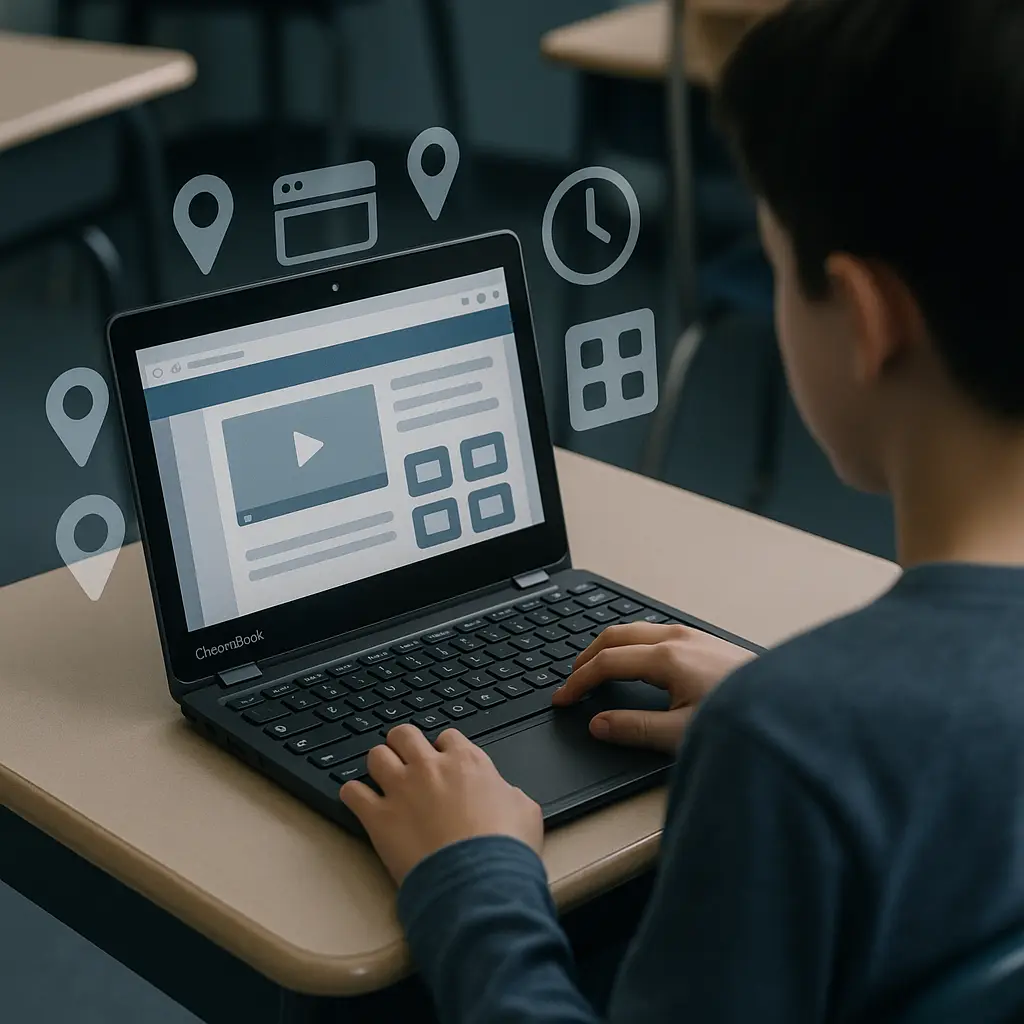
Your kid brings home a school-issued Chromebook. It looks like any other laptop. It connects to your home WiFi. Your child uses it for homework, research, and the occasional YouTube video between assignments. You assume it's a tool, not a surveillance device.
You're half right.
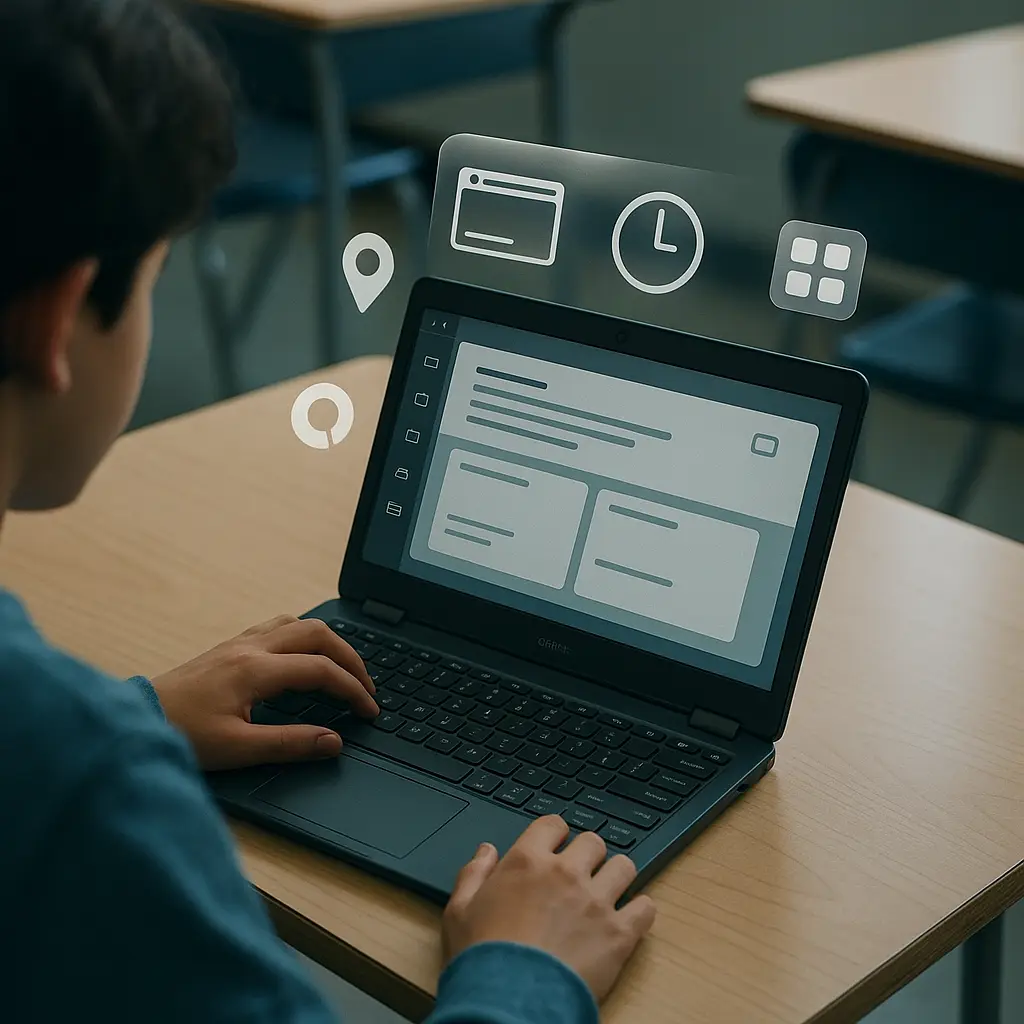
School Chromebooks run Chrome OS with enterprise management software that gives districts visibility into student activity far beyond what most parents realize. The tracking isn't a bug. It's the design. Districts deploy these controls to enforce acceptable use policies, monitor for safety concerns, and comply with federal regulations like the Children's Internet Protection Act. The software logs browsing history, tracks physical location, monitors screen time, and reports app usage. Some systems let teachers view student screens in real time.
This isn't a conspiracy. It's documented in district technology policies that most parents never read. The mechanisms are built into Chrome OS itself. Here's what school Chromebooks actually track, how the underlying systems work, and what you can control as a parent.
The management layer that makes tracking possible
Chrome OS supports enterprise management through Google Workspace for Education. When a district enrolls a Chromebook, it binds the device to the school's administrative domain. The district IT team configures policies through the Google Admin console. These policies control everything from which websites students can visit to whether the camera can be turned on without permission.
The management software runs at the operating system level, not as an app your child can close. It starts when the Chromebook boots and persists across sessions. Signing out of the school account doesn't disable it. Factory resetting the device doesn't remove it unless the district releases the device from enrollment.
This architecture gives districts three categories of visibility: device-level data, account-level data, and real-time monitoring through third-party classroom management tools.
Device-level tracking: location, hardware, and network activity
Chrome OS reports device location whenever the Chromebook is online and location services are enabled. The operating system uses WiFi network data, IP addresses, and GPS (if the hardware includes it) to determine position. The district admin console displays a map showing where each enrolled device last connected.
This tracking persists outside school hours. If your child brings the Chromebook to a friend's house, the library, or a coffee shop, the device reports that location to the district. The precision varies. WiFi-based location can place the device within around 50 meters under ideal conditions. IP-based geolocation is rougher, sometimes accurate only to the city level.
Districts can also see hardware serial numbers, Chrome OS version, last sync time, and battery health. These data points help IT teams manage device inventory and push updates, but they also create a persistent log of when and where each device was used.
Network activity gets logged differently depending on how the Chromebook connects. On the school network, districts can monitor traffic at the router level, seeing which domains students visit even if the connection is encrypted. On home WiFi, the district doesn't see your router logs, but the management software still reports browsing activity through the Chrome browser itself.
Account-level tracking: browsing history, app usage, and search queries
When your child signs into the school-issued Google account, Chrome syncs browsing history, bookmarks, and extensions to Google's servers. The district admin can view this data through the Workspace console. They see URLs visited, search terms entered into the Chrome address bar, and which Chrome apps and extensions are installed.
This tracking applies to any browsing done while signed into the school account, even on a personal device. If your child signs into the school Google account on your home computer, that browsing history syncs to the district's view. The reverse is also true: signing into a personal Google account on the school Chromebook doesn't bypass management controls. The device-level policies still apply.
Some districts configure SafeSearch enforcement, which forces Google search results to filter explicit content. Others block specific domains or categories (social media, gaming, streaming video). These restrictions live in the management policy and can't be disabled by the user.
Chrome OS also logs app usage. If your child installs an Android app from the Play Store or a Chrome extension from the Web Store, the district can see the app name, install date, and whether it's currently active. Some districts whitelist approved apps and block everything else. Others allow open installation but review usage logs periodically.
Real-time classroom monitoring software
Many districts layer third-party classroom management tools on top of Chrome OS. GoGuardian, Securly, Lightspeed, and Hapara are common platforms. These tools give teachers live visibility into student screens during class sessions.
A teacher using GoGuardian can open a dashboard showing thumbnail views of every student's screen in real time. They can see which tabs are open, what the student is typing, and whether the student has switched to a non-educational site. Teachers can close tabs remotely, lock a student's screen, or send a private message through the interface.
Some systems record screen activity as video. Others log screenshots at intervals. The data retention period varies by platform and district policy. Some districts store classroom monitoring logs for the school year; others delete them after a few weeks.
These tools typically activate only during school hours or when the student is connected to the school network, but configuration varies. Some districts enable monitoring 24/7 if the Chromebook is online. Others restrict monitoring to scheduled class times. You won't know which model your district uses unless you read the technology policy or ask IT directly.
What the school doesn't see
School Chromebooks don't monitor everything. The management software can't see activity on other devices in your home. It doesn't log conversations in messaging apps unless those apps run in the Chrome browser and the district has configured content filtering that inspects encrypted traffic (rare but possible). It doesn't record audio or video unless the student explicitly grants camera or microphone permissions to a web app.
The Chromebook doesn't track your child's personal Google account activity unless they sign into that account on the managed device. A personal phone, tablet, or laptop remains outside the school's visibility as long as your child doesn't log into the school account on those devices.
Districts also can't see into end-to-end encrypted services. If your child uses Signal or WhatsApp on a personal phone, the school has no access to those messages. The same applies to encrypted email services like ProtonMail, though most students use the school-provided Gmail account for school-related communication.
The legal framework: FERPA, COPPA, and state laws
Schools operate under the Family Educational Rights and Privacy Act, which classifies most data collected through educational technology as an education record. FERPA gives parents the right to inspect records, request corrections, and control disclosure to third parties. In practice, this means you can ask your district what data they've collected about your child and request deletion after your child graduates or transfers.
The Children's Online Privacy Protection Act applies to commercial services collecting data from children under 13. Educational institutions can consent to data collection on behalf of students for educational purposes, which is how districts justify sharing student data with third-party platforms like Google Workspace and classroom management tools.
Some states have enacted stronger student privacy laws. California's Student Online Personal Information Protection Act prohibits edtech vendors from using student data for advertising or building behavioral profiles. Illinois and New York have similar laws. Enforcement varies. Vendors sometimes violate these laws, and districts don't always audit compliance rigorously.
What you can ask your district
You have the right to request your district's technology use policy, the list of third-party platforms with access to student data, and the data retention schedule. Most districts publish acceptable use policies online, but they're often written in bureaucratic language that obscures the extent of tracking.
Ask specific questions:
- Which classroom management software does the district use, and is monitoring active outside school hours?
- Does the district enable location tracking on student Chromebooks?
- How long does the district retain browsing history, search queries, and screen recordings?
- What happens to student data when a child graduates or transfers to another school?
- Can parents opt out of specific tracking features while still allowing the child to use the device for schoolwork?
Some districts allow limited opt-outs. Others treat Chromebook use as all-or-nothing: accept the monitoring, or decline the device and make other arrangements for completing digital assignments. The leverage you have depends on your district's policies and your willingness to push back.
Practical steps for parents
You can't disable Chrome OS management without the district's cooperation, but you can reduce exposure.
First, create a separate workspace for personal use. If your child needs to browse non-school content, use a personal device signed into a personal account. Don't mix school and personal activity on the same device.
Second, review the Chromebook's privacy settings together. Open chrome://settings/privacy and walk through what's enabled. You can't change management policies, but you can see what permissions are active and discuss why certain settings exist.
Third, talk to your child about what's visible. Many kids assume their school Chromebook activity is private because they're at home. Explain that the school can see browsing history, search queries, and screen activity even outside school hours. This isn't about scaring them. It's about setting accurate expectations.
Fourth, check which Google account is active before your child starts a task. Chrome OS shows the active account in the bottom-right corner of the screen. If the school account is signed in, school policies apply. Signing out and using a personal account on a personal device is the only way to browse without district visibility.
Fifth, request a copy of your child's data annually. FERPA gives you this right. Some districts make it easy; others require formal written requests. Knowing what the district has collected helps you assess whether the tracking aligns with what the policy claims.
The tradeoff you're actually making
School Chromebooks exist because districts need a scalable, affordable way to provide devices and enforce safety policies. The tracking mechanisms serve legitimate purposes: preventing students from accessing harmful content on school networks, identifying students in distress through keyword monitoring, and ensuring devices aren't lost or stolen.
The tradeoff is pervasive surveillance. Your child's school-issued device logs their location, browsing habits, app usage, and screen activity in ways that would be illegal if a private company did it without consent. The school has consent through enrollment, but that consent is often uninformed. Most parents don't realize the extent of tracking until they read the policy carefully or ask IT staff directly.
You can't eliminate the tracking without opting out of the device entirely, and opting out often isn't practical if the school requires Chromebooks for assignments. What you can do is understand the mechanism, set boundaries around personal use, and advocate for district policies that limit data retention and restrict monitoring to school hours.
The Chromebook in your living room isn't just a laptop. It's a node in a surveillance system designed for institutional control. That system has legitimate uses, but it doesn't stop logging just because your child brought the device home.