Incognito Mode Doesn't Hide What You Think It Does
Incognito mode has a branding problem. The name suggests invisibility. The icon, a fedora and sunglasses in Chrome, a mask in Firefox, a hat and glasses in Safari, reinforces the idea that you're operating undercover. The reality is narrower and more technical than the iconography implies.
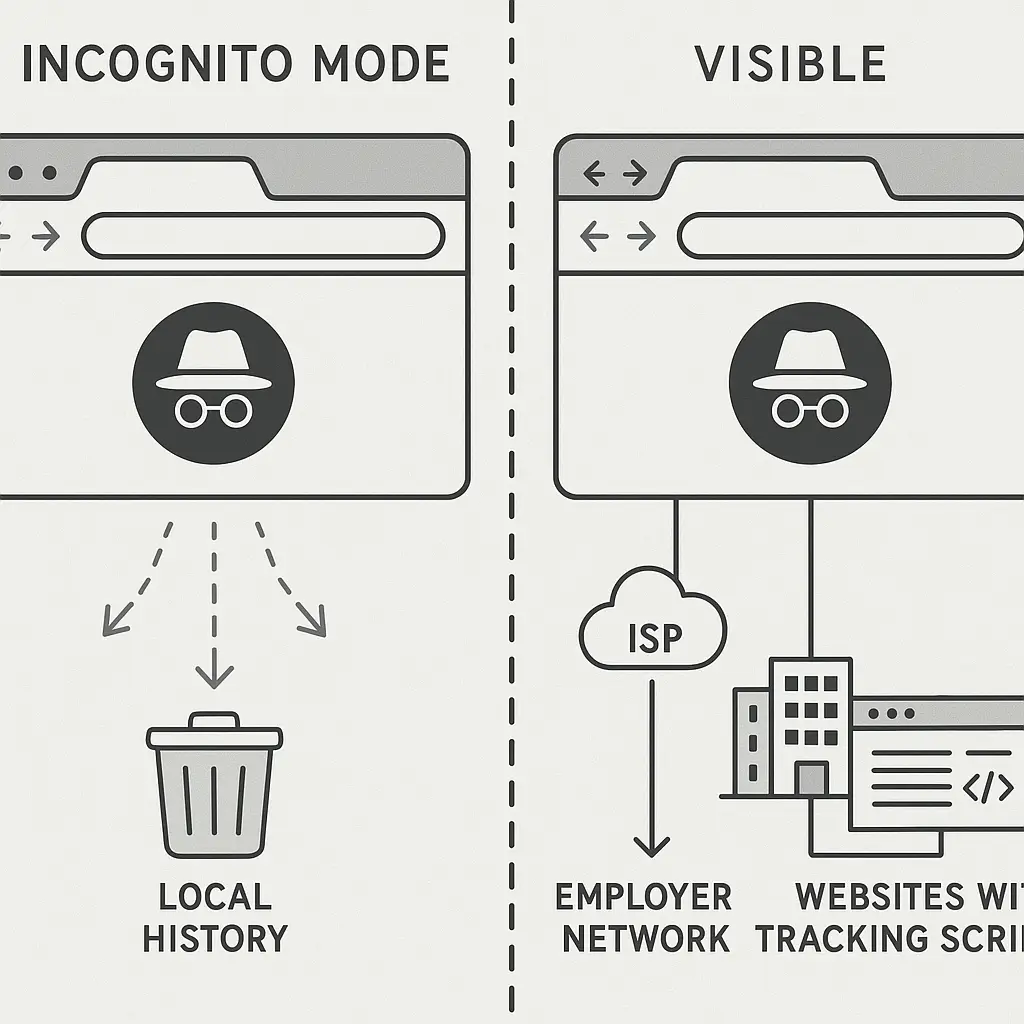
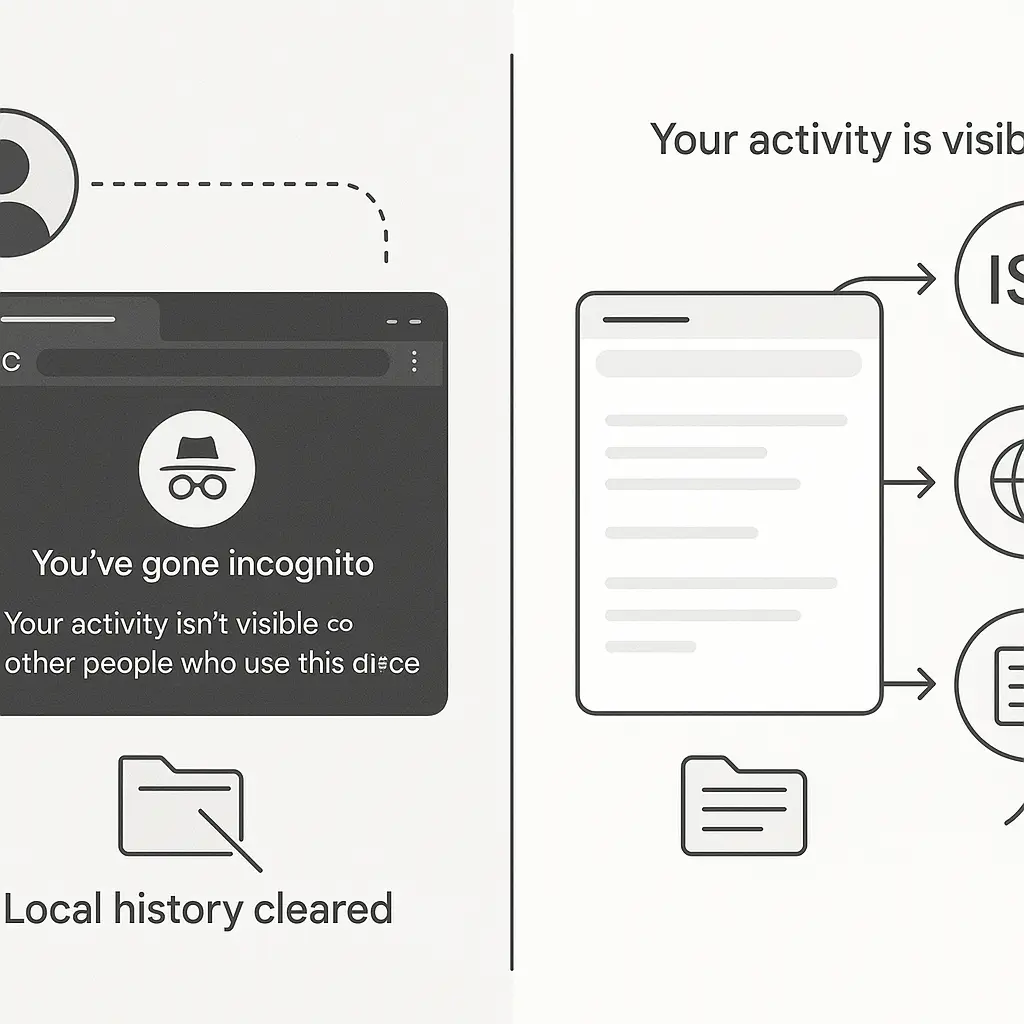
Incognito mode does one thing well: it prevents your browser from writing your browsing session to local storage. When you close an incognito window, the browser deletes that session's history, cookies, site data, and form inputs from your device. That's the entire feature. Everything beyond that boundary remains visible to the same parties who could see it in normal browsing mode.
The gap between what users think incognito mode does and what it actually does has legal, professional, and personal consequences. In my experience, the misconception causes more problems than the feature solves. Here's what incognito mode protects, what it doesn't, and when it's the right tool.
What Incognito Mode Actually Does
When you open an incognito window, your browser creates a temporary session with a clean slate. No cookies from your regular browsing carry over. No browsing history from previous sessions appears in the address bar. The browser treats you as a first-time visitor to every site.
During that session, the browser behaves normally. It stores cookies, saves form data, and maintains a history of the sites you visit, but only in memory, not on disk. When you close the incognito window, the browser wipes that session's data. Nothing persists to your device's storage.
This is useful in specific scenarios. If you share a computer with family members and don't want your browsing history visible in the shared browser, incognito mode prevents that. If you need to log into two accounts on the same site simultaneously, incognito mode lets you maintain separate sessions. If you're testing how a website behaves for a logged-out user, incognito mode gives you a clean environment without cookies or cached data interfering.
The feature does what it claims: it prevents local storage of your browsing session. The problem is that "local storage" is a narrow technical boundary that most users don't think about when they hear "private browsing."
What Incognito Mode Doesn't Hide
Your browsing activity in incognito mode is fully visible to your internet service provider. The ISP routes every request you make, incognito or not, and logs the domains you visit. Incognito mode doesn't encrypt your traffic. It doesn't mask your IP address. It doesn't prevent your ISP from seeing that you visited a specific site at a specific time. From the ISP's perspective, incognito mode is indistinguishable from normal browsing.
The same applies to employer networks. If you're browsing on a work computer or connected to a work WiFi network, your employer's network infrastructure can monitor your traffic. Network administrators can see the sites you visit, the files you download, and the services you access. Incognito mode changes none of this. The mode affects what your browser saves locally, not what the network sees in transit.
Websites you visit in incognito mode can track you the same way they track you in normal browsing. Your IP address is visible. Your browser fingerprint, a combination of your browser version, installed fonts, screen resolution, timezone, and dozens of other data points, is visible. If you log into an account while in incognito mode, the site knows who you are. If the site uses tracking scripts from third-party analytics providers, those scripts function normally.
According to research from the Electronic Frontier Foundation, browser fingerprinting can identify users even without cookies. Incognito mode deletes cookies at the end of the session, but it doesn't change your fingerprint. Tracking technologies that rely on device characteristics rather than stored data work the same way in incognito mode as they do in normal browsing.
Law enforcement and legal discovery processes can access browsing history from sources outside your device. If you're under investigation, incognito mode doesn't prevent authorities from obtaining records from your ISP, your employer's network logs, or the websites you visited. The local deletion of browsing history doesn't affect external records.
The Shared-Device Use Case
Incognito mode solves one problem cleanly: preventing other people who use your device from seeing what you browsed. If you share a laptop with a partner, incognito mode keeps your browsing history separate. If you use a family computer, incognito mode prevents your searches from appearing in the address bar autocomplete when someone else types.
This is a legitimate privacy need, but it's local privacy, not network privacy. You're protecting yourself from someone sitting at your computer later, not from someone monitoring your network traffic now.
For shared devices, incognito mode is often the right tool. It's faster than creating separate user accounts and switching between them. It doesn't require configuration. It's built into every major browser and works the same way across platforms.
But the protection is fragile. If you leave the incognito window open and walk away, anyone who sits down at your computer can see what you're doing. If you accidentally bookmark a page while in incognito mode, that bookmark persists. If you download a file, that file stays in your Downloads folder after you close the incognito window. Incognito mode doesn't create a security boundary, it creates a convenience feature that deletes certain types of data when you close the window.
The Multi-Account Login Use Case
Incognito mode lets you log into multiple accounts on the same site simultaneously. This works because cookies from your normal browsing session don't carry over into the incognito session. You can be logged into your personal email in a regular window and your work email in an incognito window at the same time.
This is useful if you manage multiple accounts and don't want to log out and back in repeatedly. It's faster than using different browsers or browser profiles for each account.
But it's not a security feature. The accounts are still logged in through the same network connection. If someone is monitoring your traffic, they can see you accessing both accounts. If you're on a compromised network, both sessions are vulnerable. Incognito mode doesn't add a layer of protection, it just lets you maintain separate cookie jars.
The Testing and Troubleshooting Use Case
Web developers and technical support staff use incognito mode to test how websites behave without cached data or stored cookies. If a site is misbehaving, opening it in incognito mode rules out interference from browser extensions, cached files, or old cookies.
This is a practical use case because it isolates variables. You're testing the site's behavior in a clean environment. But it's not a privacy use case. You're using incognito mode as a diagnostic tool, not as a way to hide your activity.
What You Need Instead of Incognito Mode
If you want to hide your browsing from your ISP, you need a VPN. A VPN encrypts your traffic and routes it through a remote server, preventing your ISP from seeing which sites you visit. Incognito mode doesn't do this. If network-level privacy matters to you, incognito mode is the wrong tool.
If you want to prevent websites from tracking you, you need browser extensions that block tracking scripts, or a browser with strong anti-tracking features built in. Firefox, Brave, and Safari all include tracker blocking by default. Incognito mode doesn't block trackers, it just deletes cookies at the end of the session, which doesn't prevent fingerprinting or server-side tracking.
If you want to prevent your employer from monitoring your browsing on a work network, you need to not browse personal sites on that network. Incognito mode doesn't hide traffic from network administrators. If you're on a work computer or work WiFi, assume everything you do is visible to your employer. That's not paranoia, it's how network monitoring works.
If you want to prevent law enforcement or legal discovery from accessing your browsing history, you need to understand that incognito mode doesn't prevent external parties from obtaining records from your ISP, your employer, or the websites you visited. Deleting local history doesn't delete external logs.
The Google Incognito Lawsuit
In 2024, Google settled a class-action lawsuit over incognito mode's privacy claims. The lawsuit alleged that Chrome's incognito mode misled users into believing their browsing was private when Google continued to collect data through its tracking technologies even in incognito sessions. Google agreed to delete billions of data records and update Chrome's incognito mode disclosures to make it clearer what the mode does and doesn't protect.
The settlement underscores the gap between user expectations and technical reality. Users thought incognito mode meant "Google can't see what I'm doing." The actual behavior was "Google can still track you through its analytics and advertising services, but your browser won't save the history locally." That's a significant difference, and the lawsuit forced Google to make the limitations more explicit.
Other browsers have similar disclosure problems. The iconography and naming suggest broader protection than the feature provides. In my experience, most people who use incognito mode don't understand that it only affects local storage. They think it's a privacy shield. It's not. It's a local history eraser.
When Incognito Mode Is the Right Tool
Incognito mode is the right tool when you need to prevent someone with physical access to your device from seeing your browsing history. It's the right tool when you need to log into multiple accounts on the same site simultaneously. It's the right tool when you're testing a website and want a clean session without cached data.
It's not the right tool for hiding your browsing from your ISP, your employer, law enforcement, or the websites you visit. It doesn't prevent tracking. It doesn't encrypt your traffic. It doesn't mask your IP address. It doesn't protect you from network monitoring.
The feature does what it says in the technical documentation. The problem is that the branding and iconography suggest something broader. A fedora and sunglasses imply disguise. The reality is narrower: when you close the window, the browser deletes the session data from your device. That's it.
The Sherlock Holmes Problem
In Arthur Conan Doyle's stories, Sherlock Holmes often solves cases by noticing what's missing. The dog that didn't bark. The letter that wasn't sent. The detail that should be there but isn't. Incognito mode operates on the same principle: it's defined by what it removes, not by what it adds.
When you close an incognito window, the browser deletes the session's cookies, history, and form data. That absence is the feature. But absence on your device doesn't create absence elsewhere. The ISP still logged your traffic. The website still recorded your visit. The employer's network still monitored your requests. Incognito mode removes the local record, but the external records remain.
This is where the analogy to Holmes breaks down. Holmes could deduce truth from absence because he understood the full context. Users of incognito mode often don't have that context. They see the absence of local history and assume broader invisibility. The external records, the ISP logs, the network monitoring, the website analytics, remain visible to parties with access to those systems.
Alternatives That Actually Provide Privacy
If you need network-level privacy, use a VPN. A VPN encrypts your traffic between your device and the VPN server, preventing your ISP from seeing which sites you visit. The VPN provider can see your traffic, so you're shifting trust from your ISP to the VPN provider, but that's often a reasonable trade depending on your threat model.
If you need to prevent tracking by websites, use a browser with strong anti-tracking features or install extensions that block tracking scripts. Firefox's Enhanced Tracking Protection, Brave's Shields, and Safari's Intelligent Tracking Prevention all block common tracking technologies by default. These tools prevent trackers from following you across sites, which incognito mode doesn't do.
If you need to prevent your employer from seeing your browsing, don't browse on the work network. Use your phone on cellular data, or wait until you're on a network you control. Incognito mode doesn't hide traffic from network administrators.
If you need to prevent someone with physical access to your device from seeing your browsing history, incognito mode works. But so does logging out of your user account, using a separate user profile, or clearing your browsing history manually. Incognito mode is convenient, but it's not the only option.
The Reality Check
Incognito mode is a local history eraser with good branding. It prevents your browser from writing your session to disk. It doesn't prevent your ISP from logging your traffic. It doesn't prevent websites from tracking you. It doesn't prevent your employer from monitoring your network activity. It doesn't prevent law enforcement from obtaining records from external sources.
The feature is useful for its actual purpose: preventing other people who use your device from seeing what you browsed. It's useful for logging into multiple accounts simultaneously. It's useful for testing websites in a clean environment. But it's not a privacy tool in the broader sense. It's a local data management tool.
The gap between user expectations and technical reality causes problems. People use incognito mode thinking they're protected from tracking, monitoring, or legal discovery, and they're not. The iconography and naming reinforce the misconception. The lawsuits and settlements are forcing browser vendors to make the limitations clearer, but the fundamental mismatch between branding and function remains.
If you use incognito mode, use it for what it actually does: deleting local browsing data when you close the window. If you need broader privacy protections, you need different tools. A VPN for network-level privacy. Anti-tracking browser features or extensions for preventing website tracking. Separate user accounts or devices for preventing physical access to your browsing history. Incognito mode is one tool in a larger toolkit. It's not a substitute for the others.
The name suggests a spy. The function is closer to a janitor. It cleans up after you, but only in one room. The rest of the building still has cameras.
Related reading: