BYOD Reality Check: What Your Employer Actually Sees on Your Personal Phone
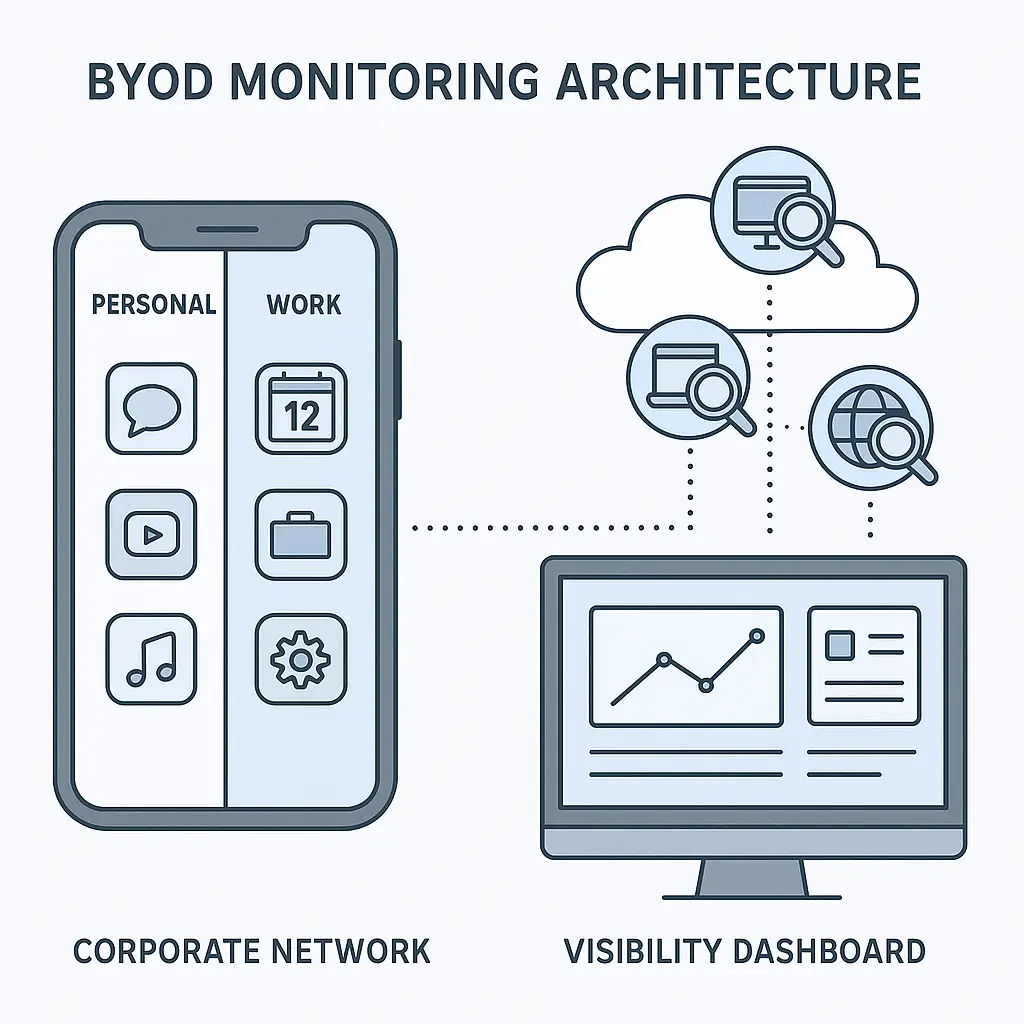
You check work email on your personal phone. You use Slack to coordinate with your team. You've got a corporate calendar synced to your device. It's convenient. It saves you from carrying two phones. And it creates a surveillance architecture you probably didn't agree to in any meaningful sense.
The technical term is BYOD, bring your own device. The practical reality is that your personal phone becomes partially visible to your employer the moment you install that first work app. How much they can see depends on what you installed, how it's configured, and what you agreed to when you clicked through the setup screens without reading them.
Here's what's actually happening, what your employer can monitor, and where the boundaries between work and personal data actually exist.
The Three BYOD Architectures
Not all work-on-personal-phone setups are created equal. The visibility your employer gets depends on which of three technical approaches your organization uses.
Email and calendar sync only. The lightest touch. You add your work email account to your phone's native mail app, sync your calendar, maybe install Microsoft Outlook or Gmail. Your employer can see work emails you send and receive, calendar events, and work contacts. They cannot see your personal emails, texts, photos, or location. They cannot remotely wipe your device. This is the setup most people assume they have.
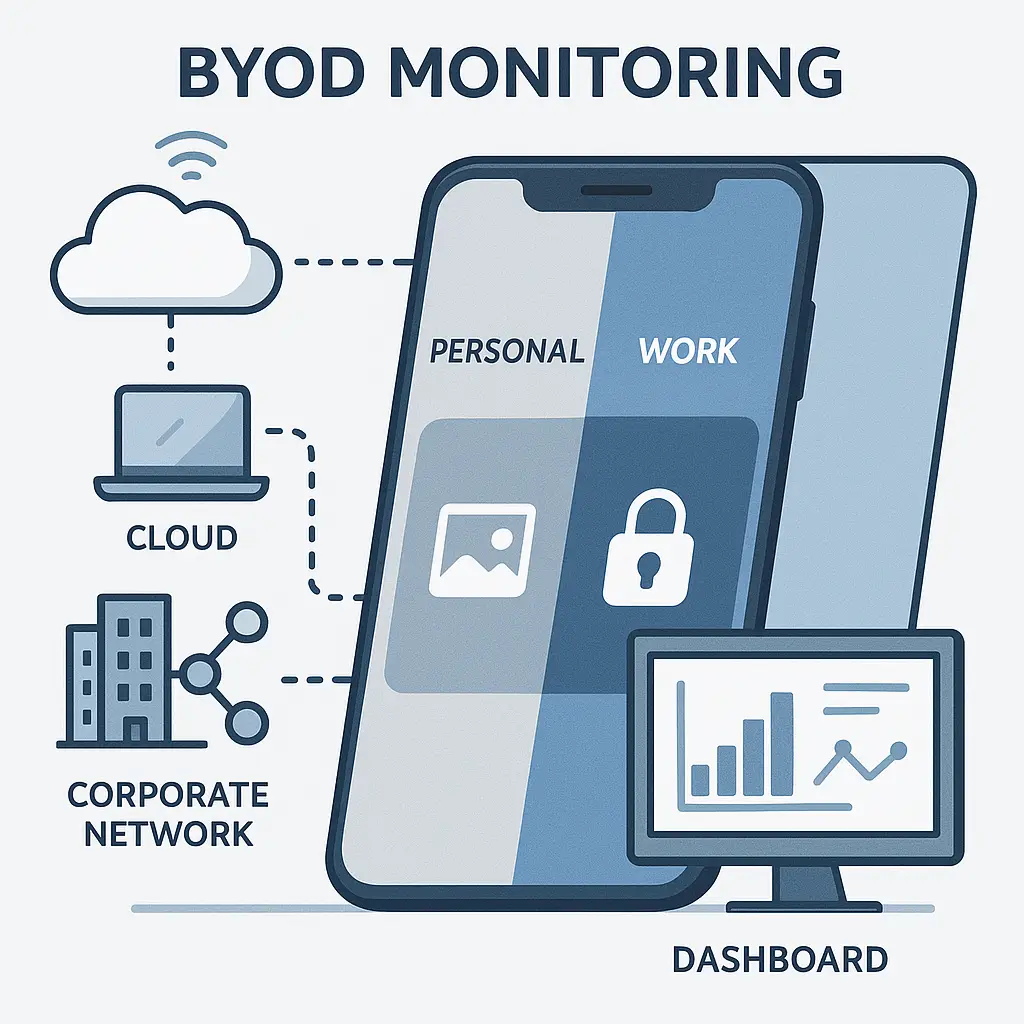
Containerized apps. A middle ground. You install apps like Microsoft Intune Company Portal, VMware Workspace ONE, or similar. These create an encrypted "container" on your phone, a separate zone for work data. Inside the container: work email, files, approved apps. Your employer can see activity inside that container, enforce security policies on containerized apps, and remotely wipe only the work container if you leave the company or lose your phone. Outside the container: your personal data remains invisible and untouchable. This is the architecture many companies have moved toward in the last five years.
Full Mobile Device Management (MDM). The most invasive. You enroll your entire device in an MDM system. Your employer installs a configuration profile that gives them administrative control over the phone itself. They can see your location, monitor which apps you install, enforce security settings across the entire device, and remotely wipe everything, work and personal data together, if the phone is lost or you leave the company. Some MDM systems can also see how much time you spend in each app, though most companies don't enable this level of monitoring for legal and morale reasons.
The difference between these three isn't subtle. It's the difference between "they can see my work email" and "they can see where I am right now."
What Your Employer Can Actually See
Let's break down the specific data points by architecture.
With email and calendar sync only:
- Work emails you send and receive
- Work calendar events and meeting attendees
- Work contacts synced to your device
- Metadata about when you access work email (timestamps, frequency)
They cannot see: personal emails, texts, photos, browsing history, location, installed apps, or anything else on your phone.
With containerized apps:
- Everything in the work container: emails, files, documents, chat messages sent through work apps
- Which work apps you've installed and when you last used them
- Security compliance status (whether you've set a passcode, enabled encryption, installed OS updates)
- Location data if you've granted location access to containerized apps
- Network information (whether you're on WiFi or cellular, sometimes which network)
They cannot see: personal apps, personal files, personal messages, photos outside the work container, browsing history in your personal browser, or activity in non-work apps. The container is a genuine technical boundary.
With full MDM:
- Device location in real time if location services are enabled
- Complete list of installed apps (work and personal)
- Device storage usage
- Network activity (which WiFi networks you've connected to)
- Security settings (passcode strength, encryption status, OS version)
- Cellular data usage
- Battery health and charging patterns
- Some MDM systems can see app usage time, though this is often disabled
They can also: remotely lock your device, force a passcode reset, install or remove apps, change settings, and wipe the entire phone.
They typically cannot see: the content of personal texts, personal emails, photos, or activity inside apps, unless they've installed additional monitoring software, which would require explicit consent and is rare in BYOD contexts.
The gap between what's technically possible and what's actually monitored matters. Most employers configure MDM to enforce security policies, not to spy on employees. But the capability exists, and you have no way to verify what's enabled without access to the MDM console.
Location Tracking: The Ambiguous Zone
Location is where the technical and the social get messy.
Work apps can request location access for legitimate reasons: mapping software for field workers, time-tracking apps that verify you're at a job site, expense apps that auto-populate location for reimbursement. When you grant location access to a work app, that app can see where you are whenever it's running, and sometimes when it's running in the background.
MDM systems can also track device location, but this is usually configured as an optional feature that activates only in specific scenarios: a lost device, a stolen device, or a compliance investigation. Some organizations enable continuous location tracking for roles that require it (delivery drivers, field technicians). Most don't, because it's expensive to store and legally risky to misuse.
The problem is visibility. You can check which apps have location access in your phone's settings, but you cannot see whether your employer is actively pulling that data or just reserving the right to do so. You cannot see location logs. You cannot audit what's being collected.
If location tracking matters to you, the only reliable defense is to deny location access to work apps when you're not actively using them. iOS and Android both let you set location permissions to "while using the app" instead of "always." Use that. Turn it off when you're done working.
The Wipe Question
Remote wipe is the BYOD feature that scares people most, and for good reason.
With containerized apps, a remote wipe removes only the work container. Your personal photos, texts, and apps stay intact. You lose work email and files, but nothing else. This is the industry-standard approach for BYOD programs in 2026, and it's the reason containerization exists.
With full MDM, a remote wipe can erase the entire device. Everything. Your employer has this capability if you've enrolled in MDM, and they can trigger it remotely without asking. The stated use case is theft or loss, if your phone disappears, they wipe it to protect company data. The unstated risk is accidental or retaliatory wipes. I've read accounts of employees getting wiped during contentious terminations, during device-return disputes, and once because IT clicked the wrong button in the console.
Some MDM systems offer selective wipe, where the administrator can choose between wiping only work data or wiping the entire device. Not all do. And you have no way to know which your employer uses without asking IT directly.
If your employer requires full MDM and you're not comfortable with the wipe risk, the answer is a separate work phone. That's not paranoia. That's recognizing that the technical capability exists and you have no control over when or how it's used.
What You Agreed To (Probably Without Reading It)
When you enrolled your phone in a BYOD program, you clicked through an agreement. That agreement spelled out what your employer can see and do. You didn't read it. Nobody reads it. I don't read them either.
But those agreements are legally binding, and they define the boundaries of what's allowed. Some key clauses that appear in most BYOD policies:
- Consent to monitoring of work-related activity on the device
- Consent to remote wipe in case of loss, theft, or termination
- Acknowledgment that work data on the device is company property
- Agreement to maintain security settings (passcode, encryption, OS updates)
- Agreement that personal data may be exposed during a remote wipe
- Waiver of privacy expectations for work-related communications
The specific wording varies, but the theme is consistent: you're granting your employer access to your device in exchange for the convenience of using one phone for everything.
If you want to know what you actually agreed to, ask HR or IT for a copy of the BYOD policy. Read the sections on monitoring, data access, and remote wipe. If those terms aren't acceptable, you can unenroll, but that usually means losing access to work email and apps on your phone.
The Slack and Teams Problem
Slack, Microsoft Teams, Google Chat, these apps are technically work apps, but they feel personal. You use them to coordinate lunch plans, share memes, complain about meetings. The interface is casual. The tone is informal. The surveillance is total.
Your employer owns the Slack workspace. They can read every message you've ever sent, including direct messages, including deleted messages, including messages in private channels. The same is true for Teams and Chat. These platforms are designed for workplace communication, and that means they're designed to be auditable.
Most companies don't actively monitor every message. They use keyword searches during investigations, pull message logs during legal disputes, or review activity when someone files a complaint. But the capability is always there.
The cultural reference that fits here is The Good Place, where every action gets tracked and judged by an omniscient system that knows more about you than you remember about yourself. Slack is the Good Place's accounting system, except the points don't determine your afterlife, they determine whether you still have a job.
If you're using Slack on your personal phone, your employer can see every message you send through that app. They cannot see your personal texts, but the line between "work chat" and "personal conversation" dissolves when you're using the same device for both.
What You Can Actually Control
You cannot stop your employer from monitoring work apps. That's the deal. But you can limit what they see by controlling what you install and how you configure it.
Check your MDM enrollment status. On iPhone: Settings → General → VPN & Device Management. On Android: Settings → Security → Device admin apps. If you see a configuration profile or device administrator installed by your employer, you're enrolled in MDM. If you don't see anything, you're probably using email sync or containerized apps only.
Review app permissions. Go through every work app and check what permissions it has. Location, camera, microphone, contacts, photos. Revoke anything that isn't necessary for the app to function. Set location to "while using" instead of "always."
Use separate browsers for work and personal. If you browse work-related sites on your phone, use a different browser than the one you use for personal browsing. This keeps cookies, history, and autofill data separated.
Turn off work notifications after hours. This won't stop monitoring, but it will reduce the ambient pressure to stay connected. Your employer can see when you read work email. They cannot see when you ignore it.
Ask IT what's actually enabled. Most IT departments will tell you what monitoring is active if you ask directly. They won't volunteer it, but they'll answer. Ask: "Does our MDM track location continuously or only when a device is reported lost?" "Can you remotely wipe personal data or only work data?" "Do you monitor app usage time?" You might not get a complete answer, but you'll get more information than you have now.
Consider a separate work phone. If your employer requires full MDM and you're not comfortable with the level of access that creates, ask for a company-provided device. Many organizations will provide one if you push back on BYOD. It's not always an option, but it's worth asking.
The Legal Gray Zone
Employment law around BYOD is unsettled. Courts have ruled that employers can monitor work-related communications on personal devices, but the boundaries of "work-related" are vague. Can they see personal texts if those texts are stored on a device enrolled in MDM? Can they access photos if the photos are visible in a work app's file picker? Can they track your location on weekends?
The answers depend on state law, the specific MDM configuration, and the wording of your BYOD agreement. In California, the California Consumer Privacy Act gives employees some rights to know what data employers collect, but enforcement is inconsistent. In most other states, you have very few protections.
The FTC's guidance on data security applies to companies, not to employer-employee relationships, so it doesn't help here. The best legal protection you have is the BYOD agreement itself, if your employer violates the terms they set, you might have a claim. But proving a violation requires access to monitoring logs you'll never see.
When BYOD Becomes a Problem
The practical risks of BYOD aren't abstract. They're specific and predictable.
Termination. You get fired or laid off. IT remotely wipes your phone to remove company data. If you're enrolled in full MDM, that wipe might take your personal photos, texts, and contacts with it. If you haven't backed up recently, you lose everything.
Theft. Your phone gets stolen. Your employer remotely wipes it to protect company data. Again, if it's full MDM, your personal data disappears too. The thief doesn't get your work email, but you don't get your photos back either.
Litigation. Your company gets sued. Lawyers request all communications related to the case. If you've been using your personal phone for work, your personal messages might get pulled into discovery if they're stored on the same device. This is rare, but it happens.
Accidental exposure. You're sharing your screen in a meeting and a personal notification pops up. Or you're troubleshooting a work app with IT and they see your personal app list. Or you hand your phone to a coworker to show them something and they swipe to a personal photo. BYOD collapses boundaries in ways that create small, constant privacy leaks.
None of these scenarios are catastrophic on their own. But they add up. The convenience of one phone comes with a cost, and that cost is paid in loss of control over your own device.
The Two-Phone Solution
I know people who carry two phones. One for work, one for personal. It's cumbersome. It's expensive if you're paying for the work phone yourself. It's also the only way to maintain a genuine separation between work and personal data.
If your employer provides a work phone, use it. If they don't, and they require full MDM on your personal phone, consider buying a cheap Android device to use exclusively for work. You don't need flagship specs for email and Slack. A $200 phone will do the job.
The two-phone approach isn't realistic for everyone. But if you work in a field where privacy matters, journalism, legal work, healthcare, anything involving sensitive personal information, it's worth the inconvenience.
What I Actually Do
I use email and calendar sync only. No MDM, no containerized apps. I access work email through the native iOS Mail app, and I use the web version of Slack instead of the mobile app when I'm not at my desk. This limits what my employer can see to work emails and calendar events. It also limits my own productivity, because I can't get work notifications on my phone and I can't use mobile-optimized work apps.
That's the tradeoff. Convenience for visibility. I've chosen less convenience. You might choose differently, and that's fine. But make the choice deliberately, with full knowledge of what you're giving up.
The Bottom Line
BYOD isn't inherently bad. It's a technical solution to a real problem: people want to use one device for everything. But the architecture of BYOD gives your employer access to your personal device in ways that aren't obvious and aren't always disclosed clearly.
Before you install that work app, before you enroll in MDM, before you sync your work email to your phone, understand what you're agreeing to. Check what's actually installed. Review your app permissions. Ask IT what's enabled. And if the level of access your employer requires isn't acceptable to you, push back. Ask for a company phone. Use the web versions of work apps. Keep work and personal separated.
You don't have to carry two phones. But you should know why some people do.