Audit your active subscriptions: the step-by-step process to find every recurring charge
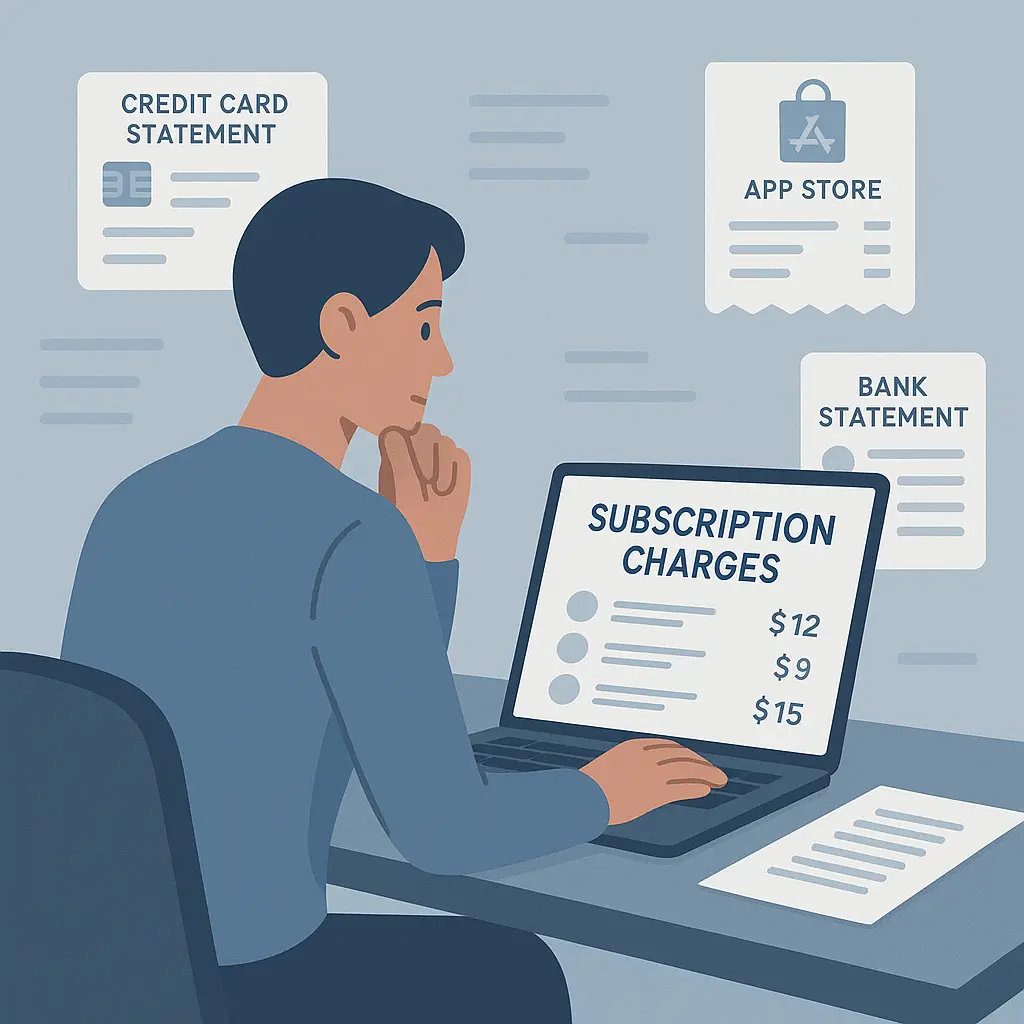
You're paying for services you forgot you signed up for. That's not a guess. In Sex and the City, Carrie Bradshaw discovers she's spent $40,000 on shoes because she never tracked what left her account. Subscriptions work the same way, except they leave automatically, every month, and the receipts vanish into email folders you don't check.
The average American subscribes to around 12 services and forgets about roughly a quarter of them, according to researchers who study consumer spending patterns. That's not because you're careless. It's because subscription companies design their systems to make signing up trivial and canceling obscure. Free trials convert to paid subscriptions without confirmation. Annual renewals charge cards you no longer use. Apps you deleted months ago keep billing.
This guide walks through the complete process to find every active subscription, evaluate whether it's worth keeping, and cancel what isn't. No software required. Just your existing accounts and roughly an hour of focused attention.
Why subscriptions hide so effectively
Subscriptions scatter across payment methods by design. One service charges your Visa. Another hits your Mastercard. A third runs through PayPal. Apple subscriptions live in the App Store. Google Play subscriptions hide in a different menu. Amazon subscriptions appear in yet another location.
There's no universal subscription dashboard. Payment processors don't aggregate this information. Banks show you the charge after it posts, but they don't warn you three days before renewal. Credit card statements list the merchant name, which often differs from the service name you recognize.
Free trials make the problem worse. You enter payment information to access a 7-day trial. The trial ends. The service starts charging. You never see a confirmation email because it went to a folder you don't monitor, or the service didn't send one. Six months later, you notice the charge and realize you've been paying for something you used once.
Annual subscriptions create long gaps between charges. You sign up in January. The charge posts. You forget about it. Twelve months later, the renewal hits, and you don't remember authorizing it because a year is long enough to erase the memory of signing up.
Merchant names on statements don't always match service names. You subscribed to "StreamFlix" but the charge appears as "SF Media Holdings LLC." You subscribed to "FitTrack Pro" but the statement shows "Digital Wellness Services." Matching charges to services requires cross-referencing, and most people don't bother.
Step 1: Check every credit and debit card statement
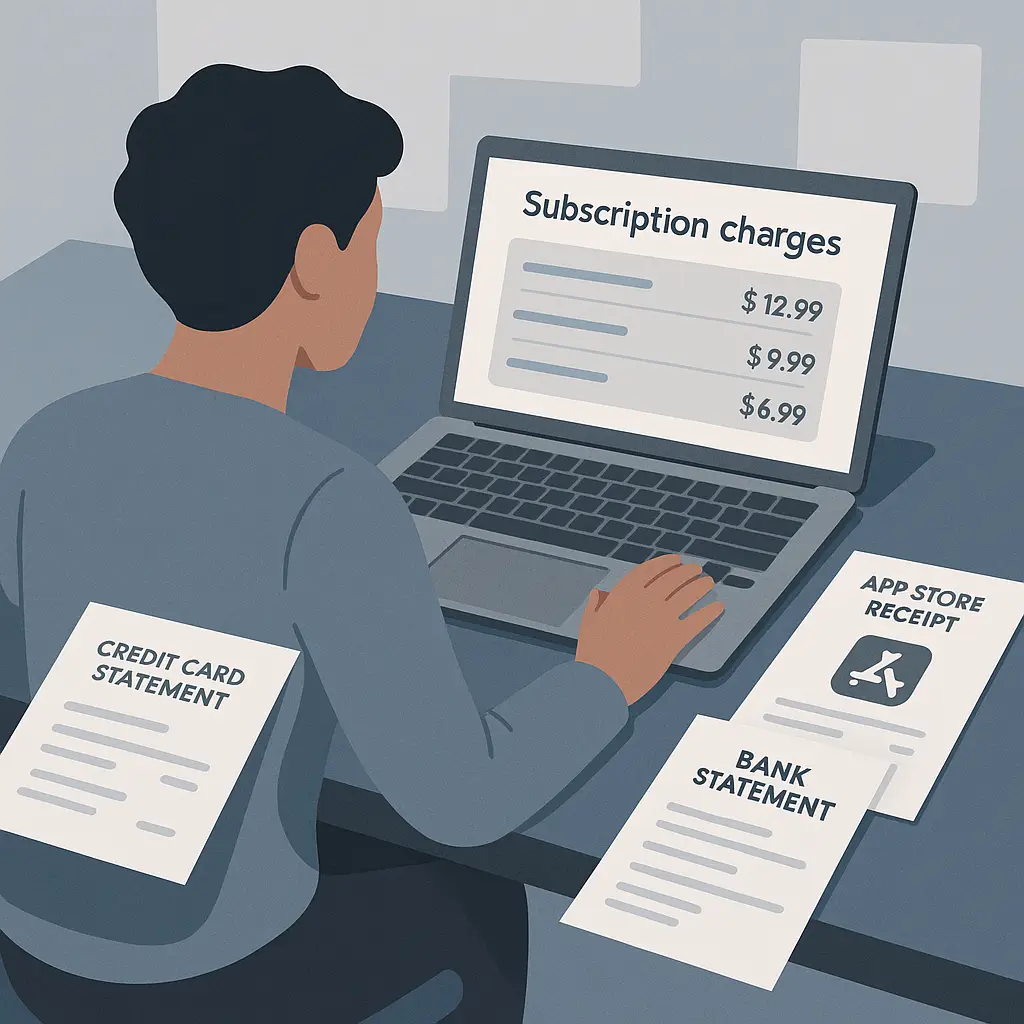
Start with the cards you use most often. Log into your bank or card issuer's website. Pull up the last three months of transactions. Look for recurring charges.
Recurring charges appear at regular intervals. Monthly subscriptions post on the same date each month, give or take a day. Annual subscriptions appear once, but if you scroll back far enough, you'll see the pattern.
Write down every recurring charge you find. Include the merchant name exactly as it appears on the statement, the amount, and the date it posts. Don't try to identify services yet. Just capture the data.
Check cards you use less frequently. That Visa you keep in your wallet for emergencies might have subscriptions attached. The debit card you stopped using last year might still process charges. Log into every card account you own and repeat the process.
Look at charges under five dollars. Small subscriptions hide in plain sight because they don't trigger the mental alarm that a $50 charge does. A $2.99 monthly charge costs you roughly $36 per year, and you'll never notice it unless you're specifically looking.
Check for annual charges that posted in the last 12 months. These are easy to miss because they don't appear every month. Scroll back through a full year of statements if you can. Annual subscriptions often renew silently, and the first indication you're still subscribed is the charge hitting your account.
Step 2: Review PayPal, Venmo, and payment app subscriptions
PayPal manages subscriptions separately from your transaction history. Log into PayPal. Click Settings. Navigate to Payments. Select "Manage automatic payments." This shows every active subscription or preapproved payment running through PayPal.
Each entry displays the merchant name, the billing frequency, and the next payment date. Some subscriptions show the amount. Others don't, because the merchant has permission to charge variable amounts.
PayPal subscriptions often survive even after you've canceled the service directly with the merchant. The merchant stops providing access, but the billing agreement stays active in PayPal until you manually cancel it. Check every entry. If you don't recognize it or no longer use the service, cancel the agreement.
Venmo and Cash App handle subscriptions differently. Venmo doesn't support traditional subscriptions, but some merchants use recurring payment authorizations. Check your Venmo settings for any active authorizations. Cash App subscriptions appear under the Activity tab. Look for recurring payments to the same recipient.
Step 3: Audit Apple and Google subscriptions
Apple subscriptions live in the App Store, not your credit card statement. Open Settings on your iPhone or iPad. Tap your name at the top. Select Subscriptions. This shows every active subscription tied to your Apple ID, regardless of which payment method funds it.
Each subscription displays the service name, the renewal date, and the billing amount. Subscriptions you've canceled but that remain active until the end of the current billing period appear here too, marked as expiring.
Check for subscriptions you signed up for on old devices. If you've used the same Apple ID across multiple iPhones or iPads over the years, subscriptions from apps you deleted years ago might still be active. Apple doesn't automatically cancel subscriptions when you delete the app.
Google Play subscriptions work similarly. Open the Google Play Store app on your Android device. Tap your profile icon. Select Payments & subscriptions, then Subscriptions. This lists every active subscription tied to your Google account.
Google subscriptions include apps, games, and services you signed up for through the Play Store. Like Apple, deleting the app doesn't cancel the subscription. You have to cancel manually through this menu.
Step 4: Check Amazon subscriptions and memberships
Amazon runs several subscription systems, and they don't all appear in the same place. Log into your Amazon account. Navigate to Accounts & Lists, then Memberships & Subscriptions. This shows Amazon Prime, Subscribe & Save orders, and some third-party subscriptions.
Subscribe & Save is Amazon's recurring delivery service. You sign up to receive products automatically at regular intervals, often at a discount. These subscriptions appear under "Subscribe & Save" in your account settings. Each item shows the delivery frequency and the next shipment date.
Amazon Prime is a subscription, but it's easy to forget if you signed up years ago and use it regularly. Check your Prime membership status. If you're paying for Prime but rarely use the benefits, canceling saves you around $139 per year.
Third-party subscriptions sold through Amazon appear in a different location. Some services let you subscribe through Amazon and charge your Amazon payment method. These show up under "Memberships & Subscriptions," but not all of them do. Check your Amazon order history for recurring charges from third-party sellers.
Amazon Music, Kindle Unlimited, and Audible are separate subscriptions that might not appear in the main subscription dashboard. Check each service individually if you've ever signed up for a free trial or promotional offer.
Step 5: Search your email for subscription confirmations
Search your email for the word "subscription." This pulls up confirmation emails from services you've signed up for. Look for phrases like "Your subscription has been activated," "Welcome to," or "Thank you for subscribing."
Search for "trial" to find free trial confirmations. Many services send an email when you start a trial and another when it converts to paid. If you see a trial confirmation from months ago and don't remember canceling, there's a good chance you're being charged.
Search for "renew" and "renewal" to find annual subscription reminders. Some services send a courtesy email before an annual charge posts. Others don't. Either way, searching for renewal language helps you identify annual subscriptions you might have forgotten.
Check your spam and promotions folders. Subscription emails often get filtered out of your main inbox. Gmail users should check the Promotions tab. Outlook users should check Focused vs. Other. Some confirmation emails never make it to your inbox at all.
Look for emails from payment processors. Search for "PayPal," "Stripe," "Square," and other common payment processors. These emails often contain transaction details that help you identify which service charged you, especially when the merchant name on your credit card statement doesn't match the service name.
Step 6: Check streaming services individually
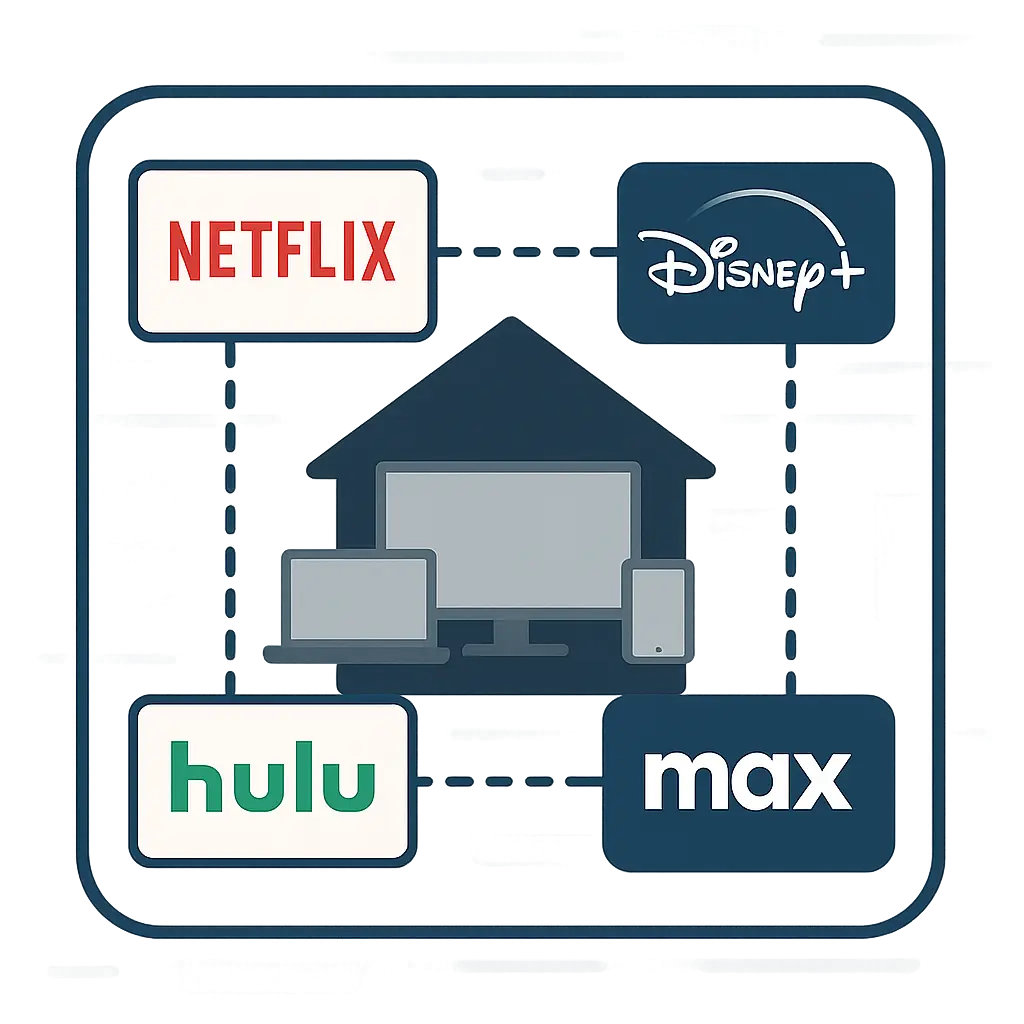
Streaming services don't always appear in centralized subscription lists, especially if you signed up directly through the service's website rather than through an app store. Log into Netflix, Hulu, Disney+, Max, Paramount+, Peacock, and any other streaming service you've ever used.
Check your account settings for billing information. Most services display your current plan, the next billing date, and the payment method on file. If you see an active subscription and you're not using the service, cancel it.
Look for bundled subscriptions. Some streaming services offer discounts if you subscribe through a partner. Hulu comes bundled with Spotify Premium for students. Disney+ bundles with Hulu and ESPN+. If you're paying for a bundle, make sure you're actually using all the services included.
Check for legacy pricing. If you subscribed to a streaming service years ago, you might be on an old pricing tier that no longer exists. Some services grandfather existing subscribers into lower rates. Others force everyone onto new pricing when they raise rates. Log in and verify what you're actually paying versus what the current advertised price is.
Family plans create hidden subscriptions. If someone added you to their family plan years ago and then canceled it, you might have been automatically converted to an individual paid subscription without realizing it. Check your account status to confirm whether you're paying or using someone else's subscription.
Step 7: Review software and app subscriptions
Software subscriptions hide in your computer's application folders. Check for apps that run in the background and charge monthly or annually. Adobe Creative Cloud, Microsoft 365, antivirus software, VPN services, and cloud storage all operate on subscription models.
Open each app and check the account settings. Most subscription software displays your billing status, renewal date, and payment method somewhere in the preferences or account menu. If you're not actively using the software, cancel the subscription.
Check for auto-renewing licenses. Some software uses a hybrid model where you pay once for a license, but updates and support require an annual subscription. If you bought software years ago and stopped using it, you might still be paying for updates you don't need.
Browser extensions sometimes charge subscription fees. Check your browser's extension manager. Click on each installed extension and look for account or subscription settings. Some extensions offer free and paid tiers, and it's easy to forget which tier you're on.
Mobile apps with subscriptions don't always appear in the App Store or Google Play subscription lists if you signed up through the app's website instead of through in-app purchase. Open apps you use regularly and check their account settings for billing information.
Step 8: Identify subscriptions you no longer use
Now you have a list of every active subscription. The next step is deciding what to keep. Start by identifying subscriptions you haven't used in the last 30 days.
Streaming services you haven't opened in a month are candidates for cancellation. If you're paying for Netflix but haven't watched anything since last season of a show that ended, you're paying for access you're not using. Cancel it. You can always resubscribe later if you want to watch something specific.
Software you haven't launched in 60 days probably isn't essential. If you subscribed to a productivity app, a design tool, or a project management service and haven't opened it in two months, you're not getting value from the subscription. Cancel it.
Gym memberships, meal kit services, and other physical subscriptions follow the same logic. If you haven't been to the gym in six weeks or you've skipped the last four meal deliveries, the subscription isn't serving you. Cancel it.
Some subscriptions are worth keeping even if you don't use them constantly. Cloud backup services, password managers, and VPN services provide value through availability, not daily use. Evaluate these based on whether you'd miss the protection if it disappeared, not whether you interact with the service every day.
Annual subscriptions deserve special scrutiny. If you're paying $120 once a year for a service you use twice, you're spending $60 per use. That might be worth it for some services. For most, it's not.
Step 9: Cancel subscriptions you don't need
Canceling subscriptions is intentionally harder than signing up. Services bury the cancel button in settings menus, require you to call customer service, or make you click through multiple confirmation screens designed to guilt you into staying.
Start with the easiest cancellations first. Apple and Google subscriptions cancel directly through the App Store or Play Store. Open the subscription list, tap the subscription you want to cancel, and select "Cancel Subscription." You'll retain access until the end of the current billing period.
PayPal subscriptions cancel through the automatic payments menu. Select the subscription, click "Cancel," and confirm. This stops future charges but doesn't notify the merchant. If you want to close your account with the service, you need to do that separately.
Streaming services usually let you cancel through account settings on their website. Log in, navigate to billing or account settings, and look for "Cancel Subscription" or "End Membership." Some services make you confirm multiple times. Click through all the prompts.
Software subscriptions often require contacting customer service. Check the company's website for cancellation instructions. Some let you cancel through account settings. Others require you to email support or call a phone number. Follow their process, document the cancellation, and save any confirmation emails.
If a service makes cancellation unreasonably difficult, dispute the charge with your credit card company. Under FTC guidance on consumer protection, companies must provide a clear cancellation mechanism. If they don't, you have options.
Step 10: Set up a subscription tracking system
Once you've canceled what you don't need, track what remains. Create a simple spreadsheet with columns for service name, cost, billing frequency, renewal date, and payment method.
Update the spreadsheet whenever you subscribe to something new. Add the renewal date to your calendar with a reminder two days before the charge posts. This gives you time to cancel if you no longer want the service.
Set a recurring calendar reminder to review your subscriptions quarterly. Every three months, pull up your spreadsheet, check your credit card statements, and verify that nothing new has appeared. This catches subscriptions that start after free trials end or services that reactivate after you thought you canceled them.
Some people use subscription tracking apps. These apps connect to your bank accounts and credit cards to automatically identify recurring charges. They work, but they require giving a third party read access to your financial data. Weigh that tradeoff against the convenience.
A spreadsheet works fine for most people. You don't need software. You just need a system you'll actually use. If a calendar reminder and a Google Sheet keep you on top of subscriptions, that's enough.
What to do about subscriptions you want to keep
For subscriptions you're actively using, check whether annual billing saves money. Many services offer a discount if you pay for a full year upfront instead of monthly. If you're certain you'll use the service for the next 12 months, annual billing can save you 15 to 20 percent.
Check for student, military, or senior discounts. Streaming services, software companies, and news subscriptions often offer reduced rates for specific groups. If you qualify, you might be paying more than necessary.
Look for family plans. If multiple people in your household subscribe to the same service individually, a family plan usually costs less than multiple individual subscriptions. This works for streaming services, cloud storage, password managers, and music services.
Evaluate whether you can downgrade to a cheaper tier. Some services offer multiple subscription levels. If you're paying for premium features you don't use, downgrade to the basic plan. You'll still have access to the core service at a lower monthly cost.
Consider rotating subscriptions. If you subscribe to multiple streaming services but only watch one at a time, cancel the others and resubscribe when there's something you want to watch. You're not locked into continuous service. Canceling and resubscribing as needed costs less than paying for everything simultaneously.
The cultural reference that fits
In The Office, Michael Scott signs up for magazine subscriptions he doesn't want because he can't say no to the salesperson. He ends up with stacks of unread magazines and monthly charges he forgot about. The same dynamic plays out with digital subscriptions, except there's no physical stack of magazines to remind you what you're paying for. The charges just vanish into your statement, and you keep paying because canceling requires action and inaction is easier.
Common mistakes that cost you money
The biggest mistake is assuming you'll remember to cancel before a free trial ends. You won't. Trials convert to paid subscriptions automatically, and the conversion happens silently. Set a calendar reminder the day you sign up, or don't start the trial.
Another mistake is deleting an app and assuming that cancels the subscription. It doesn't. Deleting the app removes it from your device, but the subscription remains active. You have to cancel through the App Store, Google Play, or the service's website.
Ignoring small charges adds up. A $3 monthly subscription costs $36 per year. If you have five of these, that's $180 annually for services you might not even remember signing up for. Small charges deserve the same scrutiny as large ones.
Keeping subscriptions "just in case" wastes money. If you haven't used a service in two months, you're not going to start using it next month. Cancel it. If you need it later, you can resubscribe. Most services don't penalize you for canceling and coming back.
Relying on email reminders from the service doesn't work. Many companies don't send renewal reminders. Others send them to email addresses you no longer check. The only reliable reminder system is one you control.
What happens to your data when you cancel
Canceling a subscription usually doesn't delete your account or data immediately. Most services preserve your account for several months after cancellation. If you resubscribe during that window, everything returns to how it was.
Streaming services keep your watch history, preferences, and profiles. Cloud storage services typically give you a grace period to download your files before deletion. Email services preserve your messages but might disable sending and receiving.
If you want your data deleted, you have to request it separately. Canceling the subscription stops billing but doesn't trigger data deletion. Check the service's privacy policy or account settings for data deletion options.
Some services delete data immediately upon cancellation. Read the cancellation confirmation carefully. If it says your data will be deleted, download anything you need before confirming.
For services covered by privacy regulations, you have the right to request data deletion even after canceling. This applies to companies that operate in California under CCPA or in Europe under GDPR. Submit a data deletion request through the service's privacy settings or contact their support team.
How to handle subscriptions tied to old email addresses
If you subscribed using an email address you no longer access, you can't receive password reset emails or account recovery codes. This makes canceling harder, but not impossible.
Try logging in with the old email address. If you remember the password, you can access the account and cancel directly. If you don't remember the password, check whether the service offers alternative recovery methods like phone number verification or security questions.
Contact customer service. Explain that you no longer have access to the email address on file but want to cancel the subscription. Provide identifying information like your name, the last four digits of the payment method, and recent transaction dates. Some companies will cancel the subscription for you.
If the service won't help and you can't access the account, cancel the payment method. Contact your credit card company or bank and request a new card number. This stops all future charges to that card, including the subscription you can't cancel directly.
Disputing charges with your bank is a last resort. If you've made a good-faith effort to cancel and the company refuses to cooperate, file a dispute for the most recent charge. Explain that you attempted to cancel but couldn't access the account. Banks sometimes side with consumers in these situations.
When to dispute charges instead of canceling
If you canceled a subscription but charges continue, dispute them with your credit card company. Provide documentation showing that you canceled. This includes confirmation emails, screenshots of the cancellation process, or records of customer service interactions.
If a service charged you without authorization, dispute the charge immediately. This happens when free trials convert to paid subscriptions without clear notice or when companies reactivate canceled subscriptions without permission.
If you're locked out of your account and can't cancel through normal channels, dispute the charge. Explain to your bank that the company won't let you access account settings to cancel. This creates a paper trail and often prompts the company to resolve the issue.
Disputing charges doesn't always work. If you signed up for a subscription and forgot to cancel, the bank will likely side with the merchant. Disputes are for unauthorized charges or situations where the company prevents you from canceling, not for subscriptions you forgot about.