Social Media Privacy Settings Worth Checking Right Now
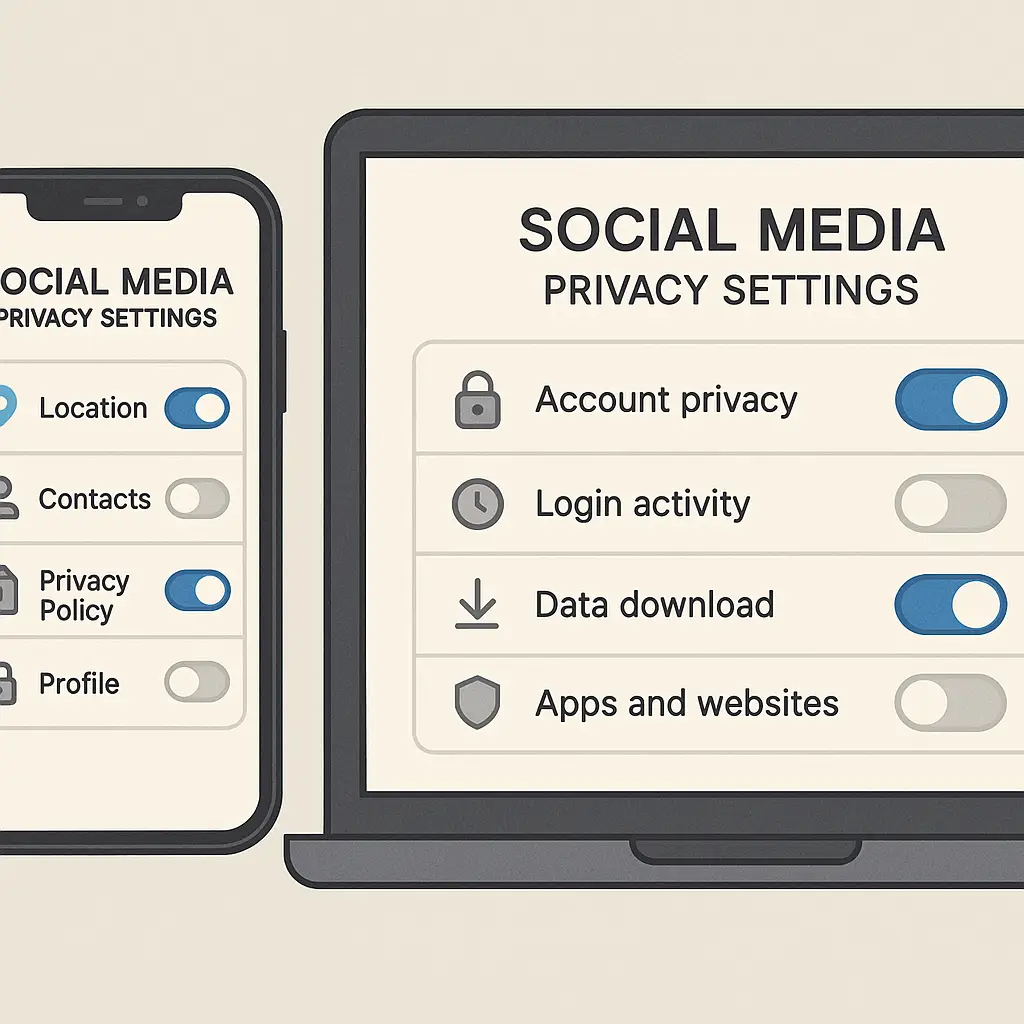
Your social media accounts leak more than you think. Not through breaches or hacks, but through settings you configured years ago and never revisited. Here's the practical walkthrough to lock down Facebook, Instagram, Twitter, and TikTok so you control who sees what, what data gets collected, and how your information gets used.
Why Privacy Settings Actually Matter
Social media platforms make money by collecting your data and serving you ads. The more they know, the more valuable you become to advertisers. Default settings favor data collection, not your privacy.
Every platform asks for broad permissions during signup. Location access. Contact lists. Photo libraries. Most people click "Allow" without reading what they're granting. Those permissions persist until you explicitly revoke them.
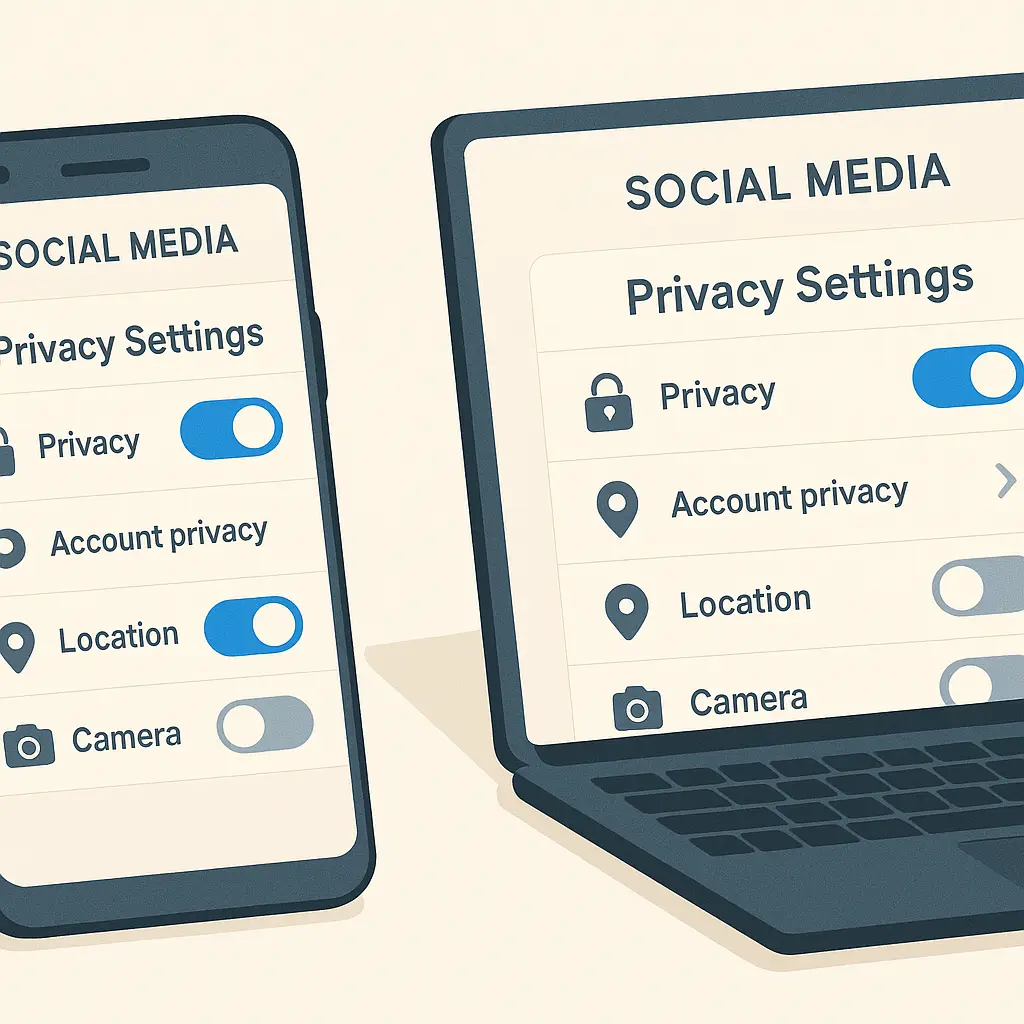
Privacy settings control three things: who sees your content, what data the platform collects about you, and what third parties access through the platform's API. Each category requires separate configuration. Fixing one doesn't fix the others.
Facebook Privacy Settings: The Complete Walkthrough
Facebook's privacy controls live in Settings & Privacy, but the organization changes frequently. As of September 2026, here's what to check.
Who can see your posts. Go to Settings > Privacy > Who can see your future posts. The default is "Friends," but many accounts still show "Public" from older configurations. Set this to Friends or Custom to limit exposure. This setting only affects new posts. Old posts retain their original privacy level until you change them individually or use the bulk tool under Privacy Checkup.
Profile visibility. Under Settings > Privacy, review who can see your friends list, email address, phone number, and birthday. Each has its own control. Set these to "Only me" or "Friends" unless you have a specific reason to make them public. Your friends list reveals your social network even when your posts are private.
Search visibility. Settings > Privacy > Do you want search engines outside of Facebook to link to your profile. Turn this off. It prevents Google from indexing your profile, which reduces your digital footprint outside Facebook's walls.
Face recognition. Facebook discontinued face recognition in 2021, but the setting persists in some accounts. Check Settings > Face Recognition. If it's there, make sure it's off. Facebook no longer uses the feature, but leaving it enabled signals consent for future reactivation.
App permissions. Settings > Apps and Websites shows every third-party app you've connected to Facebook. These apps can access your profile data, friends list, email, and sometimes your posts. Remove any app you don't actively use. Check the permissions for apps you keep. Click on each app to see exactly what data it accesses and revoke unnecessary permissions.
Ad preferences. Settings > Ads > Ad settings. Facebook builds your ad profile from your activity on and off the platform. Under "Advertisers you've interacted with," remove advertisers you don't want tracking you. Under "Ad topics," hide categories you find invasive. This doesn't stop ads, but it limits how targeted they become.
Off-Facebook activity. Settings > Your Facebook Information > Off-Facebook Activity. This shows websites and apps that send Facebook data about your browsing, purchases, and app usage. You can disconnect past activity and turn off future tracking. Disconnecting doesn't delete the data from Facebook's servers, but it stops Facebook from associating it with your account for ad targeting.
Location history. Settings > Location > Location History. Turn this off. Facebook tracks your location through GPS, WiFi networks, and cell towers even when you're not using the app. Location history builds a detailed map of where you go and when. Disabling it stops future collection but doesn't delete past data. Use "View your location history" to see what's stored, then "Delete all location history" if you want it gone.
Story privacy. Settings > Story > Story Privacy. Control who sees your Stories separately from your posts. Stories disappear after 24 hours, but Facebook retains them in your archive unless you delete them manually. Set Story Privacy to Friends or Custom, not Public.
Tagging. Settings > Profile and Tagging > Review posts you're tagged in before the post appears on your profile. Enable this. It prevents friends from tagging you in posts that appear on your timeline without your approval. You can't stop them from tagging you in their posts, but you can stop those tags from showing up on your profile.
Download your data. Settings > Your Facebook Information > Download Your Information. Request a copy of everything Facebook has on you. It takes a few days to generate. The file includes posts, messages, photos, ad interactions, and data Facebook collected from other sources. Reviewing it shows you what privacy settings you missed.
Instagram Privacy Settings: What to Lock Down
Instagram is owned by Meta, but its privacy settings are separate from Facebook. You configure them in the app under Settings > Privacy.
Account privacy. Settings > Privacy > Private Account. Turn this on. It requires people to request to follow you, and only approved followers see your posts and Stories. Public accounts let anyone see your content, save your photos, and track your activity.
Story privacy. Settings > Privacy > Story. Control who sees your Stories separately from your posts. You can hide Stories from specific people or create a Close Friends list for selective sharing. Stories aren't as ephemeral as they seem. Instagram archives them unless you delete them manually.
Activity status. Settings > Privacy > Activity Status. Turn this off. It stops Instagram from showing when you were last active and whether you've read someone's direct message. This setting is mutual: turning it off means you also can't see others' activity status.
Comments. Settings > Privacy > Comments. Use "Hide offensive comments" and manually add words or phrases to your filter list. This reduces harassment without blocking people entirely. You can also restrict accounts, which hides their comments from everyone except them without notifying them they've been restricted.
Tags. Settings > Privacy > Tags. Enable "Manually approve tags." This prevents people from tagging you in posts that appear on your profile without your review. Like Facebook, you can't stop the tag itself, but you can stop it from appearing publicly.
Mentions. Settings > Privacy > Mentions. Set this to "People you follow" or "No one." It prevents strangers from mentioning you in their Stories or comments, which reduces unwanted attention and spam.
Location. Instagram embeds location data in your posts if you add a location tag. It also collects location in the background for ad targeting. Settings > Privacy > Location Services. Turn off location access in your phone's settings for Instagram. If you want to tag locations occasionally, set it to "While Using the App" instead of "Always."
Data sharing. Settings > Privacy > Data sharing. Instagram shares data with Facebook and other Meta properties. You can limit some of this under "Accounts Center" in Settings, but full isolation requires separate accounts with different email addresses and no cross-posting.
Third-party apps. Settings > Security > Apps and Websites. Review connected apps and remove any you don't use. These apps access your profile, photos, and sometimes your followers list.
Twitter Privacy Settings: The Essentials
Twitter's privacy controls live under Settings and Privacy > Privacy and Safety. The platform defaults to public, which makes your tweets visible to anyone.
Protect your tweets. Settings > Privacy and Safety > Audience and Tagging > Protect your Tweets. Enable this to make your account private. Only approved followers see your tweets, and your tweets won't appear in search results. This fundamentally changes how Twitter works, it's no longer a public broadcast platform.
Photo tagging. Settings > Privacy and Safety > Audience and Tagging > Photo tagging. Set this to "Only people you follow" or turn it off entirely. It prevents strangers from tagging you in photos that associate your username with content you didn't post.
Discoverability. Settings > Privacy and Safety > Discoverability and Contacts. Turn off "Let others find you by your email" and "Let others find you by your phone number." This prevents people from finding your account through contact syncing, which reduces unwanted follows and harassment.
Location. Settings > Privacy and Safety > Location information. Turn off "Add location information to your Tweets." Twitter embeds precise GPS coordinates in tweets when this is enabled, revealing where you were when you posted. Past tweets with location data remain geotagged unless you delete them.
Personalization. Settings > Privacy and Safety > Personalization and data. Review what Twitter uses for ad targeting. You can turn off personalization based on your activity, inferred identity, and data from partners. This limits ad targeting but doesn't stop data collection.
Off-Twitter activity. Settings > Privacy and Safety > Off-Twitter activity. Twitter tracks your browsing on sites with embedded tweets or Twitter's ad network. You can turn off this tracking, but it doesn't delete past data.
Direct messages. Settings > Privacy and Safety > Direct Messages > Allow message requests from everyone. Turn this off. It restricts DMs to people you follow, which reduces spam and harassment. Strangers can still send requests, but they won't appear in your main inbox.
Spaces. Settings > Privacy and Safety > Spaces. Control who can see when you're listening to a Space. Set this to "People you follow" or turn it off. Twitter Spaces are live audio rooms, and your participation is visible by default.
TikTok Privacy Settings: What You Need to Know
TikTok's privacy settings are under Settings and Privacy > Privacy. The app collects more data than most social platforms, and defaults favor broad visibility.
Private account. Settings > Privacy > Private account. Turn this on. It requires people to request to follow you, and only approved followers see your videos. Public accounts let anyone see, download, and duet with your content.
Comments. Settings > Privacy > Comments. Set this to "Friends" or "Only you." Public comments invite harassment and spam. TikTok's algorithm amplifies controversial content, and open comments accelerate that dynamic.
Duet and Stitch. Settings > Privacy > Duet and Stitch. Turn these off or set them to "Friends." Duet and Stitch let other users remix your videos into their own content. Disabling this prevents strangers from using your videos without permission.
Downloads. Settings > Privacy > Downloads. Turn this off. It prevents people from downloading your videos directly through TikTok. This doesn't stop screen recording, but it adds friction.
Suggest your account to others. Settings > Privacy > Suggest your account to others. Turn this off. TikTok suggests your account to users based on mutual follows, contact syncing, and algorithmic predictions. Disabling this reduces your discoverability.
Data sharing. Settings > Privacy > Personalization and data. TikTok shares data with advertisers and third parties. You can limit some of this, but the controls are deliberately vague. Disabling "Personalized ads" stops targeted ads but doesn't stop data collection.
Location. TikTok collects location through GPS, WiFi, and cell towers. Settings > Privacy > Location Services. Turn off location access in your phone's settings. TikTok uses location for content recommendations, ad targeting, and compliance with local regulations.
Contact syncing. Settings > Privacy > Sync contacts and Facebook friends. Turn this off. Contact syncing uploads your phone's contact list to TikTok's servers, which links your account to real-world relationships and expands TikTok's social graph.
Activity status. Settings > Privacy > Activity status. Turn this off. It stops TikTok from showing when you were last active. Like Instagram, this setting is mutual.
What Privacy Settings Don't Fix
Changing privacy settings limits who sees your content and what data third parties access. It doesn't stop the platform from collecting data about you. Facebook, Instagram, Twitter, and TikTok all track your activity on their apps, build behavioral profiles, and use that data internally.
Privacy settings don't apply retroactively to most data. If you've been using a platform for years with public settings, that data persists in the platform's databases even after you lock down your account. Some platforms let you delete past posts or data in bulk, but it's not automatic.
Platforms update their privacy policies and add new data collection practices regularly. Settings you configured last year might not cover new features introduced this year. Platforms rarely notify users about new privacy options. You have to check manually.
Third-party apps you connected years ago retain access until you explicitly revoke it. Deleting the app from your phone doesn't disconnect it from your social media account. You have to remove it through the platform's app management settings.
The Practical Maintenance Schedule
Check your social media privacy settings twice a year. Put it on your calendar. January and July work well because they're six months apart and don't overlap with holidays.
Review app permissions every time a platform announces a major update or policy change. Platforms often add new features with new privacy implications. The announcement won't highlight privacy risks, so you have to check yourself.
Audit connected third-party apps quarterly. Remove any app you don't actively use. Check the permissions for apps you keep and revoke unnecessary access.
Download your data annually from each platform. It's the only way to see what the platform actually has on you versus what privacy settings claim to protect. The download process varies by platform but usually takes a few days to generate.
In The Good Place, Eleanor Shellstrop spends the afterlife discovering that every action has consequences she never considered while alive
The same applies to social media. Every post, like, comment, and permission you granted years ago still affects your privacy today. You can't undo the past, but you can stop adding to it.
Walk through these settings one platform at a time. Don't try to fix everything in one sitting. Pick one platform, spend 20 minutes, then move on. Come back to the next platform tomorrow. Trying to do it all at once leads to decision fatigue and half-finished configuration.
The platforms won't make this easy. Privacy settings are buried, split across multiple menus, and labeled with deliberately vague language. That's intentional. The business model depends on data collection, and clear privacy controls threaten revenue.
You won't achieve perfect privacy on social media. The platforms are designed to collect data, and using them means accepting some level of exposure. But you can reduce what you share, limit who sees it, and revoke access you granted without thinking. That's the practical goal: less exposure, not zero exposure.
Start with the platform you use most. Fix the settings that matter, then move to the next one. You'll spend around an hour total across all four platforms. That hour protects years of posts, photos, and personal information from broader visibility than you intended.