Setting up WiFi parental controls: step-by-step guide for every router
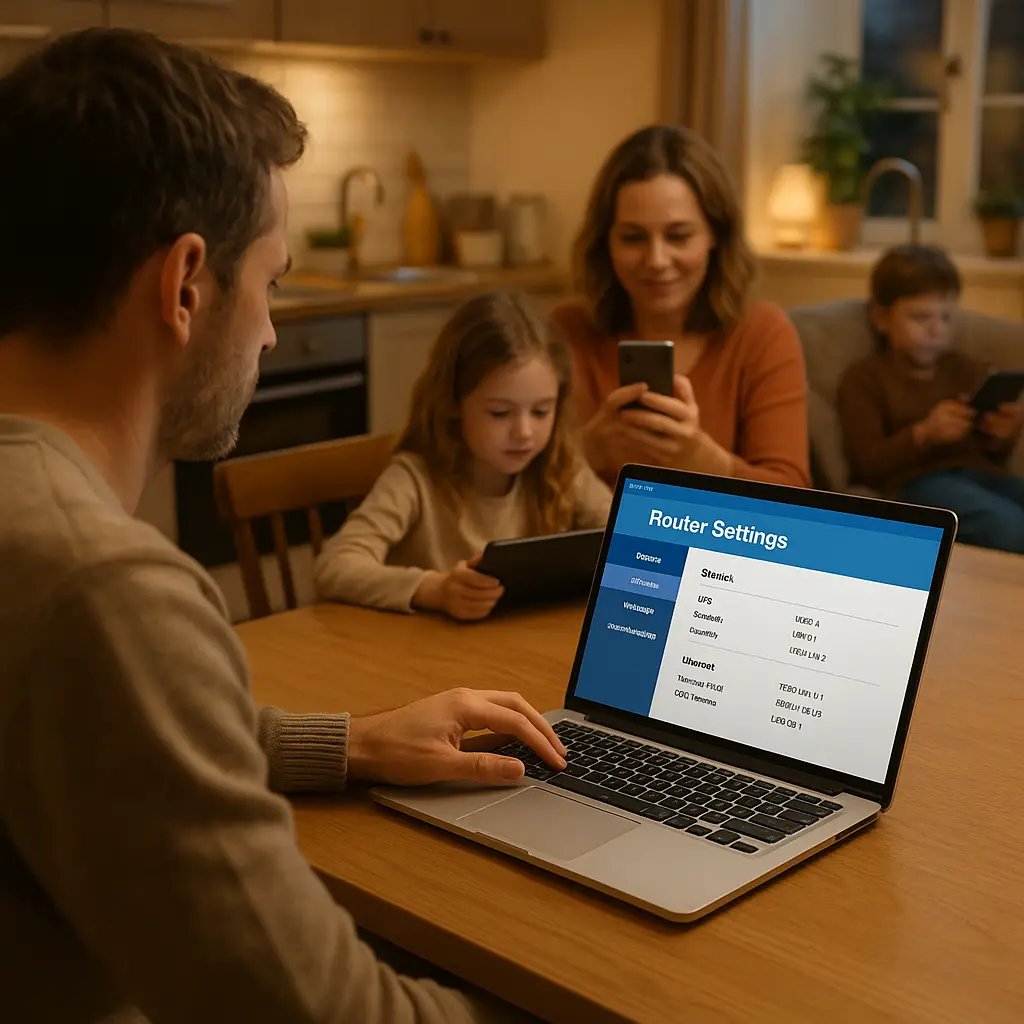
Your home WiFi is the gateway to everything your kids do online. Games, videos, homework, chat apps, social media , all of it flows through your router. That makes the router the natural place to set boundaries.
Router-level parental controls filter content, limit screen time, and block specific sites across every device on your network. They work whether your kid is on a phone, tablet, laptop, or game console. They don't require installing software on each device. They're harder to bypass than app-level controls because the restrictions live upstream.
This guide walks through the exact process to configure parental controls on your home router. You'll learn what each setting does, how to match controls to your kid's age, and what gaps remain after you're done.
What router parental controls actually do
Router parental controls operate at the network level. When a device on your WiFi requests a website, the router checks the URL against your filter rules before allowing the connection. If the site matches a blocked category or appears on your custom blocklist, the router drops the request. The device never sees the content.
Most routers offer three core features:
Content filtering blocks websites by category. Categories typically include adult content, gambling, violence, social media, gaming, and streaming. You enable the categories you want to block. The router maintains a database of millions of URLs sorted into these categories. When your kid's device requests a site, the router checks the database and either allows or blocks the connection.
Time limits restrict when devices can access the internet. You set schedules by device or by user profile. During blocked hours, the router refuses connections from those devices. Common uses: no internet after bedtime, limited access during school hours, or time-boxed recreation periods on weekends.
Device management lets you see every device on your network and assign it to a user profile. Profiles carry the filter and schedule settings. This is how you give different rules to different kids.
Some routers add features like search filtering (blocking explicit results on Google or YouTube), app blocking (preventing specific apps from connecting), and usage reports (showing which sites each device visited and for how long).
The FTC recommends using multiple layers of protection for kids online, including network-level controls combined with device-specific tools.
Finding your router's admin interface
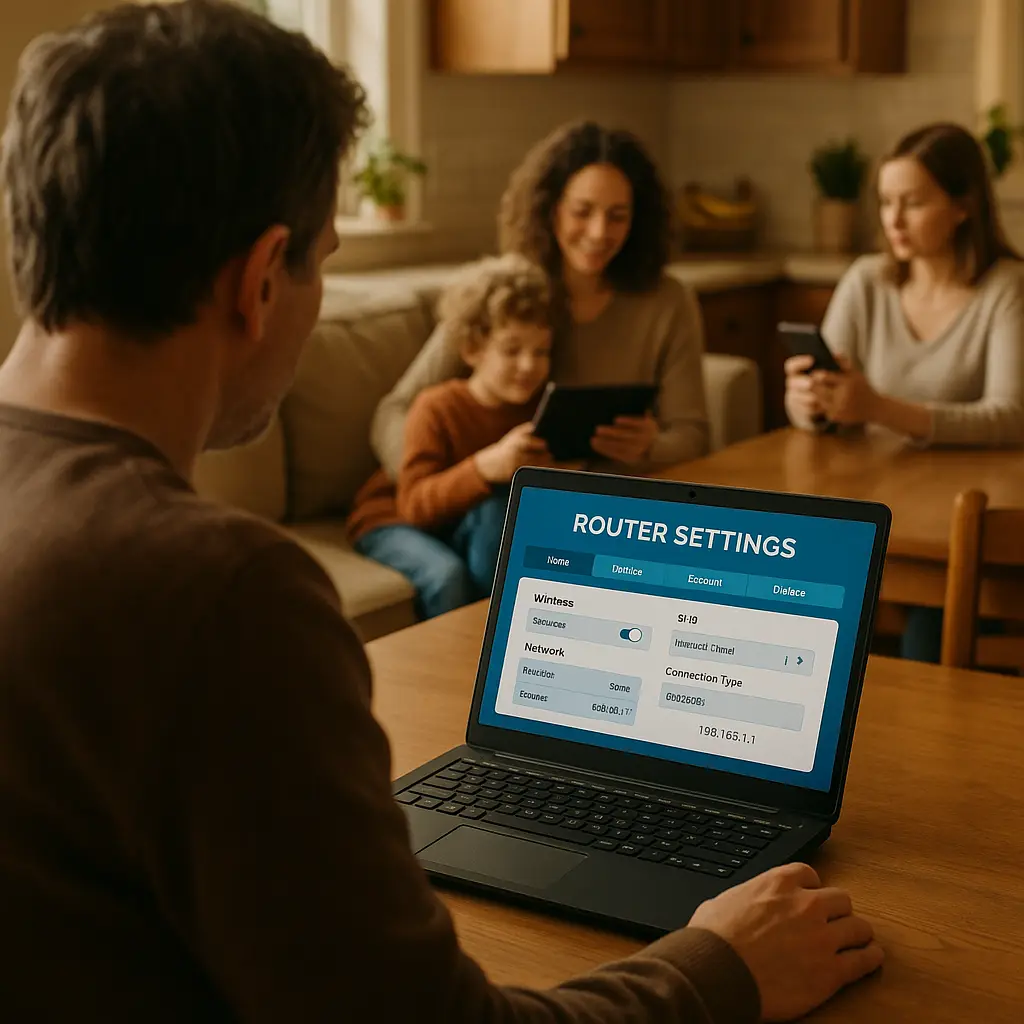
You configure parental controls through your router's admin interface. This is a web page hosted on the router itself. You access it from any device connected to your WiFi.
The router's IP address is usually printed on a sticker on the device. Common addresses: 192.168.1.1, 192.168.0.1, or 10.0.0.1. If the sticker is missing, find the address through your computer's network settings. On Windows, open Command Prompt and type ipconfig. Look for "Default Gateway." On Mac, open System Preferences, click Network, select your WiFi connection, and check the Router field.
Type the IP address into your web browser. You'll see a login page. The default username and password are also on the router sticker. Common defaults: admin/admin, admin/password, or admin/[blank]. If you changed the password and forgot it, you'll need to reset the router to factory settings using the reset button on the back. Hold it for 10 seconds.
Some ISPs provide their own apps for managing router settings. Xfinity has the Xfinity app. AT&T has Smart Home Manager. Verizon has the My Fios app. These apps offer simplified interfaces for parental controls and often include features the router's web interface doesn't expose. Check your ISP's support site to see if an app is available.
If your router is more than five years old and lacks parental controls, you have three options: upgrade to a newer router with built-in controls, use your ISP's app if available, or configure DNS-level filtering through a service like OpenDNS Family Shield or Cloudflare for Families. DNS filtering is less granular than router controls but works as a fallback.
Enabling content filtering by category
Content filtering is the first layer. You select categories of content to block, and the router refuses connections to sites in those categories.
Log into your router's admin interface. Look for a section labeled Parental Controls, Security, or Access Control. The exact name varies by manufacturer. Inside, you'll find an option to enable content filtering.
Create a profile for your child. Most routers let you name profiles and assign devices to them. Name the profile something obvious: "Kids 8-12" or "Teenager." This keeps settings organized when you have multiple children.
Select the categories to block. Start with the obvious ones: adult content, gambling, violence, weapons, drugs. Then consider age-appropriate additions. For younger kids, block social media, chat apps, and user-generated content platforms. For teenagers, you might allow social media but block explicit content and gambling.
Categories aren't perfect. Routers rely on third-party databases to classify sites. New sites take time to get categorized. Niche sites might not appear in the database at all. Miscategorization happens. A legitimate health site might get flagged as adult content. A gaming forum might slip through the gaming filter.
Test the filters after enabling them. Try accessing blocked sites from a device assigned to the profile. Verify the router actually blocks them. Try accessing sites that should remain available. Make sure the filters aren't overly aggressive.
Some routers let you add custom blocklists. You can manually block specific URLs that slip through category filters. You can also whitelist sites that get incorrectly blocked. Use these features to fine-tune the filtering.
The EFF's Surveillance Self-Defense guide recommends testing parental controls with your kids present so they understand what's blocked and why. Transparency reduces the temptation to bypass controls.
Setting time limits and schedules
Time limits control when devices can access the internet. Schedules are more effective than app-level screen time limits because they work at the network level. A kid can disable Screen Time on their phone. They can't disable the router from their phone.
In your router's parental controls section, find the scheduling or time limits feature. You'll see options to block internet access during specific hours.
Set bedtime cutoffs. Block internet access from 9 PM to 7 AM for younger kids, 10 PM to 6 AM for teenagers. Adjust based on your household rules. The router will refuse connections from assigned devices during these hours.
Set school-day restrictions if needed. Some families block internet during school hours to prevent distraction during remote learning. Others allow limited access for homework but block entertainment sites. This requires combining time limits with content filtering.
Set weekend limits if you want to control total screen time. Some routers let you set daily time budgets: two hours per day on weekends, for example. Once the device hits the limit, the router blocks further access until the next day.
Schedules apply to the entire device. The router doesn't distinguish between homework and YouTube. If you block internet at 9 PM, your kid can't access Khan Academy or their school portal either. Plan around this. If they have legitimate late-night homework, either extend the cutoff or whitelist specific educational sites.
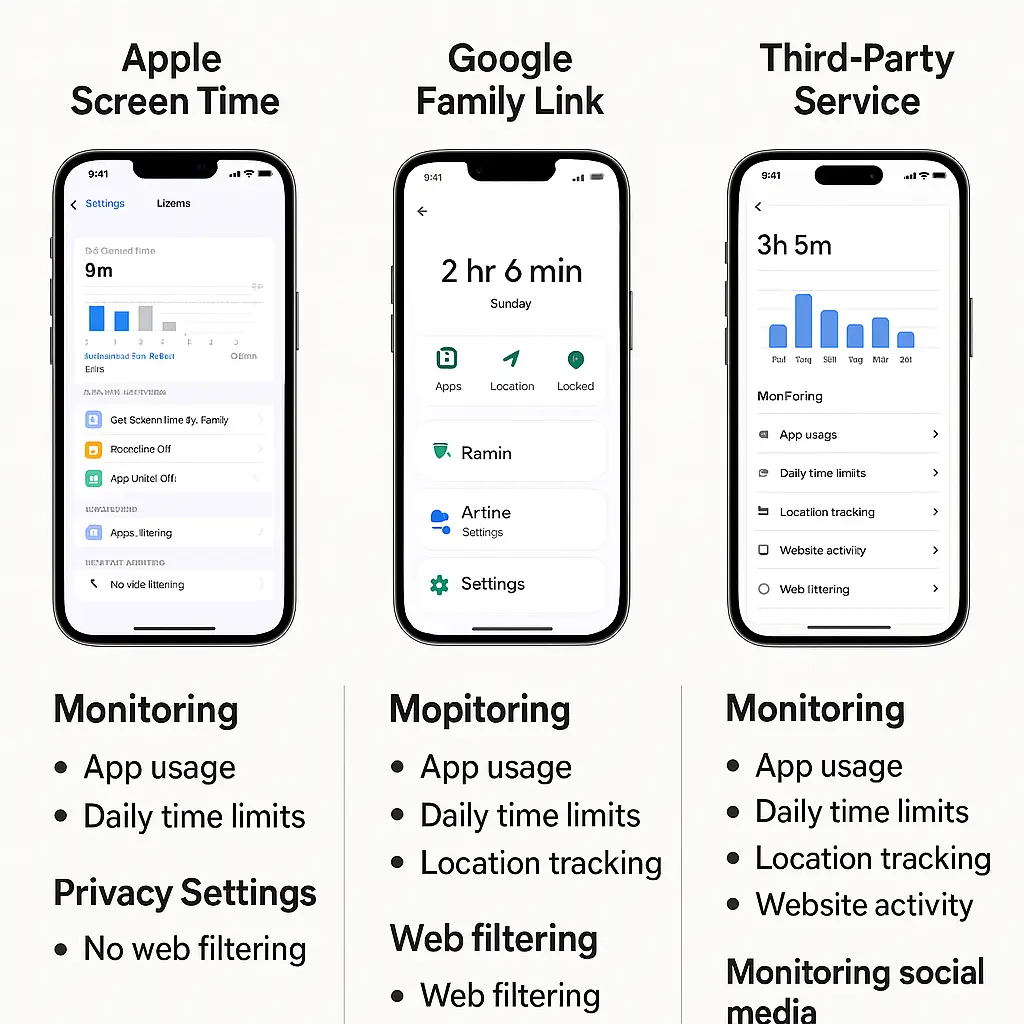
Time limits work best when combined with device-level controls. Use the router to enforce bedtime and block inappropriate content. Use Screen Time or Family Link to manage app usage, set app-specific limits, and monitor what happens when your kid is on cellular data outside your home network.
Assigning devices to profiles
Profiles let you apply different rules to different kids. You create a profile, configure its filters and schedules, then assign devices to it.
In the router's parental controls section, look for device management or connected devices. You'll see a list of everything on your network: phones, tablets, laptops, game consoles, smart TVs, IoT devices.
Each device shows a name and a MAC address. The name is often generic: "iPhone," "Samsung Galaxy," "Xbox." The MAC address is a unique identifier that looks like 00:1A:2B:3C:4D:5E.
Rename devices to something recognizable. Change "iPhone" to "Emma's iPhone." Change "Xbox" to "Living Room Xbox." This prevents confusion when you have multiple devices of the same type.
Assign each child's devices to their profile. Select the device, choose the profile from a dropdown, and save. The router now applies that profile's filters and schedules to the device.
Some routers let you create a default profile for unknown devices. When a new device joins your network, it automatically gets assigned to the default profile until you manually reassign it. Set the default profile to the most restrictive settings. This prevents a new device from bypassing controls until you notice it and configure it properly.
Devices on guest networks typically bypass parental controls. If your router has a guest network, disable it or configure it with the same restrictions as your main network. Otherwise, your kid can connect to the guest network and avoid all filters.
Handling VPNs and encrypted DNS
VPNs and encrypted DNS let devices bypass router-level controls. A VPN encrypts all traffic and routes it through an external server. The router sees encrypted packets going to the VPN server. It can't see the destination websites inside the encrypted tunnel. It can't apply content filters.
Encrypted DNS works similarly. Instead of using your router's DNS server to resolve website names, the device uses an encrypted DNS service like Cloudflare or Google. The router can't see which sites the device is requesting. It can't block them.
Both technologies are legitimate privacy tools. They're also effective bypass mechanisms for kids who want to circumvent parental controls.
The defense is layered. First, block VPN apps on your kid's devices using Screen Time (iOS) or Family Link (Android). Prevent them from installing VPN apps in the first place. Second, monitor for sudden drops in blocked content. If your filters normally block 20 requests per day and suddenly block zero, your kid might be using a VPN. Third, some routers can detect and block VPN traffic by identifying the protocols VPNs use. Enable this feature if your router supports it.
Encrypted DNS is harder to block. Devices can enable it in settings without installing an app. iOS and Android both support DNS over HTTPS (DoH) natively. You can disable it in device settings, but your kid can re-enable it.
The reality: determined teenagers will find ways around technical controls. Router-level filtering works best for younger kids who lack the knowledge or motivation to bypass it. For teenagers, combine technical controls with conversation. Explain why the controls exist. Establish trust. Make the controls a known boundary, not a secret restriction.
In Ted Lasso, Coach Beard tells Ted, "Doing the right thing is never the wrong thing." The show's approach to trust over surveillance resonates here. Technical controls set boundaries, but they don't replace the relationship.
Monitoring and adjusting over time
Parental controls aren't set-and-forget. Kids grow. Their needs change. Sites evolve. Filters need adjustment.
Most routers provide usage reports. These show which devices accessed which sites, how long they spent on each site, and how many requests got blocked. Review these reports weekly at first, then monthly once you're confident the setup works.
Look for patterns. If your kid repeatedly tries to access a blocked site, ask why. It might be a legitimate site that got miscategorized. It might be a site you're comfortable allowing. Or it might confirm the filter is working as intended.
Adjust filters as your kid ages. A 10-year-old needs stricter controls than a 15-year-old. As they demonstrate responsibility, gradually relax restrictions. Remove social media blocks when you feel they're ready. Extend time limits as they get older. The goal is teaching self-regulation, not permanent surveillance.
Some routers send alerts when a device attempts to access blocked content. Enable these if you want real-time visibility. Disable them if you find them intrusive. The right balance depends on your family.
Update your router's firmware regularly. Manufacturers release updates that improve filter databases, patch security vulnerabilities, and add new features. Check for updates monthly. Most routers have an auto-update option. Enable it.
If your router doesn't provide the features you need, consider upgrading. Modern routers from Netgear, TP-Link, Asus, and Linksys offer robust parental controls. Mesh systems like Eero and Google WiFi include app-based controls that are easier to manage than traditional router interfaces.
What router controls don't cover
Router controls filter traffic on your home WiFi. They don't control what happens on cellular data. When your kid leaves the house, the router's filters stop working. They switch to their phone's data plan, and your content filters don't apply.
This is where device-level controls become essential. Apple's Screen Time and Google's Family Link travel with the device. They work on WiFi and cellular. They let you set app limits, block explicit content in search results, and require approval for app downloads. Use both: router controls for home, device controls for everywhere else.
Router controls don't monitor encrypted messaging apps. They can see that your kid's phone connected to WhatsApp's servers, but they can't see message content. End-to-end encryption prevents that. If you're concerned about who your kid is talking to, device-level monitoring tools provide more visibility than router logs.
Router controls don't prevent account sharing. If your kid knows a friend's Netflix password, they can watch content on that account even if you've blocked Netflix on your network. The router sees a connection to Netflix's servers and blocks it, but browser-based workarounds exist. Device-level app blocking is more effective here.
Router controls don't block content within apps. YouTube, TikTok, Instagram, and Snapchat serve content through their apps, not traditional websites. The router can block the app entirely, but it can't filter specific videos or posts within the app. Use the app's built-in parental controls for that. YouTube has Restricted Mode. TikTok has Family Pairing. Instagram has restricted accounts for users under 16.
The CISA guidance on protecting families online emphasizes using multiple tools in combination rather than relying on a single control mechanism.
Common mistakes and how to avoid them
Blocking too much too fast. Parents enable every filter category, block social media entirely, and set aggressive time limits. The kid feels smothered. They find workarounds. Start with basic content filters (adult content, gambling, violence) and reasonable time limits. Adjust based on what you observe.
Not testing the filters. You enable parental controls, assume they work, and never verify. Test blocked sites from your kid's device. Make sure the router actually blocks them. Test allowed sites to confirm the filters aren't overly aggressive.
Using the same profile for all kids. A 7-year-old and a 14-year-old need different rules. Create separate profiles with age-appropriate settings. Assign each kid's devices to their profile.
Forgetting about guest networks. Guest networks typically bypass parental controls. Disable the guest network or apply the same restrictions. Otherwise, your kid can connect to the guest network and avoid all filters.
Not updating firmware. Router manufacturers release updates that improve filter databases and patch vulnerabilities. Check for updates monthly. Enable auto-update if available.
Ignoring device-level controls. Router controls work at home. Device-level controls work everywhere. Use both. Configure Screen Time or Family Link to cover cellular data and app-specific restrictions.
Setting up controls without talking to your kids. Surprise restrictions create resentment. Explain what you're doing and why. Involve your kid in setting boundaries. They're more likely to respect controls they helped create.
Assuming controls are foolproof. Determined kids will find workarounds. VPNs, encrypted DNS, and account sharing all bypass router filters. Technical controls are one layer. Conversation, trust, and monitoring are the others.
Step-by-step setup checklist
This is the process from start to finish. Follow it in order.
-
Find your router's IP address. Check the sticker on the device or use
ipconfig(Windows) or System Preferences (Mac) to find the default gateway. -
Log into the router's admin interface. Open a web browser, type the IP address, and enter the username and password. Change the default password if you haven't already.
-
Locate the parental controls section. Look for Parental Controls, Security, or Access Control in the menu.
-
Create a profile for each child. Name profiles clearly: "Kids 8-12," "Teenager," etc.
-
Enable content filtering. Select categories to block: adult content, gambling, violence, and age-appropriate additions like social media or gaming.
-
Set time limits and schedules. Block internet during bedtime hours. Add school-day restrictions if needed. Set weekend time budgets if desired.
-
Assign devices to profiles. Rename devices for clarity ("Emma's iPhone"), then assign each device to the appropriate profile.
-
Test the setup. Try accessing blocked sites from each kid's device. Verify the router blocks them. Try accessing allowed sites to confirm filters aren't too aggressive.
-
Enable usage reports and alerts if desired. Review reports weekly at first, then monthly.
-
Configure device-level controls. Set up Screen Time (iOS) or Family Link (Android) to cover cellular data and app-specific restrictions.
-
Talk to your kids. Explain what you've set up and why. Involve them in setting boundaries. Make the controls a known framework, not a secret restriction.
-
Update router firmware. Check for updates monthly. Enable auto-update if available.
-
Review and adjust quarterly. As your kids grow, relax restrictions gradually. Remove blocks when appropriate. Extend time limits as they demonstrate responsibility.