Photo metadata: what your camera embeds beyond the image
You take a photo. The image shows a sunset, a coffee cup, a street corner. What you see is what you share, right?
Not quite. Every photo you take carries a second layer of information you can't see by looking at the image. That layer is EXIF data (Exchangeable Image File Format), and it records far more than the pixels on screen.
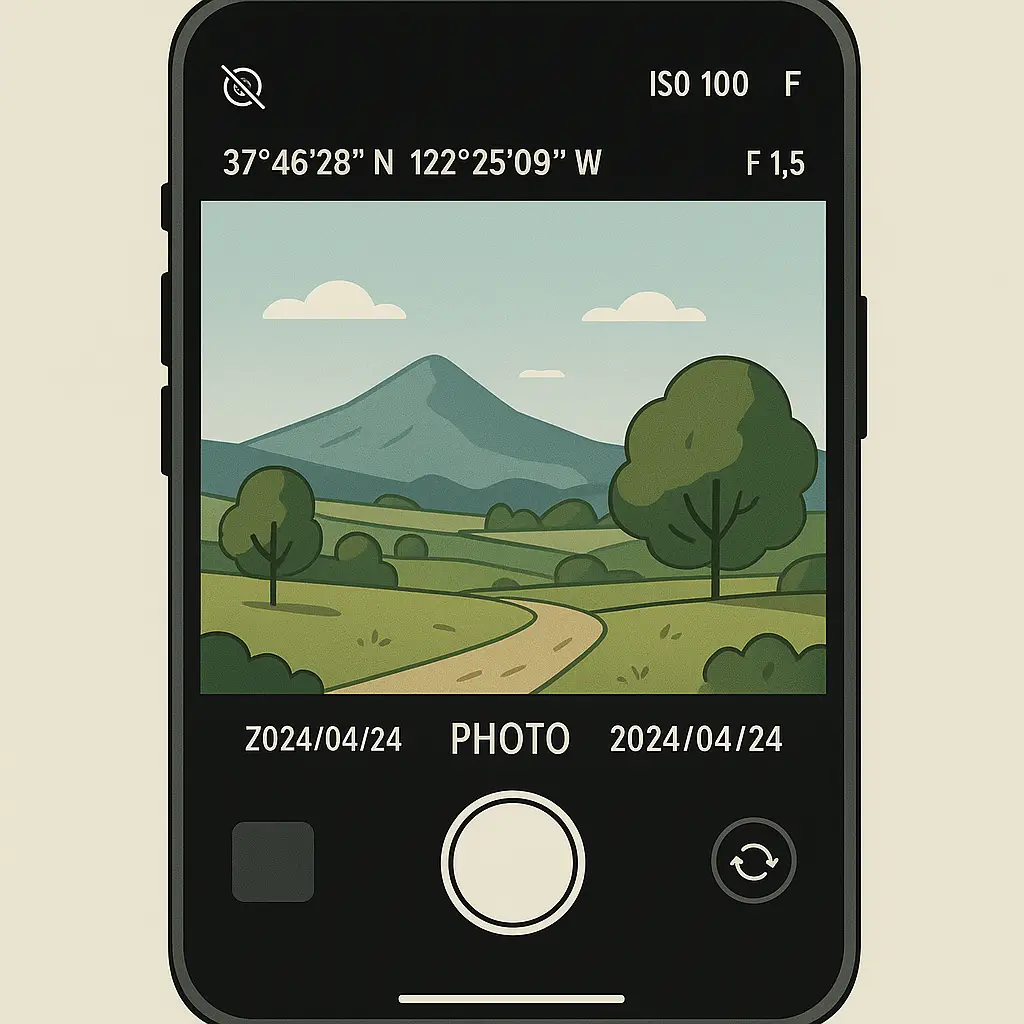
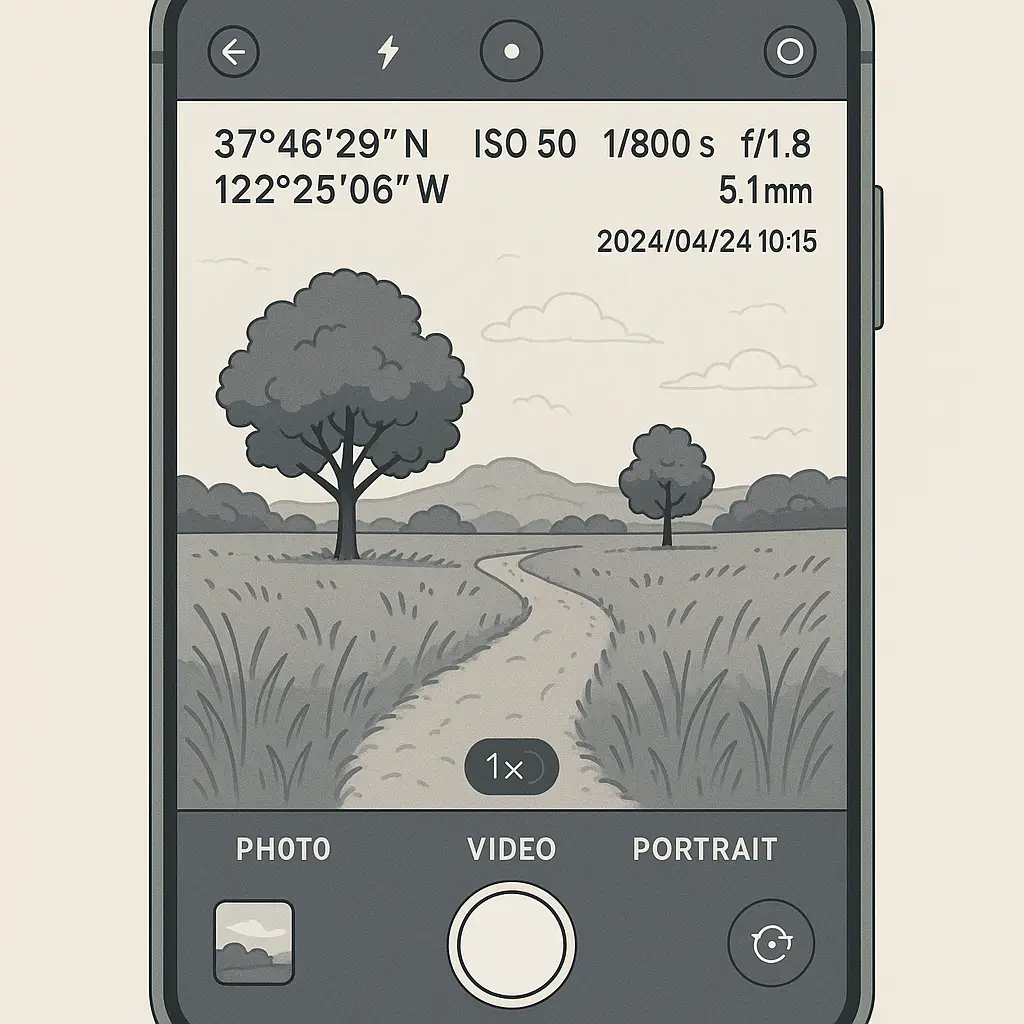
EXIF metadata embeds itself in the photo file the moment you press the shutter. It logs the camera model, lens settings, exposure values, timestamp, and often the exact GPS coordinates of where you were standing. This data travels with the file. When you share the photo, you share the metadata unless you deliberately remove it.
Here's what gets stored, how the mechanism works, and what you can actually control.
What EXIF data contains
EXIF metadata divides into categories. Not every photo contains every field, but most contain more than you'd expect.
Device information: Camera make and model. Lens type. Firmware version. Serial number (sometimes). If you took the photo with an iPhone 15 Pro, the EXIF data says so. If you used a Canon EOS R5 with a specific lens, that's recorded too.
Technical settings: ISO speed. Aperture (f-stop). Shutter speed. Focal length. Exposure compensation. White balance. Flash status. Metering mode. These fields tell you exactly how the camera configured itself to capture the image.
Timestamp: Date and time the photo was taken, down to the second. This timestamp reflects your device's clock setting, not necessarily the actual moment in the timezone where you shot the photo.
GPS coordinates: Latitude and longitude, sometimes with altitude. If your camera app has location permissions, it embeds your exact position. This is the field that creates the most privacy risk.
Editing history: Some cameras and editing apps record software version, editing steps, or modification timestamps. Adobe Lightroom, for instance, can embed its own metadata showing what adjustments you made.
Thumbnail preview: Many EXIF blocks include a small embedded thumbnail of the image. This thumbnail can persist even after you crop or edit the main image, potentially revealing content you thought you'd removed.
You don't see this data when you open the photo. It sits in the file header, invisible unless you use a tool designed to read it.
How EXIF data gets embedded
The embedding happens at the hardware and software level, the moment the sensor captures light.
When you press the shutter, the camera's processor reads data from multiple sources. It pulls the timestamp from the device's internal clock. It reads the GPS chipset (if location services are enabled). It logs the lens metadata transmitted through the camera body's electronic contacts. It records the ISO, aperture, and shutter speed values the camera selected (or that you set manually).
All of this data gets written into the image file's header in a standardized format defined by the EXIF specification. The specification dates back to the 1990s, created by the Japan Electronic Industries Development Association (JEIDA) and later maintained by the Camera & Imaging Products Association (CIPA). The format is widely adopted. Nearly every digital camera, smartphone, and photo app writes EXIF data.
The data persists because it's part of the file structure. When you copy the photo, the metadata copies with it. When you email the file, the metadata travels in the attachment. When you upload it to a file-sharing service, the metadata uploads too, unless the platform or app strips it.
Location data: the privacy risk that matters most
GPS coordinates are the EXIF field that creates the most significant privacy exposure.
If your phone's camera app has location permissions enabled, every photo you take embeds your exact latitude and longitude. This data is precise. It doesn't show "San Francisco" or "near the beach." It shows the specific street address, the specific corner, sometimes the specific floor of a building.
You take a photo of your cat in your living room. The EXIF data records your home address. You photograph your kid's school drop-off. The EXIF data records the school's location and the time you were there. You snap a photo at a protest, a medical appointment, a friend's house. The location embeds itself in the file.
This data leaks in predictable ways. You post the photo to a forum. Someone downloads it and reads the EXIF data. Now they know where you live, where you work, where your kids go to school. You send a photo to a stranger on a dating app. They extract the GPS coordinates. Now they know where you were when you took that photo.
The risk isn't hypothetical. Researchers have demonstrated that EXIF data from publicly shared photos can be used to map individuals' routines, identify home addresses, and track movement patterns. The data doesn't require sophisticated tools to extract. Free software and websites can read EXIF metadata in seconds.
What platforms strip, what they don't
Some platforms strip EXIF data automatically when you upload photos. Others don't. The rules vary, and they change.
Instagram, Facebook, Twitter (X): These platforms generally strip GPS coordinates and some technical metadata when you upload. The stripping isn't perfect. Some fields persist. Some users report inconsistent behavior. But the major privacy risk, GPS location, usually gets removed.
iMessage, WhatsApp, Signal: Messaging apps handle metadata inconsistently. Some strip location data. Some don't. Signal, for instance, strips EXIF data by default when you send photos. WhatsApp's behavior varies by platform and version. iMessage preserves EXIF data unless you explicitly choose to remove location info when sharing.
Email attachments: Email does not strip EXIF data. When you attach a photo to an email, the full metadata travels with the file. The recipient can read every field.
File-sharing services (Dropbox, Google Drive, iCloud): Cloud storage services generally preserve EXIF data. The file you upload is the file that gets stored. If the EXIF data was in the original, it stays in the copy.
Forums, image boards, smaller platforms: Behavior varies widely. Some sites strip metadata. Many don't. Don't assume. If you're sharing a photo on a platform you don't use regularly, assume the EXIF data persists unless you verify otherwise.
The inconsistency creates risk. You can't rely on platforms to protect you. The safer approach is to strip the metadata yourself before sharing.
How to view EXIF data
You don't need specialized software. Most operating systems and photo apps can display EXIF metadata.
On iPhone: Open the Photos app. Select a photo. Swipe up or tap the info button (i). You'll see the date, time, location (if embedded), and camera model. For more detail, tap "Adjust" and look at the editing panel, which shows some technical settings.
On Android: Open Google Photos. Select a photo. Tap the three-dot menu. Select "Details." You'll see timestamp, location, camera model, and some technical fields. The level of detail varies by device and Android version.
On Windows: Right-click the photo file. Select "Properties." Click the "Details" tab. You'll see a full list of EXIF fields, including camera settings, GPS coordinates, and timestamps. You can also remove metadata from this panel by clicking "Remove Properties and Personal Information" at the bottom.
On Mac: Right-click the photo. Select "Get Info." You'll see basic metadata. For more detail, open the photo in Preview, go to Tools > Show Inspector, and click the "i" tab. This displays EXIF fields in a structured format.
Third-party tools: Apps like ExifTool (command-line, cross-platform), Metapho (iOS), and Photo Exif Editor (Android) provide more granular control. ExifTool is particularly powerful, it can read, write, and strip metadata from nearly any image format.
Viewing the data is the first step. Once you know what's embedded, you can decide what to remove.
How to remove EXIF data before sharing
Stripping metadata is straightforward. The method depends on your device and workflow.
On iPhone (when sharing): When you tap the share button, look for "Options" at the top of the share sheet. Tap it. Toggle off "Location." This removes GPS coordinates from the copy you're sharing. The original photo retains its metadata, but the shared version strips location data. This method works for most sharing actions, Messages, Mail, AirDrop, and third-party apps.
On iPhone (permanently): Use a shortcut or third-party app. The Shortcuts app can create an automation that strips all EXIF data from selected photos. Apps like Metapho or ViewExif allow you to view and selectively remove metadata fields before saving a new copy.
On Android: Use Files by Google. Open the app, navigate to the photo, tap the three-dot menu, select "Remove metadata," then save the new file. Alternatively, use apps like Photo Exif Editor or Scrambled Exif, which let you strip all metadata or selectively remove specific fields.
On Windows: Right-click the photo. Select "Properties." Click the "Details" tab. At the bottom, click "Remove Properties and Personal Information." Choose "Create a copy with all possible properties removed" or "Remove the following properties from this file" and select specific fields. Click OK.
On Mac: Open the photo in Preview. Go to Tools > Show Inspector. Click the "i" tab to view EXIF data. To remove it, export the photo (File > Export) and uncheck "Include location information" and other metadata options in the export dialog.
Command-line (ExifTool): If you're comfortable with the terminal, ExifTool is the most powerful option. Install it, then run exiftool -all= photo.jpg to strip all metadata from a file. You can also target specific fields or batch-process entire folders.
The key is to strip metadata before you share, not after. Once the file leaves your device with EXIF data intact, you can't recall it.
What stripping metadata doesn't protect
Removing EXIF data eliminates the embedded metadata, but it doesn't erase all identifying information.
Image content: The photo itself can reveal location, identity, and context. A photo of your living room might not have GPS coordinates, but the furniture, wall art, and window view can still identify your home. A photo of a street corner without metadata can still be geolocated by someone who recognizes the buildings or street signs.
Reverse image search: Google Images, TinEye, and similar tools can find other instances of the same photo online. If you've shared the photo elsewhere with metadata intact, someone can find the original and extract the EXIF data from that version.
Editing artifacts: Cropping, resizing, or editing a photo creates new metadata. Some editing apps embed their own EXIF fields showing software version and modification timestamps. Stripping the original metadata doesn't remove these new fields unless you strip again after editing.
Thumbnails and cached copies: Some platforms cache thumbnail versions of uploaded photos with different metadata handling. Deleting the main image doesn't always delete the thumbnail. This is rare, but it happens.
Behavioral patterns: Even without EXIF data, posting photos consistently from the same locations, at the same times, or with recognizable backgrounds creates patterns that can be analyzed.
Stripping EXIF data is one layer of protection. It's necessary, but not sufficient if you're trying to maintain anonymity or location privacy.
The Office Space problem: metadata you didn't know you created
In Office Space, Peter Gibbons realizes that the smallest, most mundane details of his work environment, the TPS reports, the fax machine, the printer jams, are being tracked and analyzed by consultants looking for inefficiencies. He's not doing anything wrong. He's just existing in a system that records everything.
Photos work the same way. You're not thinking about metadata when you take a picture of your coffee or your dog. You're not trying to leak your home address or your daily routine. But the camera is tracking everything. The timestamp. The GPS coordinates. The device you used. The lens settings. All of it gets written to the file, silently, automatically, every time you press the shutter.
The metadata isn't malicious. It's a feature designed to help photographers organize their work, remember where and when they shot something, and analyze their technical settings. But like the TPS reports in Office Space, the data persists long after it's served its original purpose. It travels with the file. It gets indexed by platforms. It gets analyzed by people you didn't intend to share it with.
The fix isn't to stop taking photos. It's to recognize that the camera creates a second layer of information you can't see, and to strip that layer before you share.
Screenshots don't inherit metadata
A common question: if I screenshot a photo, does the screenshot carry the original photo's EXIF data?
No. Screenshots generate new EXIF data based on when and where you took the screenshot, not the original photo.
When you screenshot an image, your device treats the screenshot as a new photo. The camera app (or screenshot function) embeds its own metadata, timestamp, device model, and GPS coordinates (if location services are enabled for screenshots). The original photo's EXIF data doesn't transfer.
This creates a workaround for stripping metadata: screenshot the photo, then share the screenshot instead of the original file. The screenshot won't have the original GPS coordinates, camera settings, or timestamp.
But this method has limitations. Screenshots reduce image quality. They bake in any visible interface elements (toolbars, status bars, etc.) unless you crop carefully. They create new metadata that might still reveal your location (if you took the screenshot at home with location services enabled).
Screenshotting is a quick fix, not a robust solution. If you're serious about stripping metadata, use the proper tools.
EXIF data in edited photos
Editing a photo complicates the metadata story.
When you crop, adjust, or filter a photo, the editing app usually creates new EXIF fields. Adobe Lightroom, for instance, embeds its own metadata showing software version, editing steps, and modification timestamps. Instagram's filters add metadata. Even Apple's Photos app writes editing data to the file.
Some editing apps preserve the original EXIF data and append new fields. Others replace the original metadata entirely. The behavior varies by app and export settings.
If you edit a photo and then share it, you might be sharing more metadata than you realize. The GPS coordinates from the original photo might still be there, plus new fields showing when and how you edited it.
The safest approach: strip EXIF data after editing, not before. Edit the photo, export it, then run it through a metadata-stripping tool before sharing.
What EXIF data reveals about your habits
EXIF metadata doesn't just expose individual photos. It exposes patterns.
If you share multiple photos over time, the timestamps and GPS coordinates create a map of your routine. Someone analyzing your photos can determine where you live, where you work, where your kids go to school, where you exercise, where you socialize. They can infer your sleep schedule, your commute, your weekend habits.
This kind of analysis doesn't require sophisticated tools. Researchers have used publicly available EXIF data from social media to track individuals' movements and identify home addresses. The data is precise enough to narrow down specific buildings, specific floors.
The risk compounds if you share photos across multiple platforms. A photo on Instagram might strip GPS coordinates, but a photo on a forum might not. Someone correlating your usernames across platforms can piece together a detailed profile.
The defense is consistency. Strip metadata from every photo you share, regardless of platform. Don't rely on automatic stripping. Don't assume the platform will protect you.
EXIF data and legal contexts
EXIF metadata has been used as evidence in legal cases. Timestamps prove when a photo was taken. GPS coordinates prove where. Device metadata proves which camera was used.
This cuts both ways. EXIF data can corroborate your account of events, or it can contradict it. A photo you claim was taken at a specific time and place can be verified, or disproven, by the embedded metadata.
In some jurisdictions, EXIF data is considered part of the photo's evidentiary value. Stripping metadata from a photo you intend to use as evidence can raise questions about tampering. Preserving metadata strengthens the photo's credibility.
If you're involved in a legal matter where photos might be relevant, consult a lawyer before stripping or modifying EXIF data. The metadata might be more important than the image itself.
The future of photo metadata
EXIF is evolving. Newer standards add fields for AI-generated content markers, deepfake detection, and content authenticity.
The Content Authenticity Initiative, backed by Adobe, Microsoft, and others, is developing a framework to embed cryptographic signatures in photos. These signatures verify the photo's origin, editing history, and chain of custody. The goal is to combat misinformation and deepfakes.
This adds a layer of complexity. Future photos might carry metadata that's harder to strip, designed to persist through editing and sharing. The tradeoff is transparency versus privacy. A photo that proves its authenticity also reveals more about its creation.
For now, EXIF data remains strippable. But the direction is clear: metadata is becoming more embedded, more persistent, more designed to survive attempts to remove it.
What you can control
You can't stop your camera from writing EXIF data. It's baked into the hardware and software. But you can control what happens to that data after the photo is taken.
Disable location permissions for your camera app. This prevents GPS coordinates from being embedded in the first place. You lose the ability to organize photos by location, but you eliminate the biggest privacy risk.
Strip metadata before sharing. Use the built-in tools on your device or third-party apps. Make it a habit. Don't rely on platforms to do it for you.
Review your old photos. If you've shared photos in the past without stripping metadata, consider whether those photos are still accessible and whether the embedded data creates risk. You can't recall files you've already shared, but you can delete them from platforms where you still have control.
Understand the tradeoffs. EXIF data is useful. It helps you organize photos, remember where you traveled, analyze your technical settings. Stripping it removes that utility. Decide which photos need metadata stripped and which don't.
The camera records everything. What you do with that data is up to you.