Disable Phone Location Tracking: Step-by-Step Guide to Control What Your Phone Shares
You want to stop your phone from tracking you. The impulse is reasonable: location data reveals where you live, work, sleep, worship, protest, and seek medical care. But the mechanism behind phone location tracking is more distributed than most people realize, and turning off one setting rarely stops the whole system.
This guide walks through every layer of location tracking on iPhone and Android, explains what each setting actually controls, and shows you how to configure your phone to minimize tracking without breaking the apps you need. You'll learn what stops completely, what keeps running in the background, and where the real gaps live.
What location tracking actually means on your phone
Location tracking isn't one thing. It's a collection of technologies that work together, and sometimes independently, to determine where you are. Your phone combines GPS satellites, WiFi network scanning, Bluetooth beacons, and cell tower triangulation to build a position estimate. Different apps and system services use different combinations of these inputs depending on what they need.
GPS provides the most accurate outdoor positioning, usually within around 15 feet under clear skies. It works by receiving signals from satellites, so it doesn't transmit anything, but your phone logs the coordinates it calculates, and apps that request location access can read those logs. WiFi location works by scanning for nearby network names and comparing them against a database of known router positions. This happens even when you're not connected to WiFi. Bluetooth location uses the same principle with Bluetooth beacons in stores, airports, and public spaces.
Cell tower triangulation is the oldest method and the hardest to disable. Your phone connects to cell towers to make calls and use data, and that connection creates a rough location record on your carrier's network. Turning off location services on your device doesn't stop this. The carrier logs which towers you connect to as part of normal network operation, and that data persists whether you want it to or not.
The distinction matters because when you disable "location services" in your phone's settings, you're mostly controlling which apps can access the location data your phone generates. You're not necessarily stopping the phone from generating that data in the first place.
Step 1: Disable system-level location services
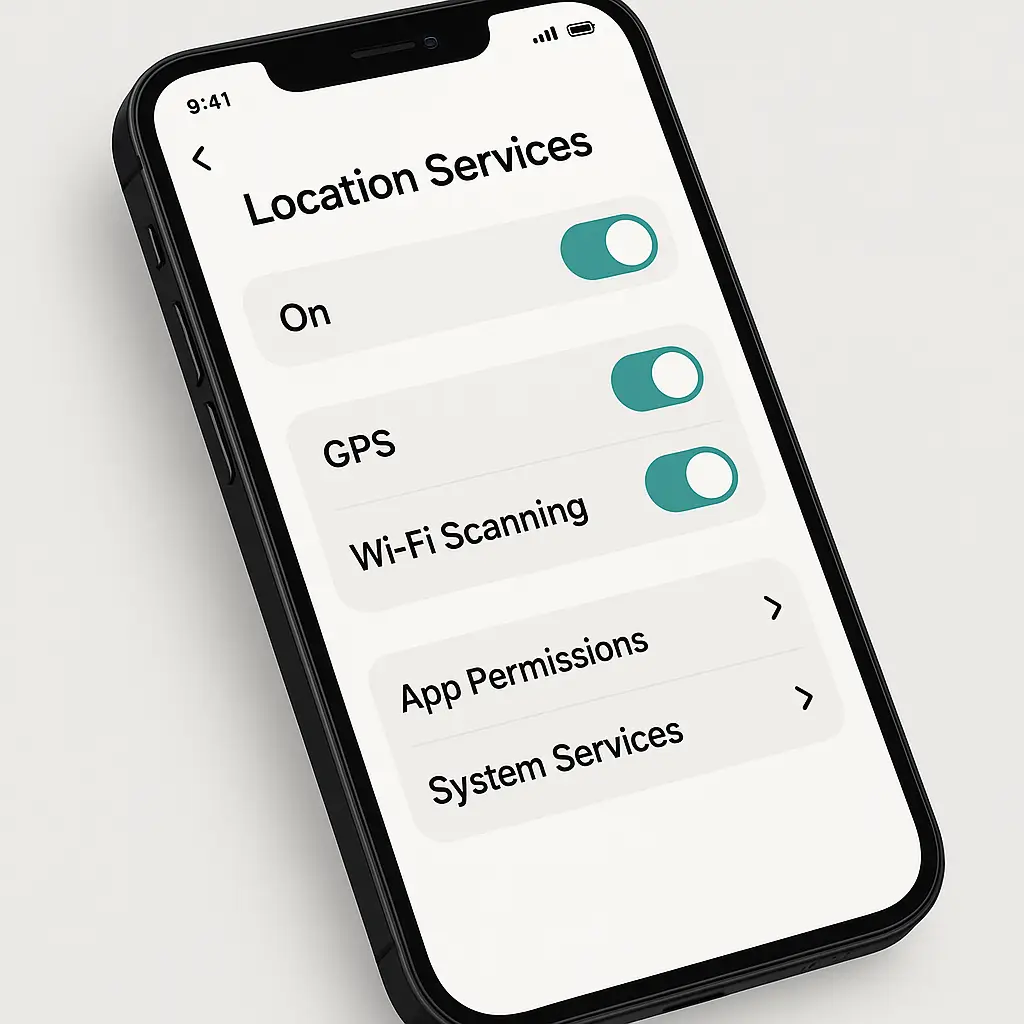
Start with the master switch. On iPhone, open Settings, tap Privacy & Security, then Location Services. The toggle at the top controls whether any app or system service can access location. Turn it off, and most location tracking stops, but not all.
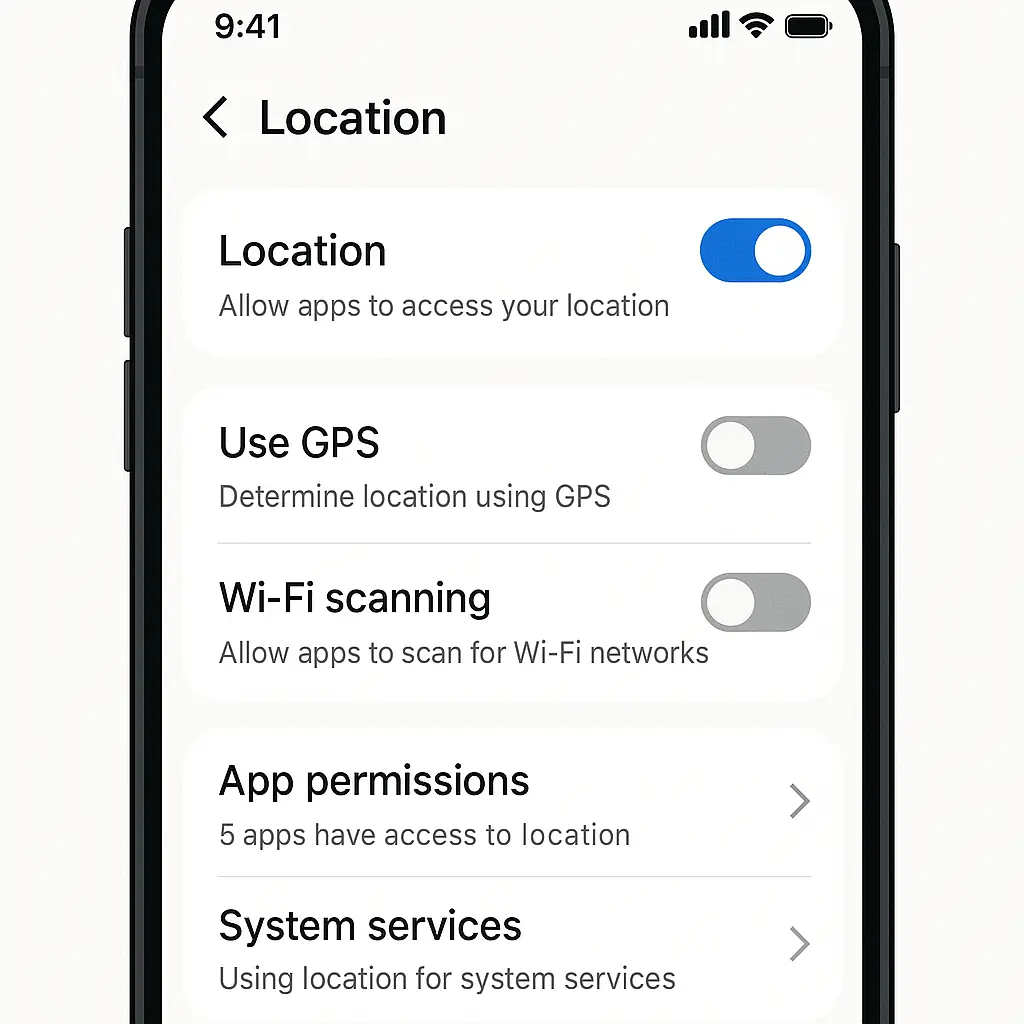
On Android, the path varies slightly by manufacturer, but the general route is Settings → Location (or Security & Privacy → Location). The toggle at the top disables location for apps and most system services.
Disabling this setting breaks navigation apps, ride-sharing, weather forecasts, and anything else that legitimately needs to know where you are. That's the tradeoff. If you want those apps to work, you'll need to leave location services enabled and manage permissions app-by-app instead.
Even with location services off, your phone still scans for WiFi networks and Bluetooth devices in the background on some platforms. Android lets you disable WiFi scanning and Bluetooth scanning separately under Location → Location Services → WiFi scanning and Bluetooth scanning. iPhone ties these more tightly to the main WiFi and Bluetooth toggles, but scanning can still occur when those radios are on.
Your carrier's cell tower logs continue regardless. There's no setting on your device that stops your phone from connecting to towers, that's how the phone works. If you want to stop cell tower tracking entirely, you need to turn the phone off or put it in airplane mode, which disables all radios.
Step 2: Audit and revoke app location permissions
Most location tracking happens because you granted an app permission at some point and forgot about it. Apps request location for navigation, local search, targeted advertising, analytics, and fraud detection. Some of those uses are reasonable. Many are not.
On iPhone, go to Settings → Privacy & Security → Location Services. Scroll past the toggle to see the full list of apps. Each app shows its current permission level: Never, Ask Next Time, While Using the App, or Always. Tap any app to change it.
"Always" is the permission to watch. Apps with "Always" access can track you in the background even when you're not using them. Social media apps, shopping apps, and weather apps commonly request this. Most don't need it. Change "Always" to "While Using the App" for anything that doesn't require background location, navigation and fitness tracking are the main exceptions.
On Android, open Settings → Security & Privacy → Privacy → Permission manager → Location. You'll see a list of apps grouped by permission level: Allowed all the time, Allowed only while in use, Ask every time, and Not allowed. Tap any group to review the apps inside and adjust permissions.
Pay attention to apps you haven't used in months. If an app has location access and you can't remember the last time you opened it, revoke the permission. You can always grant it again if you need the app later.
Some apps will nag you to re-enable location after you revoke it. Ignore the prompts unless the app stops working in a way that matters to you. Advertising-driven apps often claim they need location for "a better experience," which usually means more targeted ads.
Step 3: Disable location-based system services
Both iPhone and Android run background services that use location for features you might not care about. These services operate independently of individual apps, and they keep running even if you've locked down app permissions.
On iPhone, scroll to the bottom of Settings → Privacy & Security → Location Services and tap System Services. You'll see a list of around 20 toggles. Most people can safely disable:
- Location-Based Alerts
- Location-Based Suggestions
- Location-Based Apple Ads
- Routing & Traffic
- WiFi Networking (this controls whether your phone contributes location data to improve WiFi positioning databases)
- Significant Locations (this logs places you visit frequently and uses the data for predictive features)
Leave on Emergency Calls & SOS, Find My iPhone, and Compass Calibration. The rest depend on whether you use the features they enable.
On Android, the equivalent lives under Settings → Location → Location Services. You'll see Google Location Accuracy (which combines GPS, WiFi, Bluetooth, and cell towers for faster positioning), WiFi scanning, and Bluetooth scanning. Disabling Google Location Accuracy makes GPS-only positioning slower but stops the background scanning that feeds Google's location database.
Significant Locations on iPhone deserves extra attention. This feature builds a detailed history of places you visit, how often you go there, and how long you stay. Apple says the data stays on-device and encrypts it, but it's still a log of your movements. If someone gets access to your unlocked phone, they can see this history. Turn it off if you don't use features like travel time estimates or location-based memories in Photos.
Step 4: Turn off ad tracking and analytics that use location
Advertisers and analytics platforms track your location to build profiles, serve targeted ads, and measure foot traffic to stores. This happens through a combination of app permissions, device identifiers, and background data collection. You can limit it, but you can't stop it entirely without breaking some apps.
On iPhone, go to Settings → Privacy & Security → Tracking. The "Allow Apps to Request to Track" toggle controls whether apps can ask for permission to track you across other companies' apps and websites. Turn it off. Below that, you'll see a list of apps that have requested tracking. Revoke permission for anything you don't actively want tracking you.
Next, go to Settings → Privacy & Security → Apple Advertising. Turn off Personalized Ads. This stops Apple from using your location and activity to target ads in the App Store, Apple News, and Stocks.
On Android, open Settings → Security & Privacy → Privacy → Ads. Turn on "Delete advertising ID." This removes the identifier apps use to track you for advertising purposes. It's not a permanent deletion, the ID regenerates if you turn the setting off, but it breaks existing tracking links.
Some apps will complain that features don't work correctly after you disable tracking. This usually means the feature depends on collecting data you'd rather not share. Decide whether the feature is worth the tradeoff.
Step 5: Review and disable location history
Google, Apple, and some third-party apps maintain separate logs of where you've been over time. These histories exist even if you've disabled real-time location tracking. They're used for features like timeline views, location-based reminders, and personalized recommendations. They also create a detailed record of your movements that persists until you delete it.
On iPhone, location history lives in Significant Locations, which we covered in Step 3. Open Settings → Privacy & Security → Location Services → System Services → Significant Locations. Tap "Clear History" to delete the log. Turn off the toggle to stop future tracking.
Google's location history is more extensive. If you use an Android phone or any Google services on iPhone, open your Google account settings (myaccount.google.com), go to Data & Privacy, then Location History. You'll see a timeline of everywhere Google has tracked you, down to individual stores and addresses. You can delete the entire history or delete specific days and locations. Turn off the "Location History" toggle to stop future tracking.
Note that turning off Google Location History doesn't delete the data Google collects through other means. CISA's mobile device guidance recommends reviewing all location-related settings across both device and account levels, because data collection happens in multiple places.
Some apps maintain their own location histories independent of the operating system. Fitness apps, navigation apps, and social media apps often do this. Check each app's settings for a location history or activity log section, and delete or disable it if you don't need the feature.
Step 6: Manage location sharing with contacts and apps
Sharing your real-time location with family, friends, or apps creates a persistent broadcast of where you are. This is useful for coordination and safety, but it's also a vector for unwanted surveillance if you've shared with someone you no longer trust or forgotten you enabled it.
On iPhone, location sharing happens through Find My and Messages. Open Find My, tap People, and review who can see your location. Tap any contact to stop sharing. In Messages, open a conversation, tap the contact's name at the top, and check whether "Share My Location" is enabled. Turn it off if you don't want that person seeing where you are.
On Android, location sharing happens through Google Maps and some messaging apps. Open Google Maps, tap your profile picture, then Location sharing. You'll see a list of people who can see your location and how long the sharing lasts. Tap any contact to stop sharing.
Some apps request location sharing as a feature, Snapchat's Snap Map, Life360, and similar family tracking apps. If you've enabled these, your location broadcasts continuously to anyone with access. Open each app, find the location-sharing settings, and turn it off or adjust who can see you.
Temporary shares expire automatically, but permanent shares persist until you revoke them. If you've shared your location with someone and the relationship has changed, revoke access. The other person won't receive a notification that you've stopped sharing.
Step 7: Disable location-based reminders and automations
Shortcuts, automations, and smart home routines often use location as a trigger. Your phone detects when you leave home, arrive at work, or enter a specific area, then executes an action, send a message, adjust settings, log an event. These features require continuous location monitoring in the background.
On iPhone, location-based automations live in the Shortcuts app. Open Shortcuts, tap Automation, and review the list. Any automation with a location trigger will show "When I arrive" or "When I leave" in the description. Tap it to edit or delete. If you don't use the automation, delete it. The background location monitoring stops when the automation is gone.
Smart home platforms like Apple Home, Google Home, and Amazon Alexa also use location for presence detection and geofencing. Open each app, go to Automations or Routines, and check for location-based triggers. Disable or delete anything you don't actively use.
Some apps use geofencing for legitimate features, reminders to pick up groceries when you're near the store, or notifications when you arrive at an appointment location. These work by monitoring your location continuously and triggering an alert when you cross a boundary. If you don't need the feature, turn it off in the app's settings. The battery drain from constant location monitoring is real.
What keeps tracking you even after you've disabled everything
You've turned off location services, revoked app permissions, disabled system services, deleted histories, and stopped sharing. Your phone still tracks you in specific ways you can't fully control.
Cell tower logs persist. Your carrier knows which towers your phone connects to, and that data creates a location history accurate to roughly a few hundred yards in urban areas, wider in rural areas. CISA's mobile communications guidance acknowledges that this tracking happens as part of normal network operation and recommends using encrypted messaging apps to protect the content of communications, since location metadata remains visible to carriers.
WiFi and Bluetooth MAC addresses leak your presence even when you're not connected. Your phone broadcasts these addresses when scanning for networks and devices. Retailers, airports, and public spaces use MAC address tracking to monitor foot traffic and movement patterns. Some phones randomize MAC addresses to limit this tracking, but the feature isn't universal and doesn't work in all situations.
Emergency location services override your settings. If you call 911 or trigger an SOS, your phone sends precise location data to emergency responders regardless of your location settings. This is by design and can't be disabled.
Some apps embed location data in photos, documents, and other files you create. EXIF metadata in photos often includes GPS coordinates. If you share a photo taken with location services enabled, the recipient can extract your exact position from the file. Both iPhone and Android strip this metadata when you share through some apps, but not all. Check your camera settings for an option to disable location tagging in photos.
The Minority Report problem
In the 2002 film Minority Report, ads recognize Tom Cruise's character by scanning his eyes and call out to him by name as he walks through a mall. The surveillance is ambient, personalized, and inescapable. The film imagined a future where tracking is so embedded in infrastructure that opting out isn't a meaningful choice.
We're not there yet, but the architecture is forming. Your phone's location data feeds into systems you don't see: ad networks that bid on your attention in real time, retailers that correlate your movements with purchase behavior, data brokers that sell your patterns to anyone willing to pay. Disabling location tracking on your device limits what apps can do locally, but it doesn't stop the larger ecosystem from inferring where you are based on IP addresses, WiFi networks, and the behavior of people around you.
The gap between what you can control and what actually tracks you is the real problem. You can lock down your phone, but you can't lock down the infrastructure your phone connects to.
When location tracking actually matters
Location tracking isn't universally bad. Navigation apps need your position to give you directions. Weather apps use location to show local forecasts. Fitness apps track your runs and rides. Emergency services need your location to send help.
The question is whether the app requesting location actually needs it for the feature you're using, or whether it's collecting data for secondary purposes, advertising, analytics, resale. A weather app needs your rough location to show the forecast. It doesn't need to track you continuously in the background and log everywhere you go.
Ask yourself: does this app's core function stop working if I deny location access? If yes, and you need the function, grant the permission. If no, deny it. If the app nags you to re-enable location and you can't tell why it needs it, that's a signal the app is collecting more than it should.
"While Using the App" is almost always the right choice over "Always" unless you're using navigation, fitness tracking, or a family safety app that explicitly requires background location. Everything else can wait until you open the app.
Checking what's actually running
After you've locked down permissions and disabled services, verify that your changes took effect. Both platforms show which apps and services are currently using location.
On iPhone, a small arrow icon appears in the status bar when location is active. A hollow arrow means an app used location recently. A solid arrow means location is active right now. Pull down Control Center and look for the location icon at the top. Tap it to see which app or service is using location.
On Android, a location icon appears in the status bar when location is active. Swipe down to open the notification shade, then swipe down again to see Quick Settings. The location tile shows whether location is on. Long-press it to open location settings and see which apps have used location recently.
If you see location activity from an app you thought you'd disabled, go back to permissions and double-check. Some apps request location through background services or system integrations that don't show up in the obvious places.
The limits of device-level controls
Everything in this guide addresses what you can control on your device. That's a meaningful layer of protection, but it's not the whole picture. Location tracking happens at the network level, the app level, and the infrastructure level. Your phone is one piece of a larger system.
Your carrier tracks you through cell towers. Advertisers track you through device fingerprinting and cross-device correlation. Retailers track you through WiFi and Bluetooth scanning. Data brokers aggregate all of this and sell it. Disabling location services on your phone limits what apps can do locally, but it doesn't stop the rest of the machine.
If you want deeper protection, you need to address those other layers: use a VPN to obscure your IP address, disable WiFi and Bluetooth when you're not using them, use privacy-focused browsers and search engines, opt out of data broker databases. None of this is simple, and none of it is complete.
The practical goal isn't perfect privacy. It's reducing your exposure to a level you can live with. Lock down what you can control, understand what you can't, and decide where the tradeoffs make sense for you.
What to do next
If you've followed this guide, you've disabled system-level location services, audited app permissions, turned off location-based system features, stopped ad tracking, deleted location histories, and verified what's still running. That's a solid baseline.
The next step is ongoing maintenance. Apps update and request new permissions. System updates change default settings. New apps ask for location access. Set a recurring reminder, every three months works, to review permissions and settings again. It takes around 15 minutes and catches drift before it accumulates.
If you share a phone with family or hand your phone to others occasionally, they might re-enable settings you've disabled or grant permissions you wouldn't. Check settings after anyone else uses your phone, especially if they installed apps or changed configurations.
Location tracking is one part of a broader privacy picture. If you've locked this down and want to go further, the next areas to address are app permissions for camera, microphone, contacts, and photos; browser tracking and cookie settings; and data broker opt-outs. Each layer adds protection, but each also requires time and tradeoffs.
You can't stop all location tracking, but you can stop most of it. The phone in your pocket is the most sophisticated tracking device ever created, but it's also configurable. The settings exist. Use them.