Browser-based AI agents: what they can access, what they can't
Browser-based AI agents are tools that perform tasks on your behalf inside your web browser. They fill forms, click buttons, extract data, navigate sites, and execute multi-step workflows. The promise is automation. The question is access.
What can these agents actually see? What data do they touch? What boundaries exist between an agent running in Chrome or Firefox and the rest of your digital life?
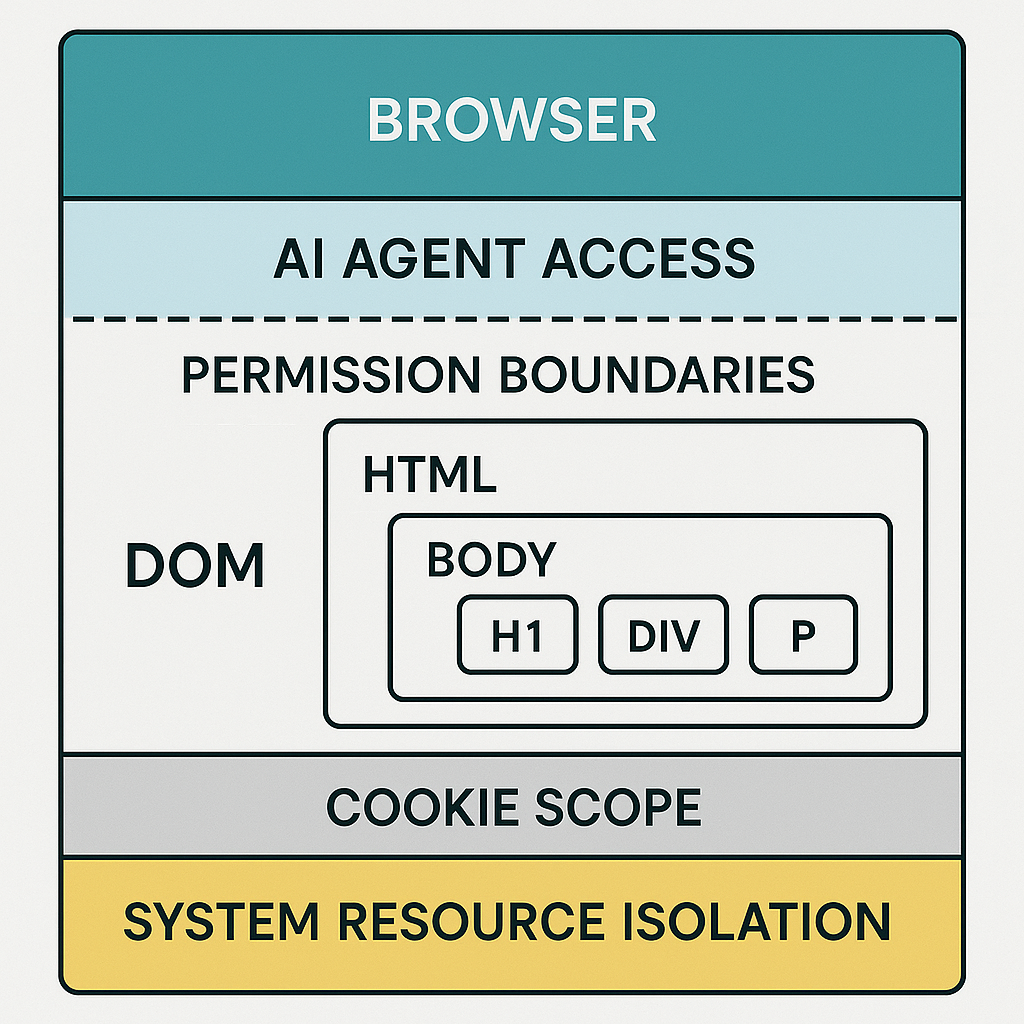
The answer depends on architecture. Browser-based AI agents operate under the same security model as browser extensions, but with a critical difference: they make autonomous decisions about what to do with the data they access. Understanding the mechanism means understanding the browser's permission system, the Document Object Model, cookie scope, and the line between browser context and operating system.
This is an explainer. We're going to walk through the technical layers that define what browser-based AI agents can access, what they cannot, and why those boundaries matter.
The browser security model: sandboxing and permissions
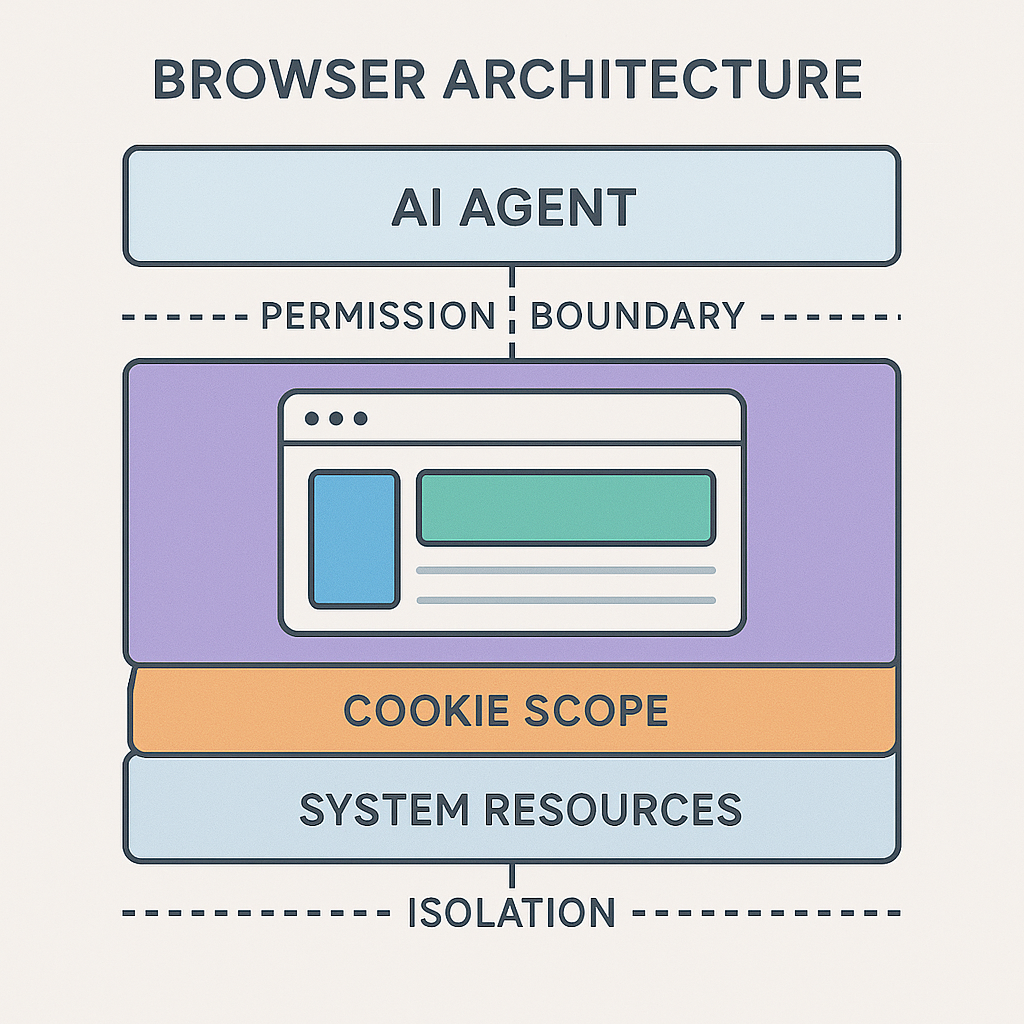
Your browser runs in a sandbox. That's the foundational security mechanism. A sandbox is an isolated environment where code executes with limited access to system resources. The browser can read and write to specific directories, access network connections, and interact with hardware like your camera or microphone, but only within boundaries defined by the operating system.
Browser-based AI agents inherit this sandbox. They operate inside the browser process, not as standalone applications. That means they face the same restrictions as any other browser component: they cannot directly access your filesystem, cannot read memory from other applications, and cannot execute arbitrary system commands.
But within the browser sandbox, agents have access to everything the browser itself can see. That includes the Document Object Model (DOM) of every webpage you visit, cookies associated with those sites, local storage, session storage, and browser history. The extent of that access depends on permissions.
Permissions in modern browsers follow a principle of least privilege. An extension or agent must explicitly request access to specific capabilities, and you must grant those permissions. The browser enforces these boundaries through APIs. If an agent hasn't requested permission to access your browsing history, it cannot call the history API. If it hasn't requested cookie access, it cannot read or modify cookies.
The problem is that many users grant permissions without understanding what they enable. When you install a browser extension and click "Allow," you're often granting access to all websites, all tabs, and all cookies. Browser-based AI agents typically require broad permissions to function, because their purpose is to interact with arbitrary sites on your behalf.
CISA's guidance on cybersecurity best practices emphasizes understanding what access you're granting to any software. For browser agents, that means reading the permission requests carefully before you click "Allow."
The DOM: what agents see on the page
The Document Object Model is the structured representation of a webpage. It's a tree of elements: headings, paragraphs, forms, buttons, images, scripts. When you load a page, the browser parses the HTML and builds the DOM. JavaScript running on that page can read and modify the DOM, and so can browser-based AI agents.
An agent with DOM access can see everything visible on the page and everything hidden in the page's structure. That includes form fields, input values, text content, links, metadata, and embedded scripts. If a page contains sensitive information in the HTML source, even if it's not displayed visually, the agent can access it.
This is not hypothetical. Consider a banking site that loads your account balance into the DOM but hides it behind a CSS rule until you click a "Show Balance" button. The balance is in the DOM the entire time. An agent with DOM access can read it without clicking the button.
DOM access also means the agent can interact with the page. It can fill form fields, click buttons, scroll, navigate to new pages, and trigger JavaScript events. This is how automation works. The agent simulates user actions by manipulating the DOM and firing events that the page's scripts respond to.
The scope of DOM access depends on the agent's permissions. Some agents are restricted to the active tab. Others can access the DOM of all open tabs simultaneously. The difference matters. An agent that can read all tabs can correlate your activity across multiple sites, building a profile of your browsing session in real time.
Cookies: session state and authentication
Cookies are small pieces of data that websites store in your browser to maintain session state. They're how sites remember you're logged in, track your shopping cart, and personalize content. Cookies are also how sites track you across the web.
Browser-based AI agents can access cookies if you grant them permission. That access is powerful. With cookie access, an agent can authenticate on your behalf, maintain session state across page loads, and impersonate you to any site that relies on cookie-based authentication.
Here's the mechanism. When you log into a site, the server sends a cookie containing a session token. Your browser stores that cookie and sends it back with every subsequent request to that site. The server reads the token, verifies it, and grants you access. An agent with cookie access can read that token, send it in requests, and perform actions as you.
This is by design. Many AI agents need cookie access to function. If you want an agent to book a flight, it needs to log into the airline's site on your behalf. That requires reading and sending your session cookies.
The risk is scope. Cookies are not isolated by agent. If an agent has permission to access cookies, it can access all cookies for all sites within its permission scope. That includes banking cookies, email cookies, social media cookies, and any other authentication tokens stored in your browser.
Some browsers and extensions implement cookie isolation, restricting which cookies an agent can access. But the default behavior in most browsers is broad access. If you grant cookie permissions to an agent, assume it can see and use all your cookies.
Local storage and session storage: persistent data
Local storage and session storage are key-value stores that websites use to persist data in your browser. Local storage persists indefinitely until you clear it. Session storage persists only for the duration of the browser session.
Both are accessible to browser-based AI agents with the appropriate permissions. Local storage often contains user preferences, cached data, and application state. Session storage contains temporary data like form inputs or navigation history within a single session.
An agent with access to local storage can read and modify any data stored there. That includes API keys, tokens, user settings, and cached content. Some sites store sensitive information in local storage because it's convenient and doesn't require server-side persistence. That's a poor security practice, but it happens.
The scope of storage access follows the same-origin policy. An agent can only access storage for sites within its permission scope. If an agent has permission to access all sites, it can access all local storage across all sites. If it's restricted to specific domains, its storage access is similarly restricted.
Session storage is more ephemeral, but the same access rules apply. An agent operating within a session can read and modify session storage, potentially interfering with the site's intended behavior or extracting data the site intended to keep temporary.
Browser history: tracking where you've been
Browser history is the record of every URL you've visited. It's timestamped, searchable, and persistent. Some browser-based AI agents request access to your history to provide context for their actions or to navigate back to previously visited pages.
History access is a separate permission. If you grant it, the agent can query your entire browsing history, including URLs, visit counts, and timestamps. That's a comprehensive record of your online activity.
The use case for history access is often navigation. An agent might need to revisit a page you viewed earlier in a workflow. But the capability extends far beyond navigation. With full history access, an agent can profile your interests, identify patterns in your behavior, and correlate your activity across sites over time.
Some agents operate without history access. They function purely in the context of the current tab and have no knowledge of where you've been. This is a more restricted mode, and it limits the agent's capabilities, but it also limits its exposure to your data.
If an agent requests history access, consider whether the functionality it provides justifies that level of visibility into your browsing behavior.
Cross-tab access: seeing multiple contexts
By default, browser extensions and agents operate in the context of a single tab. They can see and interact with the page in that tab, but they cannot access other tabs unless you grant cross-tab permissions.
Cross-tab access changes the scope dramatically. An agent with this permission can read the DOM, cookies, and storage of every open tab simultaneously. It can monitor your activity across multiple sites, correlate data between tabs, and perform actions in tabs you're not actively viewing.
This is useful for certain workflows. Imagine an agent that compares prices across multiple shopping sites. It needs to open tabs for each site, extract pricing data, and present a comparison. That requires cross-tab access.
But cross-tab access also enables surveillance. An agent can track which sites you visit, how long you spend on each, what actions you take, and what data you enter. It can build a real-time profile of your browsing session.
The permission prompt for cross-tab access usually says something like "Read and change all your data on all websites." That's accurate. If you grant this permission, the agent can do exactly that.
What agents cannot access: the boundaries
Browser-based AI agents operate within the browser sandbox. They cannot break out of that sandbox without exploiting a browser vulnerability. Assuming no vulnerabilities, here's what agents cannot access:
Your filesystem. Agents cannot browse directories, read arbitrary files, or write files to your disk without your explicit action. They can prompt you to select a file through the browser's file picker, but they cannot access files you haven't selected.
Your operating system. Agents cannot execute system commands, install software, or interact with other applications running on your machine. They are confined to the browser process.
Your password manager's vault. Password managers store credentials in encrypted databases that are separate from the browser's accessible data. Agents can interact with password managers through autofill, but they cannot read the vault directly.
Other applications' memory. Agents cannot read data from applications outside the browser. They cannot see your email client, your messaging apps, or your local documents unless those are accessed through the browser.
Hardware beyond what the browser exposes. Agents can request access to your camera, microphone, or location through browser APIs, but only if you grant those permissions. They cannot access hardware directly.
The boundary is the browser's permission system. If the browser doesn't expose an API for a capability, the agent cannot access it. If the browser requires a permission prompt, the agent cannot bypass it.
The cultural reference: Star Trek: The Next Generation and the holodeck safeties
In Star Trek: The Next Generation, the holodeck is a virtual reality environment where crew members can interact with simulated worlds. The holodeck has safeties: programmed limits that prevent simulated objects from causing real harm. Characters can be shot by holographic bullets, but the safeties ensure those bullets don't actually kill.
The safeties fail in several episodes. When they do, the holodeck becomes dangerous. Simulated threats become real threats. The boundary between the simulation and reality collapses.
Browser-based AI agents operate within a similar set of safeties: the browser's permission system and sandbox. Those safeties define what the agent can access and what it cannot. As long as the safeties hold, the agent remains confined to the browser context. It can see your browsing data, but it cannot access your filesystem or operating system.
The risk is not that the safeties will fail through a browser vulnerability, though that's possible. The risk is that users grant permissions without understanding what they enable, effectively disabling the safeties themselves. When you grant an agent permission to access all sites, all tabs, all cookies, and all history, you've given it the keys to your entire browsing session. The holodeck safeties are off.
The analogy holds because the safeties are not automatic. They require conscious decisions about what to allow and what to restrict. Browser-based AI agents are powerful tools, but their power depends on the access you grant them.
Permissions and scope: what you control
You control what a browser-based AI agent can access through the permissions you grant. Modern browsers present permission prompts when an extension or agent requests access to sensitive capabilities. Those prompts are your opportunity to limit scope.
Here's what to look for in permission requests:
"Read and change all your data on all websites" means the agent can access the DOM, cookies, and storage of every site you visit. That's the broadest possible scope.
"Read and change your data on specific sites" limits the agent to a defined list of domains. This is narrower, but still broad within those domains.
"Access your browsing history" means the agent can query every URL you've visited.
"Access your tabs" means the agent can see and interact with all open tabs.
If an agent requests permissions you don't understand or that seem excessive for its stated functionality, don't grant them. You can always enable permissions later if the agent doesn't work without them.
Some browsers allow you to revoke permissions after granting them. Check your browser's extension settings to see what permissions each agent has and whether you can modify them.
Data retention and transmission: where your data goes
Browser-based AI agents process data locally in your browser, but many also transmit data to external servers. The transmission happens for several reasons: the agent might use a cloud-based AI model, it might log your activity for debugging, or it might sync data across devices.
When data leaves your browser, it's subject to the agent's privacy policy and the security of its transmission. If the agent uses HTTPS, the data is encrypted in transit. If it uses unencrypted HTTP, the data is visible to anyone monitoring your network.
The agent's privacy policy should disclose what data it collects, where it sends that data, and how long it retains it. Many users don't read privacy policies, but for AI agents with broad browser access, it's worth the time.
Some agents operate entirely locally. They process data in your browser and never transmit it to external servers. This is the most private mode, but it limits the agent's capabilities. Local processing requires local models, which are less powerful than cloud-based models.
If privacy is a priority, look for agents that offer local-only modes or that clearly disclose their data handling practices.
The intersection of agent autonomy and access
The defining characteristic of AI agents is autonomy. They make decisions about what actions to take based on the data they observe. This is different from traditional browser automation, where scripts follow predefined rules.
Autonomy combined with broad access creates a unique risk profile. An agent with access to all your tabs, cookies, and history can make autonomous decisions about what to do with that data. It might decide to extract data from one tab and use it in another. It might correlate your activity across sites to build a profile. It might interact with sites in ways you didn't anticipate.
The agent's decision-making process is often opaque. You don't see the reasoning behind its actions. You see the results: forms filled, pages navigated, data extracted. But you don't see the intermediate steps or the data the agent accessed to make those decisions.
This opacity is inherent to AI systems. The agent's behavior emerges from its training and its instructions, not from explicit rules you can inspect. That makes it harder to predict what the agent will do with the access you've granted it.
The mitigation is to limit access. Grant the minimum permissions necessary for the agent to perform its intended function. If the agent works without history access, don't grant it. If it works on specific sites, don't grant it access to all sites.
Browser-specific differences: Chrome, Firefox, Safari
Different browsers implement the permission system differently. Chrome, Firefox, and Safari all support extensions and agents, but the details vary.
Chrome uses the Manifest V3 extension system, which restricts certain capabilities compared to the older Manifest V2. Manifest V3 limits how extensions can modify network requests and how they access cookies. This reduces the attack surface but also limits what agents can do.
Firefox supports both Manifest V2 and V3, giving users and developers more flexibility. Firefox's permission system is similar to Chrome's, but it offers more granular controls in some areas.
Safari has the most restrictive extension model. Safari extensions run in a separate process with limited access to browser data. This provides stronger isolation but also limits functionality. Some browser-based AI agents don't support Safari because of these restrictions.
The practical implication is that the same agent might have different capabilities depending on which browser you use. An agent running in Chrome might have access to certain APIs that are restricted in Safari.
What to do before you install a browser-based AI agent
Before you install a browser-based AI agent, take these steps:
Read the permission requests. Understand what access the agent is requesting and why. If the permissions seem excessive for the agent's stated functionality, reconsider.
Check the agent's privacy policy. Look for disclosures about data collection, transmission, and retention. If the policy is vague or missing, that's a red flag.
Search for independent reviews or security audits. Some agents have been analyzed by security researchers. Those analyses can reveal risks that aren't obvious from the permission requests alone.
Test the agent in a restricted environment first. Use a separate browser profile with limited data. See if the agent works with minimal permissions before granting broader access.
Monitor the agent's behavior. After installation, check your browser's extension settings to see what the agent is doing. Some browsers log extension activity. If the agent is accessing sites or data you didn't expect, revoke its permissions.
The long-term trajectory: more agents, more access
Browser-based AI agents are becoming more common. As AI models improve, agents will handle more complex tasks, which will require broader access. The trend is toward agents that can operate across multiple tabs, sites, and sessions, managing workflows that span your entire browsing context.
This creates a tension. Broader access enables more powerful automation, but it also increases risk. The more an agent can see, the more it can do, and the more damage it can cause if it behaves unexpectedly or if its developer is malicious.
The browser security model will adapt. We'll likely see more granular permissions, better isolation mechanisms, and stronger enforcement of least privilege. But the fundamental tradeoff remains: access enables functionality, and functionality requires access.
The question is not whether to use browser-based AI agents. The question is what access to grant them and how to monitor their behavior once you do.
Closing
Browser-based AI agents operate within the browser's permission system and sandbox. They can access the DOM, cookies, local storage, session storage, and browser history if you grant them permission. They cannot access your filesystem, operating system, password vault, or other applications without exploiting a vulnerability.
The boundary between what agents can and cannot access is defined by the permissions you grant. Those permissions are often broad because agents need broad access to function. The risk is that users grant permissions without understanding their scope.
The holodeck safeties hold as long as the browser's security model holds and as long as you make conscious decisions about what to allow. But once you grant an agent access to all sites, all tabs, and all cookies, the safeties are off. The agent can see and interact with your entire browsing session.
The mitigation is awareness. Understand what you're granting before you grant it. Limit permissions to the minimum necessary. Monitor the agent's behavior. Revoke access if the agent does something unexpected.
Browser-based AI agents are powerful tools. Their power comes from access. What they can access depends on you.